CSS display Property
The display CSS property defines the display type of an element. Read about all the values and try examples.
The display property is one of the most important CSS properties for controlling layout. It defines the type of rendering box an HTML element generates — whether it sits on its own line, flows inline with text, becomes a flex or grid container, or disappears entirely.
This chapter covers what each display value does, the difference between outer display (how the box behaves toward its siblings) and inner display (how its children are laid out), the most common gotchas, and runnable examples for every key value.
Why the display property matters
Every element starts with a default display value supplied by the browser's user-agent stylesheet — <div> and <p> default to block, <span> and <a> default to inline, <li> defaults to list-item, and so on. With display you can override that default. For example, a block-level element can be made to flow inline by setting display: inline, and a list of links can be turned into a horizontal navigation bar.
Two further notes about defaults:
- In HTML, the initial
displayof an element comes from the HTML specification or the browser/user stylesheet — not from thedisplay: inlinekeyword default you see in the CSS spec. - In XML (which has no built-in styling), every element really does default to
inline.
Older vs. modern CSS: in older specifications,
widthandheighthad no effect oninlineelements. The note still appears in many tutorials, but in practice browsers ignorewidth/heighton a plaininlinebox. To size an element and keep it on the line, useinline-block.
Box types in CSS
There are several main box formats in CSS:
- Inline — Inline-level boxes flow within a line of text and do not force a line break.
<span>,<em>, and<img>are inline by default. An inline box accepts padding and margins, but vertical padding/margins do not push neighboring lines apart, andwidth/heightare ignored. To size the box while keeping it on the line, useinline-block. (See block vs. inline elements.) - Inline-block — Behaves like an inline box (it sits on the line next to text and other inline content), but it does respect
width,height, and vertical margins/padding. This is the value to reach for when you want box-like sizing without breaking onto a new line. - Block — Block-level boxes start on a new line and, by default, stretch to fill the available width of their container. They can contain other block-level boxes.
<p>,<ul>,<h1>-<h6>,<div>,<section>, and<ol>are block-level by default. - Flex —
display: flexgenerates a block-level flex container and lays out its direct children along a single axis. See The Ultimate Guide to Flexbox. - Grid —
display: gridgenerates a block-level grid container and lays out its children in two dimensions (rows and columns). See the grid property. - Table values — Values such as
table,table-row, andtable-cellmake non-table elements behave like the corresponding HTML table elements.inline-tablebehaves like a<table>but as an inline box; inside the table box a block-level context is established.
Outer vs. inner display: modern CSS describes
displayas two parts. The outer value (blockorinline) controls how the box participates in its parent's layout; the inner value (flow,flex,grid,table) controls how the box lays out its own children. That is whyflexmakes an element a block-level box and a flex container at the same time.
| Initial Value | inline |
|---|---|
| Applies to | All elements. |
| Inherited | No |
| Animatable | No |
| Version | CSS1 |
| DOM Syntax | object.style.display = "list-item"; |
Syntax
Syntax of CSS display Property
display: inline | block | contents | flex | grid | inline-block | inline-flex | inline-grid | inline-table | list-item | run-in | table | table-caption | table-column-group | table-header-group | table-footer-group | table-row-group | table-cell | table-column | table-row | none | initial | inherit;Example of the display property:
Example of CSS display Property with inline value
<!DOCTYPE html>
<html>
  <head>
    <title>Title of the document</title>
    <style>
      .display li {
        display: inline;
        margin-right: 10px;
      }
    </style>
  </head>
  <body>
    <h2>Display property example</h2>
    <p>Here the list item is with its initial value:</p>
    <ul>
      <li>List item</li>
      <li>List item</li>
    </ul>
    <p>Here the list item is used with the display property. The "inline" value is used:</p>
    <ul class="display">
      <li>List item 1</li>
      <li>List item 2</li>
    </ul>
  </body>
</html>Result
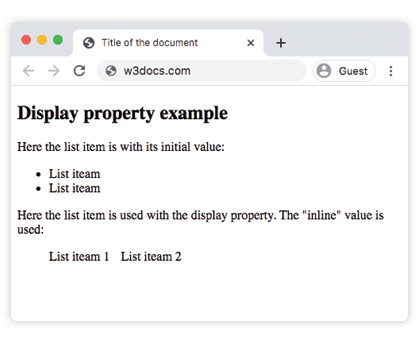
When display: inline is applied to the list items, they no longer each start on a new line — instead they sit side by side, separated only by the margin-right you set.
Example of the display property with the "inline" and "block" values:
Example of CSS display Property with inline and block values
<!DOCTYPE html>
<html>
  <head>
    <title>Title of the document</title>
    <style>
      .inline {
        border: 1px solid #1c87c9;
        display: inline;
      }
      .block {
        border: 1px solid #1c87c9;
        display: block;
        height: 30px;
        width: 300px;
      }
    </style>
  </head>
  <body>
    <h2>Display property example</h2>
    <p>Here the list item is with "initial" value. We see that the "inline" value does not accept height and width:</p>
    <span>This is some text.</span>
    <span class="inline">This is another text.</span>
    <hr />
    <p>Here the list item is used with the "block" value of the display property:</p>
    <span class="block">This is some text.</span>
    <span class="block">This is another text.</span>
  </body>
</html>The first pair of <span>s stays on one line because inline ignores width and height. The .block spans, by contrast, each take a full line and honor the 300px width and 30px height.
Example of the display property with the "block" value:
Example of CSS display Property with block value
<!DOCTYPE html>
<html>
  <head>
    <title>The title of the document</title>
    <style>
      .block {
        display: block;
        border: 1px solid #666;
        background-color: #eee;
        padding: 10px;
        width: 200px;
      }
      .hello {
        border: 1px solid #1c87c9;
        background-color: #8ebf42;
        padding: 10px;
      }
    </style>
  </head>
  <body>
    <h2>Display property example</h2>
    <div class="block">
      Lorem Ipsum is dummy text of the printing and typesetting industry. Lorem Ipsum has been the industry's standard dummy text ever since the 1500s when an unknown printer took a galley of type and scrambled it to make a type specimen book.
      <div class="hello">HELLO!</div>
      It has survived not only five centuries, but also the leap into electronic typesetting, remaining essentially unchanged.
    </div>
  </body>
</html>Example of the display property with the "contents" value:
Example of CSS display Property with contents value
<!DOCTYPE html>
<html>
  <head>
    <title>Title of the document</title>
    <style>
      .contents {
        display: contents;
      }
      .hello {
        border: 1px solid #1c87c9;
        background-color: #ccc;
        padding: 10px;
        text-align: center;
      }
    </style>
  </head>
  <body>
    <h2>Display property example</h2>
    <div class="contents">
      Lorem Ipsum is dummy text of the printing and typesetting industry. Lorem Ipsum has been the industry's standard dummy text ever since the 1500s, when an unknown printer took a galley of type and scrambled it to make a type specimen book.
      <div class="hello">HELLO!</div>
      It has survived not only five centuries, but also the leap into electronic typesetting, remaining essentially unchanged.
    </div>
  </body>
</html>With display: contents, the .contents wrapper generates no box of its own — its border and background would be ignored, and its children (the text and the .hello box) behave as if they were direct children of <body>.
Example of the display property with the "flex" value:
Example of CSS display Property with flex value
<!DOCTYPE html>
<html>
  <head>
    <title>Title of the document</title>
    <style>
      #flex {
        width: 300px;
        height: 100px;
        border: 1px solid #c3c3c3;
        display: flex;
        justify-content: center;
      }
      div {
        width: 70px;
        height: 70px;
      }
    </style>
  </head>
  <body>
    <h2>Display property example</h2>
    <p>Here the "display: flex;" is used:</p>
    <div id="flex">
      <div style="background-color: #1c87c9;">1</div>
      <div style="background-color: #666;">2</div>
      <div style="background-color: #8ebf42;">3</div>
    </div>
  </body>
</html>Values
| Value | Description |
|---|---|
| inline | Lays the element out as an inline box (flows within text, ignores width/height). |
| block | Lays the element out as a block box (starts on a new line, fills available width). |
| inline-block | An inline-level box that does respect width, height, and vertical spacing. |
| flex | Block-level flex container. |
| inline-flex | Inline-level flex container. |
| grid | Block-level grid container. |
| inline-grid | Inline-level grid container. |
| contents | The element generates no box; its children render as if they were children of its parent. |
| inline-table | An inline-level table. Behaves like a <table> but as an inline box. |
| table | Behaves like an HTML <table> element. |
| table-caption | Behaves like an HTML <caption> element. |
| table-column-group | Behaves like an HTML <colgroup> element. |
| table-header-group | Behaves like an HTML <thead> element. |
| table-footer-group | Behaves like an HTML <tfoot> element. |
| table-row-group | Behaves like an HTML <tbody> element. |
| table-row | Behaves like an HTML <tr> element. |
| table-cell | Behaves like an HTML <td> element. |
| table-column | Behaves like an HTML <col> element. |
| list-item | Behaves like an HTML <li> element (adds a marker box). |
| run-in | Renders as block or inline depending on context. Deprecated — removed from most browsers; avoid. |
| none | Removes the element from the layout entirely; it generates no box and takes up no space. |
| initial | Sets the property to its default value (inline). |
| inherit | Inherits the value from the parent element. |
display: none vs. visibility: hidden
A frequent point of confusion: display: none removes the element from the document flow completely — it occupies no space, as if it were deleted. visibility: hidden hides the element but keeps its box, so it still reserves the space it would have taken. Use display: none to collapse layout, and visibility: hidden to hide while preserving the layout gap.
Related properties
- The Ultimate Guide to Flexbox — everything
display: flexunlocks. - grid — building two-dimensional layouts with
display: grid. - visibility — hide elements without removing them from flow.
- position and float — other ways to control how boxes are placed.
- Block and inline elements — the HTML defaults
displayoverrides.