CSS border-collapse property
CSS border-collapse property specifies whether table borders are shared or collapsed. See example and recognize the difference between the values.
The CSS border-collapse property defines whether the borders of a table's cells are kept separate or collapsed into a single shared border.
By default, every cell in a <table> draws its own border, so the boundary between two adjacent cells is actually two borders sitting next to each other (plus any gap between them). This often looks like a thick, doubled line. The border-collapse property lets you choose between that classic spreadsheet look and a cleaner, single-line grid.
separate(the default) — each cell keeps its own borders. The distance between adjacent cell borders is controlled by the border-spacing property.collapse— adjacent borders merge into one. The browser picks the "winning" border for each shared edge based on width, style, and color, andborder-spacingis ignored.
This property only affects <table> and display: inline-table elements, and it is one of the few cases where borders set on a <table>, its rows, and its cells interact with each other.
| Initial Value | separate |
|---|---|
| Applies to | Table and inline-table elements. |
| Inherited | No. |
| Animatable | No. |
| Version | CSS2 |
| DOM Syntax | object.style.borderCollapse = "collapse"; |
Syntax
Syntax of CSS border-collapse property
border-collapse: separate | collapse | initial | inherit | unset;Example of the border-collapse property:
Example of CSS border-collapse property with collapse value
<!DOCTYPE html>
<html>
  <head>
    <title>The title of the document</title>
    <style>
      table {
        border-collapse: collapse;
      }
      table,
      th,
      td {
        border: 1px solid #cccccc;
      }
      thead {
        background-color: #1c87c9;
        color: #ffffff;
      }
      th {
        height: 50px;
        text-align: center;
      }
      td {
        padding: 3px 10px;
      }
    </style>
  </head>
  <body>
    <h2>Border-collapse property example</h2>
    <p>Here the "collapse" value is set for the border-collapse property.</p>
    <table>
      <thead>
        <tr>
          <th>Heading</th>
          <th>Heading</th>
          <th>Heading</th>
          <th>Heading</th>
        </tr>
      </thead>
      <tbody>
        <tr>
          <td>Some text</td>
          <td>Some text</td>
          <td>Some text</td>
          <td>Some text</td>
        </tr>
        <tr>
          <td>Some text</td>
          <td>Some text</td>
          <td>Some text</td>
          <td>Some text</td>
        </tr>
      </tbody>
    </table>
  </body>
</html>Result
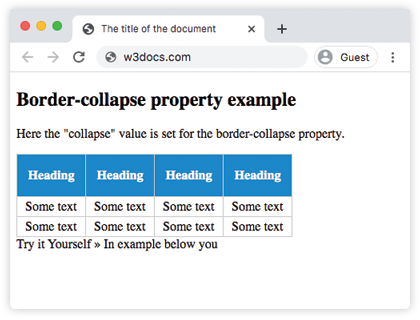
In the example below, you can see the contrast directly. When border-collapse: separate is used, the border-spacing property defines the gap between cells. When border-collapse: collapse is used, border-spacing has no effect — the cells touch and their borders merge.
Example of the border-collapse property with the "separate" and "collapse" values:
Example of CSS border-collapse property with separate value
<!DOCTYPE html>
<html>
  <head>
    <title>The title of the document</title>
    <style>
      table,
      td,
      th {
        border: 1px solid #ccc;
      }
      thead {
        background-color: #1c87c9;
        color: #ffffff;
      }
      th {
        height: 30px;
        text-align: center;
      }
      td {
        padding: 3px 10px;
      }
      #table1 {
        border-collapse: separate;
        border-spacing: 10px;
      }
      #table2 {
        border-collapse: collapse;
        border-spacing: 10px; /* ignored when border-collapse is collapse */
      }
    </style>
  </head>
  <body>
    <h1>Border-collapse property example</h1>
    <h2>border-collapse: separate;</h2>
    <p>When using the "border-collapse: separate", the border-spacing property can be used to define the space between the cells.</p>
    <table id="table1">
      <thead>
        <tr>
          <th>Heading</th>
          <th>Heading</th>
          <th>Heading</th>
          <th>Heading</th>
        </tr>
      </thead>
      <tbody>
        <tr>
          <td>Some text</td>
          <td>Some text</td>
          <td>Some text</td>
          <td>Some text</td>
        </tr>
        <tr>
          <td>Some text</td>
          <td>Some text</td>
          <td>Some text</td>
          <td>Some text</td>
        </tr>
      </tbody>
    </table>
    <h2>border-collapse: collapse;</h2>
    <p>When using the "border-collapse: collapse", the border-spacing property has no effect.</p>
    <table id="table2">
      <thead>
        <tr>
          <th>Heading</th>
          <th>Heading</th>
          <th>Heading</th>
          <th>Heading</th>
        </tr>
      </thead>
      <tbody>
        <tr>
          <td>Some text</td>
          <td>Some text</td>
          <td>Some text</td>
          <td>Some text</td>
        </tr>
        <tr>
          <td>Some text</td>
          <td>Some text</td>
          <td>Some text</td>
          <td>Some text</td>
        </tr>
      </tbody>
    </table>
  </body>
</html>Values
| Value | Description |
|---|---|
| separate | Each cell has its own borders. This is the default value. The border-spacing property controls the distance between cells. |
| collapse | Cells share their borders. Adjacent borders merge into a single border. |
| initial | Sets the property to its default value. |
| inherit | Inherits the property from its parent element. |
| unset | Resets the property to its initial value. |
How the collapsing model works
When border-collapse: collapse is set, each shared edge can only draw one border, so the browser must resolve conflicts between the borders declared on the table, the row, and the two adjacent cells. The rules, in order, are:
- A border with
border-style: hiddenalways wins and removes the edge entirely. - A wider border beats a narrower one.
- If widths are equal, styles are ranked:
double>solid>dashed>dotted>ridge>outset>groove>inset. - If width and style still tie, the border belonging to the element closest to the cell wins (cell over row over table).
This is why, in collapsed mode, setting different border widths on <td> and <table> may not look the way you expect — only the winning border is painted.
When to use it
- Use
collapsefor most data tables. It produces the clean, single-line grid people expect from spreadsheets and is the easiest way to avoid doubled borders. - Keep
separatewhen you want visible spacing between cells (set border-spacing), rounded cell corners, or per-cell borders that don't merge. - Note that
border-radiuson cells only has a visible effect inseparatemode; collapsed borders cannot be rounded.
Practice
Related resources
- CSS border-spacing property — set the gap between cells when
border-collapse: separateis used. - CSS empty-cells property — show or hide borders on empty cells (only applies in
separatemode). - CSS table-layout property — control how the browser sizes table columns.
- CSS border property — the shorthand for width, style, and color of an element's border.