CSS padding-top Property
How to use CSS padding-top property to define the padding space on the top of an element. See property values and try examples.
The CSS padding-top property sets the height of the padding area on the top side of an element — the space between the element's content (or its top border) and the content above it inside the box.
Padding is the innermost layer of the CSS box model: from the inside out you have the content, then padding, then the border, then the margin. Unlike margin, padding is inside the element, so it shares the element's background color and is part of the clickable/visible area.
Use padding-top when you want to push content down from the top edge of its container — for example, to give a heading breathing room below a card's top border, or to add vertical rhythm inside a button or callout without affecting the spacing between separate elements (that is what margin is for).
Negative values are not valid. If you need to pull content upward, use a negative margin-top instead.
This property does not visibly affect inline elements such as <span> — vertical padding on an inline box does not change line height or push surrounding lines apart. Set display: inline-block or display: block on the element if you need the top padding to take effect.
| Initial Value | 0 |
|---|---|
| Applies to | All elements, except when the display property is set to table-row-group, table-header-group, table-footer-group, table-row, table-column-group and table-column. It also applies to ::first-letter. |
| Inherited | No. |
| Animatable | Yes. Padding space is animatable. |
| Version | CSS1 |
| DOM Syntax | object.style.paddingTop = "10px"; |
Syntax
Syntax of CSS padding-top Property
padding-top: length | initial | inherit;Example of the padding-top property:
Example of CSS padding-top Property with px value
<!DOCTYPE html>
<html>
  <head>
    <title>The title of the document</title>
    <style>
      p {
        border: 2px solid #666;
        color: #8ebf42;
        padding-top: 30px;
      }
    </style>
  </head>
  <body>
    <h2>Padding-top property example</h2>
    <p>Lorem Ipsum is simply dummy text of the printing and typesetting industry.</p>
  </body>
</html>Result
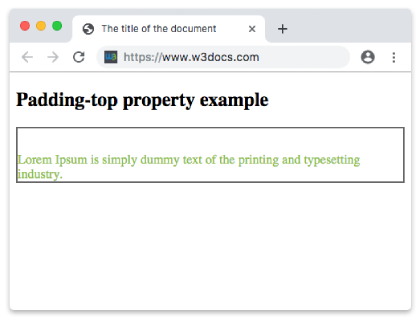
Example of the padding-top property that is set in "em".
Example of CSS padding-top Property with em value
<!DOCTYPE html>
<html>
  <head>
    <title>The title of the document</title>
    <style>
      p {
        border: 2px solid #666;
        color: #8ebf42;
        padding-top: 4em;
      }
    </style>
  </head>
  <body>
    <h2>Padding-top property example</h2>
    <p>Lorem Ipsum is simply dummy text of the printing and typesetting industry.</p>
  </body>
</html>An em value is relative to the element's own font-size, so padding-top: 4em scales with the text. This is handy when you want the spacing to grow and shrink together with the font.
Example of the padding-top property specified in percentage:
The percentage value is special: it is calculated relative to the width of the containing block, not its height. So padding-top: 15% means 15% of the parent's width. This quirk is the basis of the classic aspect-ratio technique for keeping a box proportional as it resizes.
Example of CSS padding-top Property with "%" value:
<!DOCTYPE html>
<html>
  <head>
    <title>The title of the document</title>
    <style>
      p {
        border: 2px solid #cccccc;
        color: #8ebf42;
        padding-top: 15%;
      }
    </style>
  </head>
  <body>
    <h2>Padding-top property example</h2>
    <p>Lorem Ipsum is simply dummy text of the printing and typesetting industry.</p>
  </body>
</html>Values
| Value | Description | Play it |
|---|---|---|
| length | Sets the top padding in px, pt, cm, etc. The default value is 0. | Play it » |
| % | Sets top padding in % of the width of the containing element. | Play it » |
| initial | Makes the property use its default value. | Play it » |
| inherit | Inherits the property from its parents element. |
padding-top vs. the padding shorthand
padding-top controls a single side. When you set several sides at once, the padding shorthand is shorter. These two rules are equivalent:
/* longhand */
padding-top: 30px;
padding-right: 10px;
padding-bottom: 30px;
padding-left: 10px;

/* shorthand: top right bottom left (clockwise) */
padding: 30px 10px 30px 10px;With two values, padding: 30px 10px sets top/bottom to 30px and left/right to 10px. Reach for the longhand padding-top when you only want to change the top side and leave the others untouched. See also padding-bottom for the opposite side.
How padding-top affects element size
By default (box-sizing: content-box), padding is added on top of the declared height. An element with height: 100px and padding-top: 30px is rendered 130px tall. If you set box-sizing: border-box, the padding is drawn inside the declared height instead, so the element stays 100px tall and the content area shrinks. This is a frequent source of "why is my box too tall" bugs.