CSS background-position Property
The CSS background-position property specifies where should be the starting position of a background-image. See examples and try them yourself.
The CSS background-position property sets the starting position of a background-image inside its element. It controls where the image is anchored — for example, in a corner, centered, or offset by a fixed distance from an edge.
This page covers the keyword, percentage, and length syntaxes, the important difference between how percentages and lengths are measured, edge-relative offsets (the four-value syntax), positioning multiple background images, and the most common mistakes.
By default the value is 0% 0%, which places the image in the top-left corner of the element. If the background is set to repeat, it tiles outward from that anchor point both horizontally and vertically.
| Initial Value | 0% 0% |
|---|---|
| Applies to | All elements. It also applies to ::first-letter and ::first-line. |
| Inherited | No. |
| Animatable | Yes. The position can be changed. |
| Version | CSS1 |
| DOM Syntax | object.style.backgroundPosition = "center"; |
Syntax
Syntax of CSS background-position Property
background-position: value;You can give one or two values:
/* One value — the second axis defaults to center */
background-position: right;        /* same as: right center */

/* Two values — horizontal first, then vertical */
background-position: left top;
background-position: 50% 25%;
background-position: 20px 100px;

/* Four values — offset from a named edge */
background-position: right 20px bottom 10px;Percentages vs. lengths
This is the detail that trips people up most. A percentage aligns the same percentage point of the image with that point of the container, while a length (px, em, etc.) measures the gap between the top-left corners.
background-position: 100% 100%puts the image's bottom-right corner against the container's bottom-right corner — the whole image stays visible.background-position: 50% 50%(the same ascenter center) centers the image no matter its size.background-position: 20px 0simply shifts the image 20px to the right of the top-left corner; the offset is independent of the image size.
So percentages are best for "anchor to an edge or center it" and lengths are best for "nudge it a fixed amount."
Example of the background-position property:
Example of CSS background-position Property with default value
<!DOCTYPE html>
<html>
  <head>
    <title>Title of the document</title>
    <style>
      body {
        padding: 102px;
        background-image: url("/uploads/media/default/0001/02/55a2f152f59bf42a99b576d44a4578ec9daa0ab6.png");
        background-repeat: no-repeat;
        background-attachment: fixed;
        background-position: left top;
      }
    </style>
  </head>
  <body>
    <h2>Background-position property example</h2>
    <p>The background-image is positioned at the left-top corner of the element.</p>
  </body>
</html>Result
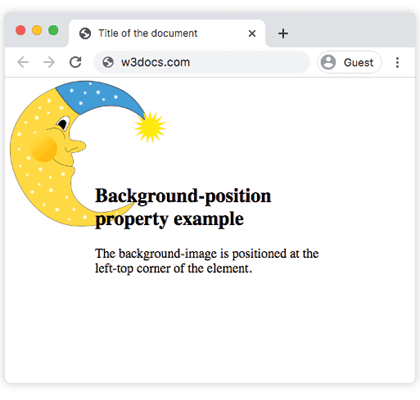
Example of the background-position property specified in percentage:
Example of CSS background-position Property when used % (percentage)
<!DOCTYPE html>
<html>
  <head>
    <title>Title of the document</title>
    <style>
      body {
        background-image: url("/uploads/media/default/0001/02/55a2f152f59bf42a99b576d44a4578ec9daa0ab6.png");
        background-repeat: no-repeat;
        background-attachment: fixed;
        background-position: 50% 15%;
      }
    </style>
  </head>
  <body>
    <h2>Background-position property example</h2>
    <p>
      The background-image is positioned 50% from the left side and 15% from the top side of the element.
    </p>
  </body>
</html>Example of the background-position property in pixels:
Example of CSS background-position Property when used px
<!DOCTYPE html>
<html>
  <head>
    <title>Title of the document</title>
    <style>
      body {
        padding: 100px;
        background-image: url("/uploads/media/default/0001/02/55a2f152f59bf42a99b576d44a4578ec9daa0ab6.png");
        background-attachment: fixed;
        background-position: 5px 50px;
      }
    </style>
  </head>
  <body>
    <h2>Background-position property example</h2>
    <p>
      The background-image is positioned 5px from the left, and 50px down from the top.
    </p>
  </body>
</html>Example of the background-position property with the "right 100px" value:
<!DOCTYPE html>
<html>
  <head>
    <title>Title of the document</title>
    <style>
      body {
        padding: 100px;
        background-image: url("/uploads/media/default/0001/02/55a2f152f59bf42a99b576d44a4578ec9daa0ab6.png");
        background-repeat: no-repeat;
        background-attachment: fixed;
        background-position: right 100px;
      }
    </style>
  </head>
  <body>
    <h2>Background-position property example</h2>
    <p>The background-image is positioned 100px from the right edge, vertically centered.</p>
  </body>
</html>Example of the background-position property with the "center center" value :
<!DOCTYPE html>
<html>
  <head>
    <title>Title of the document</title>
    <style>
      body {
        padding: 102px;
        background-image: url("/uploads/media/default/0001/02/55a2f152f59bf42a99b576d44a4578ec9daa0ab6.png");
        background-attachment: fixed;
        background-position: center center;
      }
    </style>
  </head>
  <body>
    <h2>Background-position property example</h2>
    <p>The background-image is positioned center.</p>
  </body>
</html>Offsetting from a specific edge
The three- and four-value syntax lets you offset the image from a named edge instead of from the top-left corner. Each length follows the keyword that names the edge it is measured from:
/* 30px in from the right edge, 10px down from the top edge */
background-position: right 30px top 10px;This is far clearer than trying to express the same thing with percentages, and it keeps the offset constant even if the container resizes. It is supported in all modern browsers (and Internet Explorer 9+).
Positioning multiple background images
When an element has several background images, give each one its own position in a comma-separated list. The order of the positions matches the order of the images:
.banner {
  background-image: url("logo.png"), url("pattern.png");
  background-repeat: no-repeat, repeat;
  background-position: right top, left top;
}Here the logo sits at the top-right corner while the repeating pattern starts at the top-left.
Common mistakes
- Wrong axis order. The first value is always horizontal, the second vertical —
background-position: 30px 80pxmeans 30px from the left, not from the top. - Forgetting
background-repeat: no-repeat. If the image tiles, the position only sets where the first tile starts, so the effect is often invisible. - Confusing percentages with lengths.
50%centers the image;50pxis a fixed offset from the corner (see the section above). - Mixing units in a single value pair is fine —
background-position: center 20pxis valid and useful.
Related properties
- background-image — sets the image being positioned.
- background-repeat — controls tiling, which interacts with the anchor point.
- background-size — scaling the image changes how percentage positions resolve.
- background-attachment — whether the image scrolls with the page or stays fixed.
- background-color — the fallback color shown where the image does not cover.
Values
| Value | Description | Play it |
|---|---|---|
left, center, right, top, bottom | Sets the position of the background-image. If only one value is set, the other defaults to center. | Play it » |
x% y% | The first value sets the horizontal position and the second sets the vertical. 0% 0% is the top-left corner. 100% 100% is the bottom-right corner. If only one value is set, the other defaults to 50%. | Play it » |
xpos ypos | The first value sets the horizontal position and the second sets the vertical. Units can be pixels (e.g., 0px 0px). | Play it » |
initial | Sets the property to its default value. | Play it » |
inherit | Inherits the property from its parent element. |