CSS Usage
Use one of three ways to add styles to an HTML document: inline, internal and external. Learn when and how to use each of them.
CSS controls how an HTML document looks, but the browser needs to know where to find those style rules. There are three ways to attach CSS to an HTML page, and each one suits a different situation:
- Inline style — put the rules directly on a single element with its
styleattribute. - Internal (embedded) style — collect the rules inside a
<style>element in the<head>section of the page. - External style — keep the rules in a separate
.cssfile and link it from the page.
This page covers all three methods, when to reach for each one, and how they interact when more than one of them targets the same element. If you are new to how a CSS rule is built (selector, property, value), read CSS Syntax first.
Inline Style
An inline style is written directly on one element using its style attribute. The rules apply only to that single element. The attribute holds one or more declarations (property: value) separated by semicolons — no selector and no curly braces are needed, because the element the rule applies to is the element it is written on.
When to use it: for quick one-off tweaks or for styles generated dynamically (for example by JavaScript). Avoid it for general styling — because the rule lives on the element, you cannot reuse it, and it is hard to maintain across a large page.
Example of creating an inline style for an HTML document:
CSS Inline Style Example
<!DOCTYPE html>
<html>
  <head>
    <title>Title of the document</title>
  </head>
  <body>
    <h2 style="color:#1c87c9">Some heading</h2>
    <p style="color:#8ebf42; font-size:15px">Some paragraph</p>
  </body>
</html>Result
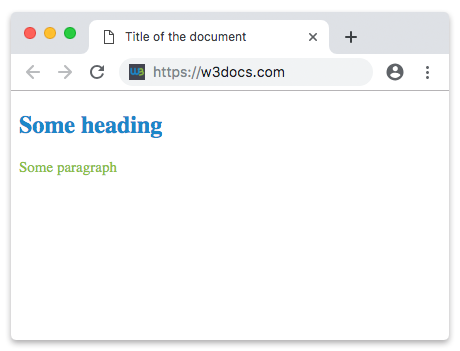
Let's walk through the example. On the <h2> tag we wrote style="color:#1c87c9", so that heading's text is rendered in the blue color #1c87c9.
We did the same on the <p> tag with style="color:#8ebf42; font-size:15px". The two declarations are separated by a semicolon: the text between the opening <p> and closing </p> tags is colored #8ebf42 (green) and sized at 15px.
Internal Style
With an internal (or embedded) style, the CSS for a page lives inside a <style> element in the page's <head>. Unlike inline styles, you write full rules here — a selector followed by a declaration block in curly braces — so one rule can target many elements at once.
When to use it: for a single page that needs its own styling and is not shared with the rest of the site, or for quick prototyping. The trade-off is that the rules only affect that one page. To style several pages the same way, you would have to copy the <style> block into each of them — which is exactly the problem external stylesheets solve.
In the example below, the body rule paints the page background #1c87c9 (blue) and the p rule makes paragraph text white.
Example of creating an internal style for an HTML document:
CSS Internal Style Example
<!DOCTYPE html>
<html>
  <head>
    <title>Title of the document</title>
    <style>
      body {
        background-color: #1c87c9;
      }
      p {
        color: white;
      }
    </style>
  </head>
  <body>
    <p>Some information</p>
  </body>
</html>External Style
An external style sheet keeps all the CSS in its own file, separate from the HTML. This is the standard approach for real websites, because every page can link to the same file and share one consistent look. You can create the file with any text or HTML editor such as Notepad or Sublime Text.
The file contains only CSS — no HTML tags — and is saved with the .css extension. To attach it to a page, add a <link> tag inside the <head> section. Every page that should use those styles needs its own <link>.
When to use it: almost always for a multi-page site. Because the rules live in one place, changing a color or font in that single .css file updates every page at once, and the browser can cache the file so it is downloaded only once.
Example of creating an external style for an HTML document:
CSS External Style Example
<head>
  <link rel="stylesheet" type="text/css" href="style.css" />
</head>A matching style.css file might look like this:
body {
  background-color: #1c87c9;
}
p {
  color: white;
}Which Method Should You Use?
As a rule of thumb:
- Use an external stylesheet for nearly all real-world work — it is reusable, cacheable, and easy to maintain.
- Use internal styles for a one-off page or a quick demo.
- Use inline styles only for a single tweak you cannot express any other way (often a dynamically computed value).
How the Methods Interact
When the same element is targeted by more than one method, the browser has to decide which declaration wins. All else being equal, the order of strength is:
- Inline styles (highest priority).
- Internal and external rules, decided by selector specificity and, when specificity ties, by which rule appears last.
So an inline style="color:red" overrides a p { color: blue; } rule from a stylesheet. This priority system is called the cascade — the "C" in CSS.