CSS Font
Use CSS font properties to style text, set its size, boldness and font family. Learn how to use CSS font styles.
Typography is one of the first things a reader notices about a page, and CSS gives you fine-grained control over it. The CSS font properties define the typeface (font family), the size, the weight (boldness), and the style (such as italics) of your text.
This chapter introduces each individual font property, shows a runnable example for every one, and then explains the font shorthand that lets you set them all in a single declaration.
The CSS font property is a shorthand that combines several font properties. Here we will explain the individual properties that compose it:
When adding text or links to a webpage, we style them using these properties. Let's explore them in detail.
Font Family
We use the font-family property to specify the font for the text. This defines the name of the font used on the webpage.
CSS Font
p {
  font-family: Arial, sans-serif;
}As you can see, we have applied the font-family property to our <p> tag. We differentiate two types of families:
- generic family - a group of font families having a similar look (like "Serif" or "Sans-serif")
- font family - a particular font family (like "Times New Roman" or "Arial")
When a font family name consists of more than one word, enclose it in quotes (e.g., "Times New Roman"). It is also recommended to provide a fallback font family in case the browser does not support the first one.
Font Style
We use the font-style property primarily to display text in italics.
The most commonly used values for the font-style property are:
normal, which shows the text normally,italic, which displays the text in italics,oblique, which “leans” the text.
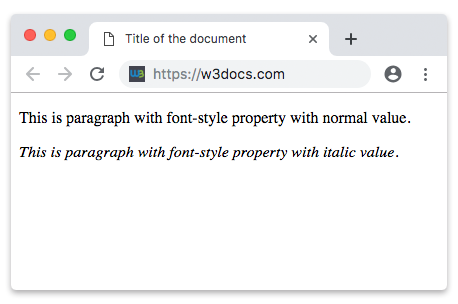
Example of the font-style property:
<!DOCTYPE html>
<html>
  <head>
    <title>Title of the document</title>
  </head>
  <body>
    <p style="font-style:normal">This is paragraph with font-style property with normal value.</p>
    <p style="font-style:italic">This is paragraph with font-style property with italic value.</p>
    <p style="font-style:oblique">This is paragraph with font-style property with oblique value.</p>
  </body>
</html>By default our text will be font-style: normal, even without writing this value.
Font Size
We use the font-size property to set the size of the text.
Values can be specified in pixels, points, em, rem, etc. You can find the full list in the font-size section. Note that 1em equals the computed font size of the parent element (often 16px by default). Pixels (px) are the most commonly used unit.
Example of the font-size property:
<!DOCTYPE html>
<html>
  <head>
    <title>Title of the document</title>
  </head>
  <body>
    <h3 style="font-size:40px;"> Some heading with font-size property.</h3>
    <p style="font-size:25px;"> Some paragraph with font-size property.</p>
    <a style="font-size:2em;"> Some link with font-size property.</a>
  </body>
</html>You need to check it also by yourself. You can do that with our html online editor click here.
Font Variant
The font-variant property allows you to set text to normal or small-caps.
The small-caps value converts lowercase letters to uppercase, but displays them at a smaller size than the original uppercase letters.
Example of the font-variant property:
<!DOCTYPE html>
<html>
  <head>
    <title>Title of the document</title>
    <style>
      .smallcaps {
        font-variant: small-caps;
      }
    </style>
  </head>
  <body>
    <h2>Font-variant property example</h2>
    <p>Here we used a normal text as you can see.</p>
    <p class="smallcaps">But We Used A Text With Small-Caps Here.</p>
  </body>
</html>Font Weight
Now, let's learn how to make regular text bolder, since headings are bold by default.
We use the font-weight property for this.
The most commonly used values for the font-weight property are:
normalbold
Values can also be specified as numbers.
Example of the font-weight property:
<!DOCTYPE html>
<html>
  <head>
    <title>Title of the document</title>
  </head>
  <body>
    <p style="font-weight:900">Some paragraph with the font-weight property with value bold.</p>
    <p style="font-weight:normal">Some paragraph with the font-weight property with value normal.</p>
    <p style="font-weight:bold">Some paragraph with the font-weight property with value bold.</p>
  </body>
</html>As mentioned, numeric values range from 100 to 900. The value 400 corresponds to normal, and 700 corresponds to bold. As the number increases from 100 to 900, the font becomes bolder.
The font Shorthand
Instead of writing each property on its own line, you can set them all at once with the font shorthand. This keeps your stylesheet shorter and groups related declarations together.
The order of values matters. The syntax is:
font: font-style font-variant font-weight font-size/line-height font-family;A few rules to remember:
font-sizeandfont-familyare required. If either is missing, the whole declaration is ignored.font-style,font-variant, andfont-weightare optional and must come beforefont-size.line-heightis optional and is written afterfont-size, separated by a slash (/).- Any value you omit is reset to its default value, so the shorthand is a convenient way to clear earlier longhand declarations.
Here is the same paragraph styled with longhand properties and then with the shorthand:
/* Longhand */
p {
  font-style: italic;
  font-weight: bold;
  font-size: 18px;
  line-height: 1.5;
  font-family: Georgia, serif;
}

/* Equivalent shorthand */
p {
  font: italic bold 18px/1.5 Georgia, serif;
}For more details and examples, see the font chapter.