CSS padding-left Property
How to use CSS padding-left property to define the padding space on the left of an element. See property values and examples.
The padding-left CSS property sets the width of the padding area on the left side of an element. Padding is the space between an element's content and its border — increasing padding-left pushes the content to the right, away from the left edge, without affecting the element's neighbors.
This page covers the syntax of padding-left, the units and keyword values it accepts, how percentages are calculated, how it interacts with the shorthand padding property and the box model, plus runnable examples.
When to use padding-left
Reach for padding-left (instead of the padding shorthand) when you only need to adjust one side and want to keep the rule explicit and easy to scan — for example, indenting list text, offsetting a label from an icon, or creating breathing room on the left of a card.
If you are setting all four sides at once, prefer the padding shorthand instead. The single-side longhands — padding-left, padding-right, padding-top and padding-bottom — are handy for overriding just one value after a shorthand has set the rest.
Padding is not margin. Padding sits inside the element's border and shares the element's background; margin-left adds space outside the border and is always transparent. If you want to separate an element from its neighbour, use margin; to push the content inward, use padding.
Negative values are not allowed. Unlike margins, padding can never be negative.
On inline elements like <span>, horizontal padding is applied (and is visible), but it does not push surrounding line boxes apart — so vertically it appears to have no layout effect. For full control, set the element to display: inline-block or display: block.
How padding-left affects the box model
By default the browser uses the standard CSS box model, where the rendered width of an element is its width plus its left and right padding plus its borders. So adding padding-left: 100px makes the element 100px wider overall.
If you want padding to be included within the declared width instead of being added to it, set box-sizing: border-box. This is the most common cause of "my layout overflowed when I added padding" — border-box fixes it.
| Initial Value | 0 |
|---|---|
| Applies to | All elements, an exception is made when the display property is set to table-row-group, table-header-group, table-footer-group, table-row, table-column-group and table-column. It also applies to ::first-letter. |
| Inherited | No. |
| Animatable | Yes. Padding space is animatable. |
| Version | CSS1 |
| DOM Syntax | object.style.paddingLeft = "40px"; |
Syntax
Syntax of CSS padding-left Property
padding-left: length | percentage | initial | inherit;The value is most often a fixed length (px, em, rem, cm, …) or a percentage. Percentages are resolved against the width of the containing block — even for left/right and top/bottom padding — so a responsive percentage padding scales with the container's width.
Example with a px value
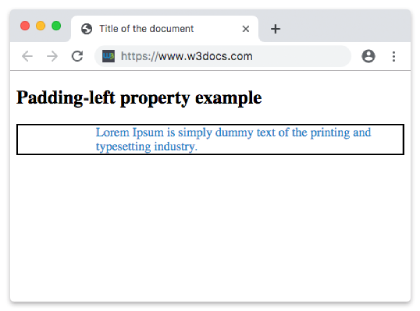
A fixed pixel value is the most predictable choice. Here padding-left: 100px pushes the paragraph text 100px in from the left border:
<!DOCTYPE html>
<html>
  <head>
    <title>Title of the document</title>
    <style>
      p {
        border: 2px solid #000;
        color: #1c87c9;
        padding-left: 100px;
      }
    </style>
  </head>
  <body>
    <h2>Padding-left property example</h2>
    <p>Lorem Ipsum is simply dummy text of the printing and typesetting industry.</p>
  </body>
</html>Result
Example with a cm value
Any absolute length unit works the same way. Here the padding is given in centimetres:
<!DOCTYPE html>
<html>
  <head>
    <title>Title of the document</title>
    <style>
      p {
        border: 2px solid #000;
        color: #1c87c9;
        padding-left: 3cm;
      }
    </style>
  </head>
  <body>
    <h2>Padding-left property example</h2>
    <p>Lorem Ipsum is simply dummy text of the printing and typesetting industry.</p>
  </body>
</html>Example with a percentage value
A percentage is relative to the width of the containing block, so the indent grows and shrinks with the layout. Note that the shorthand padding: 20px is declared first and then padding-left: 15% overrides only the left side:
<!DOCTYPE html>
<html>
  <head>
    <title>Title of the document</title>
    <style>
      p {
        border: 3px solid #cccccc;
        color: deepskyblue;
        padding: 20px;
        padding-left: 15%;
      }
    </style>
  </head>
  <body>
    <h2>Padding-left property example</h2>
    <p>Lorem Ipsum is simply dummy text of the printing and typesetting industry.</p>
  </body>
</html>Values
| Value | Description | Play it |
|---|---|---|
| length | Sets the left padding as a fixed length (px, pt, em, rem, cm, etc.). The default is 0. Negative lengths are invalid. | Play it » |
| % | Sets the left padding as a percentage of the width of the containing block. | Play it » |
| initial | Resets the property to its default value (0). | Play it » |
| inherit | Takes the computed padding-left of the parent element. (Padding is not inherited by default.) |
Related properties
padding— the shorthand that sets all four sides at once.padding-right,padding-top,padding-bottom— the other single-side longhands.margin-left— adds space outside the border instead of inside it.box-sizing— controls whether padding is added to or included within the element'swidth.display— affects how horizontal padding behaves on inline vs. block elements.