CSS Padding
Use CSS padding property (top, bottom, left, right) to set the padding for each side of an HTML element. See examples.
The CSS padding property creates space inside an element, between its content and its border. Unlike margin — which pushes space outside the border, between neighbouring elements — padding is part of the element itself: it shares the element's background and is included in the click/hover area.
This page covers the four individual padding properties, the padding shorthand and all its value forms (one to four values), the units and percentages you can use, and the gotchas (percentages, box-sizing, and why padding never collapses the way margins do).
The individual sides
With the help of the following properties you can set the padding for each side of an element:
As you can guess, for the top, we use padding-top, for bottom padding-bottom, for left side padding-left and right padding-right.
All the padding properties accept the following values:
- length — a fixed size in
px,em,rem,pt,cm, etc. (for examplepadding-top: 16px). - percentage (
%) — a padding relative to the width of the containing block. Note the catch: a vertical percentage padding (top/bottom) is also calculated from the container's width, not its height. This is what makes the classic "padding-bottom percentage" trick for aspect-ratio boxes work. inherit— take the computed padding of the parent element.
A few rules worth remembering:
- Padding cannot be negative. If you need to pull content the other way, that's a job for
marginortransform. - The default value of every padding property is
0. - Padding does not collapse. Adjacent vertical margins can merge into one (margin collapsing), but two paddings always add up — so stacked elements keep both their paddings.
- By default, padding is added on top of the declared
width/height. A200px-wide box withpadding: 20pxrenders240pxwide. Setbox-sizing: border-boxto make padding fit inside the declared width instead.
Example of the individual padding properties:
Example of using individual padding properties:
<!DOCTYPE html>
<html>
  <head>
    <title>Title of the document</title>
    <style>
      div {
        background-color: yellow;
        padding-top: 50px;
        padding-right: 30px;
        padding-bottom: 50px;
        padding-left: 80px;
      }
    </style>
  </head>
  <body>
    <h2>Individual padding properties</h2>
    <div>
      Lorem ipsum dolor sit amet, consectetur adipiscing elit, sed do eiusmod tempor incididunt ut labore et dolore magna aliqua..
    </div>
  </body>
</html>Padding as a shorthand property
The CSS padding property is a shorthand for the four individual properties:
How many values you pass changes how they map onto the four sides:
| Values | padding: … | Top | Right | Bottom | Left |
|---|---|---|---|---|---|
| 1 | 35px | 35px | 35px | 35px | 35px |
| 2 | 20px 40px | 20px | 40px | 20px | 40px |
| 3 | 20px 15px 35px | 20px | 15px | 35px | 15px |
| 4 | 25px 50px 75px 100px | 25px | 50px | 75px | 100px |
The four-value order is clockwise from the top: top, right, bottom, left. With two or three values the missing sides mirror the opposite side.
When the padding property has only 1 value, for example padding: 35px, all four paddings are 35px.
Example of the padding shorthand property with one value:
<!DOCTYPE html>
<html>
  <head>
    <title>Title of the document</title>
    <style>
      div {
        background-color: green;
        padding: 35px;
      }
    </style>
  </head>
  <body>
    <h2>Padding shorthand with one value</h2>
    <div>
      Lorem ipsum dolor sit amet, consectetur adipiscing elit, sed do eiusmod tempor incididunt ut labore et dolore magna aliqua.
    </div>
  </body>
</html>The padding property may have 2 values, for example padding: 20px 40px, where top and bottom paddings are 20px, right and left paddings are 40px.
CSS padding with 2 numbers example
p {
  padding: 20px 40px;
}This is the same with the code above.
CSS padding with 2 numbers example, long way, code
p {
  padding-top: 20px;
  padding-right: 40px;
  padding-bottom: 20px;
  padding-left: 40px;
}Example of the padding shorthand property with two values:
CSS padding example code
<!DOCTYPE html>
<html>
  <head>
    <title>Title of the document</title>
    <style>
      p {
        background-color: #1c87c9;
        color: white;
        padding: 20px 40px;
      }
    </style>
  </head>
  <body>
    <p>Paragraph with background-color, color and padding properties.</p>
  </body>
</html>Result
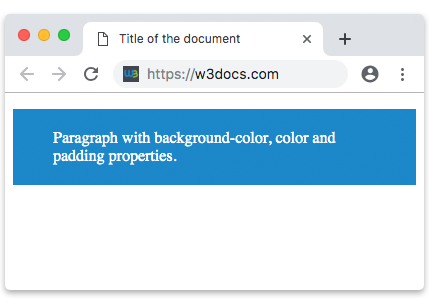
The padding property may have 3 values, for example, padding: 20px 15px 35px;, where top padding is 20px, right and left paddings are 15px and bottom padding is 35px.
CSS padding with 3 numbers example, code
p {
  padding: 20px 15px 35px;
}This is the same with the code above.
CSS padding with 3 numbers example, long way, code
p {
  padding-top: 20px;
  padding-right: 15px;
  padding-bottom: 35px;
  padding-left: 15px;
}Example of the padding shorthand property with three values:
<!DOCTYPE html>
<html>
  <head>
    <title>Title of the document</title>
    <style>
      div {
        background-color: lightblue;
        padding: 20px 15px 35px;
      }
    </style>
  </head>
  <body>
    <h2>Example of the padding shorthand property</h2>
    <div>
      Lorem ipsum dolor sit amet, consectetur adipiscing elit, sed do eiusmod tempor incididunt ut labore et dolore magna aliqua.
    </div>
  </body>
</html>And finally, the padding property can have four values, for example padding: 25px 50px 75px 100px;, where top padding is 25px, right padding is 50px, bottom padding is 75px and left padding is 100px.
CSS the same padding example
p {
  padding: 25px 50px 75px 100px;
}Example of the padding shorthand property with four values:
Example of the padding shorthand property with four values (top, right, bottom, left — clockwise):
<!DOCTYPE html>
<html>
  <head>
    <title>Title of the document</title>
    <style>
      div {
        background-color: #95e5f7;
        padding: 25px 50px 75px 100px;
      }
    </style>
  </head>
  <body>
    <h2>Example of the padding shorthand property</h2>
    <div>
      Lorem ipsum dolor sit amet, consectetur adipiscing elit, sed do eiusmod tempor incididunt ut labore et dolore magna aliqua.
    </div>
  </body>
</html>Padding vs. margin
Padding and margin are easy to mix up. Use padding when you want breathing room inside a box — between text and its border or background. Use margin when you want space between a box and the elements around it.
Key practical differences:
- Padding shares the element's background colour; margin is always transparent.
- Padding is part of the element's clickable area (handy for buttons and links); margin is not.
- Margins can collapse between siblings; paddings never do.
Related topics
- CSS margin — the outside-the-border counterpart of padding.
- CSS box-sizing — controls whether padding adds to or fits inside the element's
width. - padding-top, padding-right, padding-bottom, padding-left — the individual longhand properties.