CSS Text
Go through basic fundamentals of styling text with CSS: CSS text decoration, CSS text color, text alignment, etc. See examples.
CSS gives you fine-grained control over how text looks. This page walks through the core text properties you will reach for most often — what each one does, the values it accepts, and a minimal runnable example for each. Each property links to its own dedicated chapter where you can dig deeper.
- Text color
- Text alignment
- Text decoration
- Text transform
- Text shadow
- Text indentation
- Letter spacing
- Line height
- Word spacing
Text Color
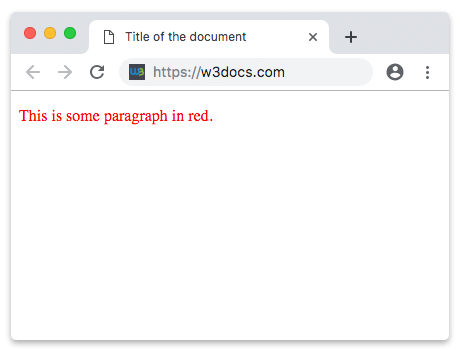
The color property sets the color of an element's text (and, by default, its text
decorations such as underlines). You can specify the value as a color keyword (red), a
HEX value (#ff0000), an rgb() / rgba() value (rgb(255 0 0)), or an hsl() value.
Because color is inherited, setting it on a container applies it to all descendant text
unless a child overrides it.
Example of using the CSS color property:
<!DOCTYPE html>
<html>
  <head>
    <title>Title of the document</title>
  </head>
  <body>
    <p style="color:#ff0000">This is some paragraph in red.</p>
  </body>
</html>Result
Text Alignment
Alignment property is used for aligning text inside an element left, right, center, etc.
Text alignment has four values:
- Left (text-align: left) - aligns the text to the left
- Right (text-align: right) - aligns the text to the right
- Center (text-align: center) - puts the text in center of the page
- Justify (text-align: justify) - stretches the line of text to align both the left and right ends (like in magazines and newspapers)
By default, browsers align text to the start of the line — left in left-to-right languages
such as English. Use the matching value when you need a different alignment. For
language-aware alignment, prefer the logical keywords start and end over left and
right.
Example of using the CSS text-align property:
<!DOCTYPE html>
<html>
  <head>
    <title>Title of the document</title>
  </head>
  <body>
    <p>This is some paragraph</p>
    <p style="text-align:center">Some paragraph with value center.</p>
    <p style="text-align:right">Some paragraph with value right.</p>
    <p style="text-align:justify">Some paragraph with value justify.</p>
  </body>
</html>Text Decoration
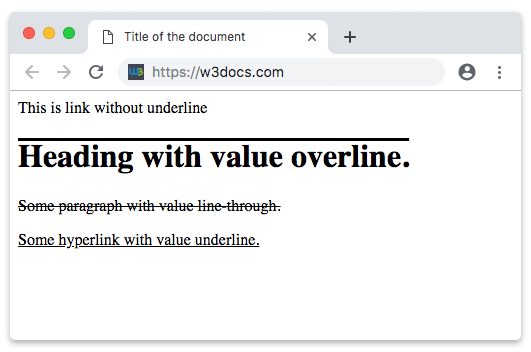
The text-decoration property adds lines to text. In modern CSS it is a shorthand for CSS text-decoration-line, CSS text-decoration-color and CSS text-decoration-style. The most common values for the text-decoration-line part are:
- Overline (text-decoration: overline) - draws a line above the text
- Underline (text-decoration: underline) - draws a line below the text
- Line-through (text-decoration: line-through) - draws a line through the middle of the text
- None (text-decoration: none) - removes any decoration; this is what you use to strip the default underline from links
Example of using the CSS text-decoration property:
<!DOCTYPE html>
<html>
  <head>
    <title>Title of the document</title>
  </head>
  <body>
    <a style="text-decoration:none">This is link without underline</a>
    <h1 style="text-decoration:overline">Heading with value overline.</h1>
    <p style="text-decoration:line-through">Some paragraph with value line-through.</p>
    <a style="text-decoration:underline">Some hyperlink with value underline.</a>
  </body>
</html>Result
Text Transform
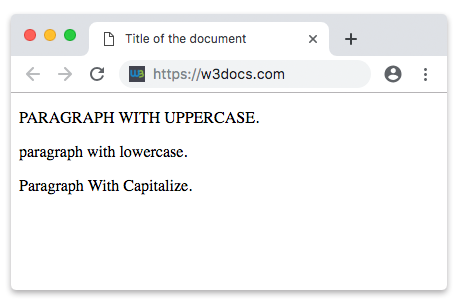
Transform property is used for controlling text capitalization. It means that you can set your text to be uppercase, lowercase, or capitalized (title case).
Transform property has the following values:
- Uppercase (text-transform: uppercase) - converts all characters to uppercase
- Lowercase (text-transform: lowercase) - converts all characters to lowercase
- Capitalize (text-transform: capitalize) - converts the first character of each word to uppercase
- None (text-transform: none) - leaves the text as typed; this is the default
Keep in mind that text-transform only changes how the text is displayed — the underlying
HTML content stays exactly as you wrote it, which matters for copy-paste and accessibility.
Example of using the CSS text-transform property:
<!DOCTYPE html>
<html>
  <head>
    <title>Title of the document</title>
  </head>
  <body>
    <p style="text-transform:uppercase">Paragraph with uppercase.</p>
    <p style="text-transform:lowercase">Paragraph with lowercase.</p>
    <p style="text-transform:capitalize">Paragraph with capitalize.</p>
  </body>
</html>Result
Text Shadow
The text-shadow property adds one or more shadows to text. Each shadow is described by up
to four values, in this order:
text-shadow: h-shadow v-shadow blur-radius color;h-shadow(required) - horizontal offset; positive moves the shadow right, negative left.v-shadow(required) - vertical offset; positive moves the shadow down, negative up.blur-radius(optional) - how soft the shadow is; larger values blur it more (defaults to0).color(optional) - the shadow color; if omitted, the browser uses the element'scolor.
You can stack multiple shadows by separating them with commas, which is how glow and outline effects are built.
Example of using the CSS text-shadow property:
<!DOCTYPE html>
<html>
  <head>
    <title>Title of the document</title>
    <style>
      h1 {
        text-shadow: 2px 2px 4px #888888;
      }
      h2 {
        /* Two shadows stacked to create a glow */
        text-shadow: 0 0 6px #ff0000, 0 0 12px #ff0000;
      }
    </style>
  </head>
  <body>
    <h1>Heading with a soft drop shadow</h1>
    <h2>Heading with a red glow</h2>
  </body>
</html>See the CSS text-shadow chapter for more examples.
Text Indentation
Text indentation property is used for specifying the length of empty space of the first line in a text block. The values below are valid for this property:
- Length, which specifies the indentation in px, pt, cm, em, etc. The default value is 0. Negative values are allowed.
- Percentage, which specifies the indentation as a percentage of the width of the containing block.
- Each-line, when the indentation affects the first line as well as each line after a forced line break, but does not affect lines after a soft wrap break.
- Hanging, which inverts which lines are indented. The first line is not indented.
- Initial, which makes the property use its default value.
- Inherit, which inherits the property from its parent’s element.
Example of using the CSS text-indent property:
<!DOCTYPE html>
<html>
  <head>
    <title>Title of the document</title>
    <style>
      p {
        text-indent: 100px;
        line-height: 24px;
        font-size: 16px;
      }
    </style>
  </head>
  <body>
    <h2>Text Indentation Example</h2>
    <p>
      Lorem ipsum, or lipsum as it is sometimes known, is dummy text used in laying out print, graphic or web designs. The passage is attributed to an unknown typesetter in the 15th century who is thought to have scrambled parts of Cicero's De Finibus Bonorum et Malorum for use in a type specimen book.
    </p>
  </body>
</html>Letter Spacing
CSS letter-spacing property allows to define the spaces between letters/characters in a text. The following values are supported by this property:
- Normal, which means that there won’t be extra spaces between characters. It is the default value of this property.
- Length, which defines an extra space between characters. Negative values are allowed.
- Initial, which makes the property use its default value.
- Inherit, which inherits the property from its parent’s element.
Example of using the CSS letter-spacing property:
<!DOCTYPE html>
<html>
  <head>
    <title>Title of the document</title>
    <style>
      p {
        text-indent: 100px;
        line-height: 24px;
        font-size: 16px;
        letter-spacing: 5px;
      }
      h3 {
        letter-spacing: -1px;
      }
    </style>
  </head>
  <body>
    <h2>Example of letter-spacing property</h2>
    <p>
      Lorem ipsum, or lipsum as it is sometimes known, is dummy text used in laying out print, graphic or web designs. The passage is attributed to an unknown typesetter in the 15th century who is thought to have scrambled parts of Cicero's De Finibus Bonorum et Malorum for use in a type specimen book.
    </p>
    <h3>
      Here is some text with letter-spacing property.
    </h3>
  </body>
</html>Line Height
The line-height property defines the line-height. It is used to set the leading of lines of a text. If the line-height value is greater than the value of the font-size of an element, the difference will be the leading of text. Here are the values supported by this property:
- Normal, which defines a normal line height. It is the default value of this property.
- Length, which defines a fixed line height in px, cm etc.
- Number, which defines a number which is multiplied with the current font size to set the line height.
- %, which defines a line height in percent of current font size.
- Initial, which makes the property use its default value.
- Inherit, which inherits the property from its parent’s element.
A unitless number value (for example line-height: 1.5) is usually the safest choice,
because it scales with each element's own font size and avoids inheritance surprises.
Example of using the CSS line-height property:
<!DOCTYPE html>
<html>
  <head>
    <title>Title of the document</title>
    <style>
      p {
        line-height: 30px;
      }
      h3 {
        line-height: 1;
      }
    </style>
  </head>
  <body>
    <h2>Example of line-height property</h2>
    <p> Lorem ipsum, or lipsum as it is sometimes known, is dummy text used in laying out print, graphic or web designs. The passage is attributed to an unknown typesetter in the 15th century who is thought to have scrambled parts of Cicero's De Finibus Bonorum et Malorum for use in a type specimen book. </p>
    <h3>
      Lorem ipsum, or lipsum as it is sometimes known, is dummy text used in laying out print, graphic or web designs. The passage is attributed to an unknown typesetter in the 15th century who is thought to have scrambled parts of Cicero's De Finibus Bonorum et Malorum for use in a type specimen book.
    </h3>
  </body>
</html>Word Spacing
With the help of the CSS word-spacing property we can change the space between the words in a piece of text, not the individual characters. It supports the values below:
- Normal, which specifies normal word spacing. This is the default value of this property.
- Length, which specifies an extra word spacing. Can be specified in px, pt, cm, em, etc. Negative values are valid.
- Initial, which makes the property use its default value.
- Inherit, which inherits the property from its parent’s element.
Example of using the CSS word-spacing property:
<!DOCTYPE html>
<html>
  <head>
    <title>Title of the document</title>
    <style>
      p {
        word-spacing: 1em;
      }
      h3 {
        word-spacing: -3px;
      }
      span {
        display: block;
        word-spacing: 3rem;
      }
    </style>
  </head>
  <body>
    <h2>Example of word-spacing property</h2>
    <p>
      Lorem ipsum, or lipsum as it is sometimes known, is dummy text used in laying out print, graphic or web designs. The passage is attributed to an unknown typesetter in the 15th century who is thought to have scrambled parts of Cicero's De Finibus Bonorum et Malorum for use in a type specimen book.
    </p>
    <h3>
      Lorem ipsum, or lipsum as it is sometimes known, is dummy text used in laying out print, graphic or web designs. The passage is attributed to an unknown typesetter in the 15th century who is thought to have scrambled parts of Cicero's De Finibus Bonorum et Malorum for use in a type specimen book.
    </h3>
    <span>
    Lorem ipsum, or lipsum as it is sometimes known, is dummy text used in laying out print, graphic or web designs.
    </span>
  </body>
</html>