CSS position Property
Use the position CSS property to place the element on the page. See property values and examples. Try for yourself.
The CSS position property controls how an element is placed in the document and how it responds to the offset properties top, right, bottom, and left. It is one of the most important properties for building layered, fixed, or floating interface elements.
This property accepts five main values:
static— the default; the element stays in the normal document flow.relative— the element keeps its space in the flow but can be nudged with offset properties.absolute— the element is removed from the flow and positioned against its nearest positioned ancestor.fixed— the element is removed from the flow and positioned against the viewport.sticky— the element toggles betweenrelativeandfixedas you scroll.
This page explains when to reach for each value, the rules that govern offsets and containing blocks, and the common gotchas that trip people up.
How offsets and containing blocks work
The offset properties top, right, bottom, and left only take effect on positioned elements — that is, any element whose position is not static. On a static element they are ignored.
What each offset is measured from depends on the value:
relative— offsets are measured from the element's own normal position.topandbottommove it vertically;leftandrightmove it horizontally. The space it originally occupied is preserved, so surrounding content does not shift.absolute— offsets are measured from the edges of the containing block: the nearest ancestor that is itself positioned (relative,absolute,fixed, orsticky). If no such ancestor exists, the offsets are relative to the initial containing block (roughly the<html>element / page).fixed— offsets are measured from the viewport, so the element stays put while the page scrolls.sticky— offsets define a threshold; the element behaves likerelativeuntil you scroll past that threshold, then it sticks likefixedwithin its scrolling container.
A frequent mistake is expecting an
absolutechild to align to its parent without settingposition: relative(or any non-static value) on that parent. Addingposition: relativeto the parent — even with no offsets — turns it into the containing block. This "relative parent, absolute child" pattern is the foundation of most positioned layouts.
| Initial Value | static |
|---|---|
| Applies to | All elements. |
| Inherited | No. |
| Animatable | No. |
| Version | CSS2 |
| DOM Syntax | Object.style.position = "sticky"; |
Syntax
CSS position syntax
position: static | absolute | fixed | relative | sticky | initial | inherit;A simple absolute example
Here position: absolute lifts the paragraph out of the flow and places it 40px from the left and 120px from the top of the page (no positioned ancestor exists, so the page is the reference):
CSS position code example
<!DOCTYPE html>
<html>
  <head>
    <title>Title of the document</title>
    <style>
      p {
        position: absolute;
        left: 40px;
        top: 120px;
      }
    </style>
  </head>
  <body>
    <h2>Position property example</h2>
    <p>Lorem Ipsum is dummy text of the printing and typesetting industry. Lorem Ipsum has been the industry's standard dummy text ever since the 1500s when an unknown printer took a galley of type and scrambled it to make a type specimen book.</p>
  </body>
</html>Result
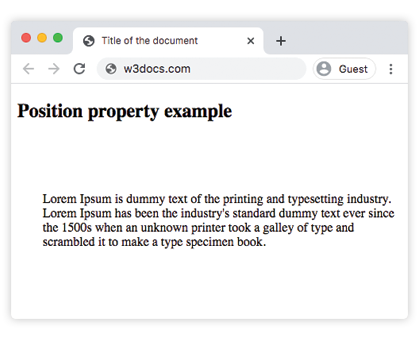
Example of the position property with all the values:
CSS position all values example
<!DOCTYPE html>
<html>
  <head>
    <title>Title of the document</title>
    <style>
      #box1 {
        position: static;
        border: 2px solid #666;
        width: 300px;
        height: 100px;
      }
      #box2 {
        position: absolute;
        border: 2px solid #8ebf42;
        top: 70px;
        right: 15px;
      }
      #box3 {
        position: relative;
        border: 2px solid #666;
        width: 300px;
        height: 100px;
      }
      #box4 {
        position: absolute;
        border: 2px solid #8ebf42;
        top: 70px;
        right: 15px;
      }
      #box5 {
        position: absolute;
        border: 2px solid #666;
        width: 320px;
        height: 100px;
        top: 750px;
        right: 25px;
      }
      #box6 {
        position: absolute;
        border: 2px solid #8ebf42;
        top: 70px;
        right: 15px;
      }
      #box7 {
        position: fixed;
        border: 2px solid #8ebf42;
        background-color: #eee;
        width: 300px;
        height: 100px;
        bottom: 0;
        left: 0;
        right: 0;
      }
      #box8 {
        position: absolute;
        border: 2px solid #666;
        top: 70px;
        right: 15px;
      }
    </style>
  </head>
  <body>
    <h2>Position property example</h2>
    <h3>Position: static</h3>
    <p>
      The Box1 element remains in the natural flow of the page and does not act as anchor point for the absolutely positioned Box2 element:
    </p>
    <div id="box1">
      Box1: position: static.
      <div id="box2">Box2: position: absolute, right: 15px, top: 70px</div>
    </div>
    <h3>Position: relative</h3>
    <p>
      The Box3 element remains in the natural flow of the page and also acts as anchor point for the absolutely positioned Box4 element:
    </p>
    <div id="box3">
      Box3: position: relative.
      <div id="box4">Box4: position: absolute, right: 15px, top: 70px</div>
    </div>
    <h3>Position: absolute</h3>
    <p>
      The Box5 element does not remain in the natural flow of the page. It positions itself according to the closest positioned ancestor and also acts as anchor point for the absolutely positioned Box6 element:
    </p>
    <div id="box5">
      Box5: position: absolute, top: 750px, right: 15px.
      <div id="box6">Box6: position: absolute, right: 15px, top: 70px</div>
    </div>
    <h3>Position: fixed</h3>
    <p>
      The Box7 element does not remain in the natural flow of the page and positions itself according to the viewport and acts as anchor point for the absolutely positioned Box8 element:
    </p>
    <div id="box7">
      Box7: position: fixed, bottom: 0, left: 0, right: 0.
      <div id="box8">Box8: position: absolute, right: 15px, top: 70px</div>
    </div>
  </body>
</html>In this example, box1 (static) and box3 (relative) stay in the normal flow, but only box3 acts as a containing block for its absolutely positioned child, because relative makes it a positioned ancestor while static does not. box5 and box7 are pulled out of the flow and positioned against the page and the viewport respectively.
Sticky positioning
A sticky element scrolls normally until it reaches the offset you specify (here top: 1px), then "sticks" in place inside its scrolling container. It is ideal for table headers, section labels, and toolbars that should remain visible while their section is on screen. Note that sticky positioning only works while the element's scrolling ancestor is being scrolled and the ancestor must not have overflow: hidden clipping it.
Example of the position property with the "sticky" value:
<!DOCTYPE html>
<html>
  <head>
    <title>Title of the document</title>
    <style>
      ul {
        height: 150px;
        overflow: auto;
        position: relative;
        background-color: #cccccc;
        padding: 0;
      }
      ul li {
        list-style-type: none;
        height: 30px;
        padding: 10px 10px 0;
      }
      ul li:first-child {
        position: -webkit-sticky;
        position: sticky;
        top: 1px;
        background-color: #dddddd;
      }
    </style>
  </head>
  <body>
    <h2>Example of the position property with the "sticky" value:</h2>
    <ul>
      <li>Sticky List Item</li>
      <li>List Item 1</li>
      <li>List Item 2</li>
      <li>List Item 3</li>
      <li>List Item 4</li>
      <li>List Item 5</li>
      <li>List Item 6</li>
      <li>List Item 7</li>
      <li>List Item 8</li>
      <li>List Item 9</li>
    </ul>
  </body>
</html>Values
| Value | Description | Play it |
|---|---|---|
| static | Elements are placed according to the normal flow of the document. This is the default value of this property. | Play it » |
| absolute | Elements are removed from the document flow and are positioned relative to its positioned ancestor element. | Play it » |
| fixed | Elements are removed from the document flow and are positioned relative to the browser window. | Play it » |
| relative | Element is placed relative to its normal position; the offset properties nudge it without removing its original space. | Play it » |
| sticky | Elements are positioned according to the normal flow of the document, and then offset relative to its nearest scrolling ancestor and containing block. | |
| initial | Makes the property use its default value. | Play it » |
| inherit | Inherits the property from its parent element. |
When to use which value
static— leave it as is for normal document content. You rarely setstaticexplicitly except to reset a positioning rule.relative— to make small visual nudges, or, most often, to turn an element into the containing block for anabsolutechild without removing it from the flow.absolute— for overlays, badges, tooltips, and dropdowns that should be placed precisely inside arelativeparent.fixed— for elements pinned to the viewport: sticky headers that never move, "back to top" buttons, cookie banners, and modals.sticky— for headers or labels that should scroll with content up to a point and then stay visible.
When positioned elements overlap, their front-to-back order is controlled by the z-index property. Positioning is also commonly combined with float, display, and overflow when building layouts.