CSS Margin
Use CSS margin property to create space around an HTML element content outside of borders. Properties for specifying the margin are top, bottom, left and right.
The CSS margin property creates space around an element — outside its border. Unlike padding, which adds space inside the border (between the content and the border), margin pushes neighboring elements away. Margin is always transparent: it never shows a background color, it only adds empty space.
This chapter covers the four individual side properties, the margin shorthand (one to four values), the special auto and inherit values, how percentage margins are calculated, negative margins, and the margin-collapsing rule that surprises almost everyone the first time they hit it.
The individual sides
With the help of the following properties you can set the margin for each side of an element:
It’s already obvious that for the top we use margin-top, for the bottom margin-bottom, for the left side margin-left, and for the right margin-right.
All margin properties accept the following values:
auto- the margin is calculated by the browser (used to center block elements horizontally),length- specifies a margin inpx,pt,cm,rem,em, etc.,%- specifies a margin as a percentage of the width of the containing element,inherit- specifies that the margin must be inherited from its parent element.
A subtle but important detail: percentage margins are always relative to the containing block's width, even for margin-top and margin-bottom. So margin-top: 10% inside a 600px-wide container is 60px, not 10% of the height.
Margin can also take negative values, which pull an element closer to (or over) its neighbors. See Negative margins below.
Margin as a shorthand property
The CSS margin property is a shorthand property for the individual margin properties below:
When the margin property has four different values, it looks like this in code:
CSS different margins
p {
  margin-top: 25px;
  margin-right: 10px;
  margin-bottom: 15px;
  margin-left: 20px;
}If all sides have the same values, for example, all sides are 50px, in CSS we can write it like this.
CSS the same margin, code
p {
  margin: 50px;
}When the top and bottom sides have the same value (for example, 15px) and the left and right sides have the same value (for instance, 10px), you can use the following code.
CSS margin with 2 numbers, code
p {
  margin: 15px 10px;
}This is equivalent to:
CSS margin with 2 numbers, long way, code
p {
  margin-top: 15px;
  margin-right: 10px;
  margin-bottom: 15px;
  margin-left: 10px;
}When the left and right sides are the same (for example, 15px), the top side is 5px, and the bottom side is 10px, you can write:
CSS margin with 3 numbers, code
p {
  margin: 5px 15px 10px;
}This is equivalent to:
CSS margin with 3 numbers, long way, code
p {
  margin-top: 5px;
  margin-right: 15px;
  margin-bottom: 10px;
  margin-left: 15px;
}Example of the margin property:
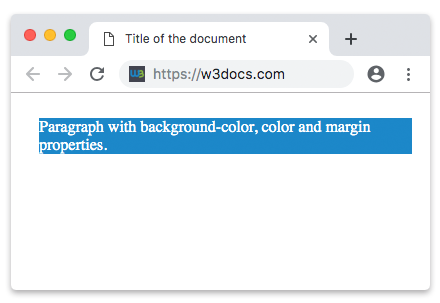
CSS margin property code
<!DOCTYPE html>
<html>
  <head>
    <title>Title of the document</title>
    <style>
      p {
        background-color: #1c87c9;
        color: white;
        margin: 25px 10px 15px 20px;
      }
    </style>
  </head>
  <body>
    <p>Paragraph with background-color, color and margin properties.</p>
  </body>
</html>Result
The auto value of the margin property
You can horizontally center an element inside its container by setting the margin property to auto. As a result, the element will take up its defined width, and the remaining space will be divided equally between the right and left margins.
Example of the margin property with the "auto" value:
Example of using the “auto” value of the margin property:
<!DOCTYPE html>
<html>
  <head>
    <title>Title of the document</title>
    <style>
      div {
        width: 300px;
        margin: auto;
        background-color: red;
      }
    </style>
  </head>
  <body>
    <h2>The auto value</h2>
    <p>
      Setting the “auto” value of the margin property you can horizontally center the element inside its container. As a result, the element will take up the defined width and the space that remains, will be divided between the right and left margins.
    </p>
    <div>
      The auto value horizontally centered this div.
    </div>
  </body>
</html>The inherit value of the margin property
In the example below, the left margin of the <p> element is inherited from its parent element (<div>):
Example of the margin property with the "inherit" value:
Example of using the “inherit” value of the margin property
<!DOCTYPE html>
<html>
  <head>
    <title>Title of the document</title>
    <style>
      div {
        background-color: lightblue;
        margin-left: 100px;
      }
      p.inherit {
        margin-left: inherit;
        padding: 10px 0;
      }
    </style>
  </head>
  <body>
    <h2>The inherit value</h2>
    <p>
      Here the left margin is inherited from its parent element:
    </p>
    <div>
      <p class="inherit">
        With the help of the "inherit" value, the left margin is inherited from the div element.
      </p>
    </div>
  </body>
</html>Margin collapsing
When two vertical margins meet, they don't add up — they collapse into a single margin equal to the larger of the two. This is the most common margin surprise: if one paragraph has margin-bottom: 30px and the next has margin-top: 20px, the gap between them is 30px, not 50px.
<!DOCTYPE html>
<html>
  <head>
    <title>Title of the document</title>
    <style>
      .top    { margin-bottom: 30px; background: #1c87c9; color: #fff; }
      .bottom { margin-top: 20px;    background: #2eae44; color: #fff; }
    </style>
  </head>
  <body>
    <p class="top">My bottom margin is 30px.</p>
    <p class="bottom">My top margin is 20px. The gap between us is 30px, not 50px.</p>
  </body>
</html>A few rules worth remembering:
- Only top and bottom margins collapse. Left and right (horizontal) margins never collapse — they always add up.
- A parent and its first/last child can collapse together unless something separates them (a border, padding,
overflowother thanvisible, or a flex/grid container). - Empty elements collapse their own top and bottom margins into one.
If you need a guaranteed gap, prefer padding, a border, or use a flex/grid layout with gap — margins inside flex and grid containers do not collapse.
Negative margins
A negative margin pulls an element in the direction of the margin, often overlapping a neighbor. A negative margin-top or margin-left shifts the element itself; a negative margin-right or margin-bottom pulls the following content closer.
<!DOCTYPE html>
<html>
  <head>
    <title>Title of the document</title>
    <style>
      .box {
        background-color: #1c87c9;
        color: #fff;
        padding: 10px;
      }
      .pulled {
        margin-top: -15px;
      }
    </style>
  </head>
  <body>
    <div class="box">First box</div>
    <div class="box pulled">This box is pulled 15px up to overlap the first one.</div>
  </body>
</html>Negative margins are handy for overlapping cards, pulling an element out of its container's padding, or fine-tuning alignment — but use them sparingly, since they can create hard-to-debug overlaps.
Logical margin properties
Modern CSS also offers logical properties that follow the text's writing direction instead of physical screen sides — useful for sites that support both left-to-right and right-to-left languages:
margin-inline-start/margin-inline-end— the start/end of the inline (text) axis,margin-block-start/margin-block-end— the start/end of the block axis,margin-inlineandmargin-blockshorthands (e.g.margin-inline: autoto center horizontally in LTR and RTL alike).
In a standard left-to-right page, margin-inline-start behaves like margin-left and margin-block-start like margin-top, but they flip automatically for right-to-left content.
Related chapters
- CSS Padding — space inside the border.
- CSS box-sizing — how width, padding, and border are added together.
- margin-top, margin-right, margin-bottom, margin-left — the individual side properties.