CSS justify-items Property
The CSS justify-items property sets the default alignment of grid items along the inline (row) axis. See all values and try live examples.
The CSS justify-items property sets the default alignment for every item inside a container along the inline (row) axis — in a left-to-right language that means the horizontal direction. It is set on the container, and acts as a default justify-self for all of its children at once. Any individual item can still override that default with its own justify-self value.
In a CSS Grid, justify-items controls where each item sits horizontally within its own grid cell — left, right, centered, or stretched to fill the cell. The companion property align-items does the same along the block (column) axis, and the shorthand place-items sets both in one declaration.
When to use it
Reach for justify-items whenever you have a grid and want all cells to share the same horizontal placement without writing justify-self on each item. Typical cases:
- Centering content inside every grid cell (
center). - Pushing cells to the start or end edge (
start/end). - Letting items stretch to fill the full cell width (
stretch, the grid default).
Note:
justify-itemsapplies to grid containers and absolutely positioned elements. It is ignored in flexbox — usejustify-contentto distribute flex items along the main axis instead.
| Initial Value | auto |
|---|---|
| Applies to | Grid containers and absolutely positioned elements. |
| Inherited | No. |
| Animatable | No. |
| Version | CSS3 |
| DOM Syntax | object.style.justifyItems = "start"; |
Syntax
CSS justify-items values
justify-items: auto | normal | start | end | flex-start | flex-end | self-start | self-end | center | left | right | baseline | first-baseline | last-baseline | stretch | safe | unsafe | legacy | initial | inherit;Example: justify-items with the "start" value
CSS justify-items code example
<!DOCTYPE html>
<html>
  <head>
    <title>Title of the document</title>
    <style>
      #example {
        display: grid;
        grid-template-columns: 1fr;
        grid-template-rows: 1fr 1fr 1fr;
        gap: 5px;
        justify-items: start;
        background-color: #cccccc;
      }
      #example > div {
        padding: 10px;
        font-size: 20px;
        color: white;
        width: 100px;
        height: 50px;
      }
      .one {
        background-color: #1c87c9;
      }
      .two {
        background-color: #8ebf42;
      }
      .three {
        background-color: #666666;
      }
    </style>
  </head>
  <body>
    <h2>Justify-items property example</h2>
    <div id="example">
      <div class="one">1</div>
      <div class="two">2</div>
      <div class="three">3</div>
    </div>
  </body>
</html>Result
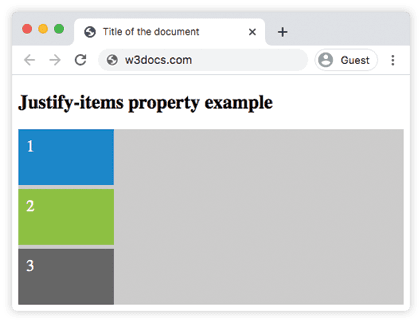
With justify-items: start, each item is pulled to the left edge of its grid cell. Switch the value to center, end, or stretch (below) to see the items move within the same cells.
Example: justify-items with the "center" value
CSS justify-items center example
<!DOCTYPE html>
<html>
  <head>
    <title>Title of the document</title>
    <style>
      #example {
        display: grid;
        grid-template-columns: 1fr;
        grid-template-rows: 1fr 1fr 1fr;
        gap: 5px;
        justify-items: center;
        background-color: #cccccc;
      }
      #example > div {
        padding: 10px;
        font-size: 20px;
        color: white;
        width: 100px;
        height: 50px;
      }
      .one {
        background-color: #1c87c9;
      }
      .two {
        background-color: #8ebf42;
      }
      .three {
        background-color: #666666;
      }
    </style>
  </head>
  <body>
    <h2>Justify-items property example</h2>
    <div id="example">
      <div class="one">1</div>
      <div class="two">2</div>
      <div class="three">3</div>
    </div>
  </body>
</html>Example: justify-items with the "first-baseline" value
Example of the justify-items property with the "first-baseline" value:
<!DOCTYPE html>
<html>
  <head>
    <title>Title of the document</title>
    <style>
      .container {
        display: grid;
        padding-top: 10px;
        height: 250px;
        grid-template-columns: 1fr 1fr 1fr;
        grid-template-rows: auto;
        background: #ccc;
        justify-items: first-baseline;
      }
      .item {
        width: 50%;
        height: 50%;
        text-align: center;
      }
      .item1 {
        background: red;
      }
      .item2 {
        background: blue;
      }
      .item3 {
        background: green;
      }
    </style>
  </head>
  <body>
    <h2>Justify-items property example</h2>
    <div class="container">
      <div class="item1 item">1</div>
      <div class="item2 item">2</div>
      <div class="item3 item">3</div>
    </div>
  </body>
</html>Example: justify-items with the "self-end" value
Example of the justify-items property with the "self-end" value:
<!DOCTYPE html>
<html>
  <head>
    <title>Title of the document</title>
    <style>
      #example {
        display: grid;
        grid-template-columns: 1fr;
        grid-template-rows: 1fr 1fr 1fr;
        gap: 5px;
        justify-items: self-end;
        background-color: #cccccc;
      }
      #example > div {
        padding: 10px;
        font-size: 20px;
        color: white;
        width: 100px;
        height: 50px;
      }
      .one {
        background-color: #1c87c9;
      }
      .two {
        background-color: #8ebf42;
      }
      .three {
        background-color: #666666;
      }
    </style>
  </head>
  <body>
    <h2>Justify-items property example</h2>
    <div id="example">
      <div class="one">1</div>
      <div class="two">2</div>
      <div class="three">3</div>
    </div>
  </body>
</html>Values
| Value | Description |
|---|---|
| auto | If the box has no parent, or is absolutely positioned, the auto value represents normal. |
| normal | The effect depends on the layout mode: • Block layouts: behaves like start. • Absolutely positioned layouts: behaves like start for replaced elements, and stretch for others. • Table cells: ignored. • Flexbox: ignored. • Grid layouts: behaves like stretch, except for items with an aspect ratio or intrinsic size, where it behaves like start. |
| start | All elements are positioned against each other on the starting (left) edge of the container. |
| end | All elements are positioned against each other on the ending (right) edge of the container. |
| flex-start | Items are placed at the beginning of the container. |
| flex-end | Items are placed at the end of the container. |
| self-start | Item is allowed to place itself on the container edge based on its own starting side. |
| self-end | Item is allowed to place itself on the container edge based on its own ending side. |
| center | Items are positioned next to each other toward the center of the container. |
| left | Items are placed next to each other toward the left side of the container. If the property’s axis is not parallel with the inline axis, this value behaves like end. |
| right | Items are placed next to each other toward the right side of the container. If the property’s axis is not parallel with the inline axis, this value behaves like start. |
| baseline | Aligns all elements within a group by matching up their alignment baselines. |
| first-baseline | Aligns all elements within a group by matching up their first alignment baselines. |
| last-baseline | Aligns all elements within a group by matching up their last alignment baselines. |
| stretch | Stretch the element to fit the container along the inline/main axis. |
| safe | If the size of the item overflows the alignment container, the item is aligned as if the alignment mode is start. |
| unsafe | Regardless of the item’s size and alignment container, the alignment value is honored. |
| legacy | Legacy keyword for backward compatibility. Maps to flex-start, flex-end, or center depending on the layout mode. Does not affect inheritance. |
| initial | It makes the property use its default value. |
| inherit | It inherits the property from its parent element. |
justify-items vs justify-self
These two properties look similar but live on different elements:
justify-itemsis set on the container and provides a default horizontal alignment for all of its items.justify-selfis set on an individual item and overrides the container'sjustify-itemsfor just that one item.
So a common pattern is to set a default with justify-items on the grid, then nudge one or two special items with justify-self.
justify-items vs align-items
justify-items and align-items act on perpendicular axes:
justify-items→ inline (row) axis — horizontal placement in a left-to-right document.align-items→ block (column) axis — vertical placement.
To set both at once, use the place-items shorthand: place-items: <align-items> <justify-items>.
Browser support
justify-items is supported in all modern browsers (Chrome, Edge, Firefox, Safari, and Opera) as part of the CSS Box Alignment module. Its main use case — alignment inside CSS Grid — is also broadly supported.