HTML Headings
A heading is a title at the head of a page that helps search engines index its structure. Learn about HTML heading levels, size, and importance with examples.
Headings break a page into labelled, ranked sections — the same way chapter and section titles organize a book. In HTML you have six ranks, from <h1> (the most important) down to <h6> (the least). Choosing the right rank does more than make text big: it defines the document outline that browsers, assistive technology, and search engines rely on to understand how your content is organized.
This page covers the six heading tags, how their ranks nest into a hierarchy, why size and rank are separate concerns, how screen-reader users navigate by headings, and how the <header> element differs from <h1>–<h6>.
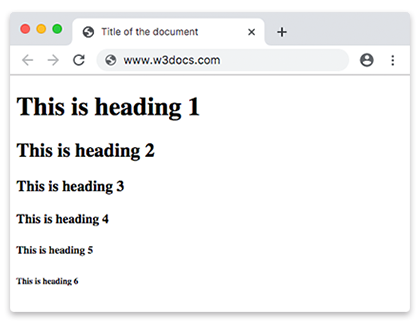
Heading Tags
There are 6 levels of headings in HTML: <h1>, <h2>, <h3>, <h4>, <h5>, and <h6>.
The <h1> - <h6> tags are used to mark headings according to their importance. The <h1> tag stands for the most important heading of the web page and the <h6> stands for the least important and smallest one.
Example of <h1> - <h6> html heading tags:
How to use the HTML <h1>-<h6> tags?
<!DOCTYPE html>
<html>
  <head>
    <title>Title of the document</title>
  </head>
  <body>
    <h1>This is heading 1</h1>
    <h2>This is heading 2</h2>
    <h3>This is heading 3</h3>
    <h4>This is heading 4</h4>
    <h5>This is heading 5</h5>
    <h6>This is heading 6</h6>
  </body>
</html>For the full reference on every level, see HTML <h1>–<h6> tags.
Heading Hierarchy and the Document Outline
Heading ranks are not just sizes — they describe nesting. An <h2> is read as a subsection of the nearest <h1> above it, an <h3> is a subsection of that <h2>, and so on. Together, these nested ranks form the document outline: a tree that conveys which parts of the page belong to which.
Think of it like a table of contents:
<h1>Baking Bread</h1>          <!-- the page topic -->
  <h2>Ingredients</h2>         <!-- a section of "Baking Bread" -->
  <h2>Method</h2>              <!-- another section -->
    <h3>Kneading</h3>          <!-- a step inside "Method" -->
    <h3>Proving</h3>           <!-- another step inside "Method" -->
<h2>Troubleshooting</h2>The indentation above is only for illustration — headings are siblings in the markup, and the rank numbers are what create the hierarchy. Use one <h1> for the page's main topic, then <h2> for its top-level sections, <h3> for subsections of those, and never reach for a lower rank just to make text smaller.
Accessibility: Don't Skip Heading Levels
Screen-reader users rarely read a page top to bottom. Instead they pull up a list of all the headings and jump straight to the section they want, much like skimming a table of contents. This only works when the ranks descend in order — <h1>, then <h2>, then <h3> — without gaps.
Skipping a level (for example, an <h1> followed immediately by an <h3>) breaks the outline: the assistive technology reports a missing level, and users can't tell whether they jumped into a subsection or simply lost their place.
Bad — a level is skipped:
<h1>Our Menu</h1>
<h3>Starters</h3>   <!-- jumps from h1 to h3, skipping h2 -->
<h3>Mains</h3>Good — ranks descend one step at a time:
<h1>Our Menu</h1>
<h2>Starters</h2>
<h2>Mains</h2>
<h3>Vegetarian Mains</h3>If a heading looks too large or too small at its correct rank, change the appearance with CSS — not the rank.
Importance of Heading
- HTML headings highlight important topics and the document structure, thus improving user engagement.
- Use only one
<h1>tag on any web page. The tag must describe what your page is about and also contain a keyword to improve rankings in Google. - Search Engines use headings for indexing the structure and content of the webpage.
Heading Size
Browsers give each heading rank a default size, with <h1> the largest and <h6> the smallest. You can override any of these with the CSS font-size property.
The key point: changing a heading's visual size does not change its semantic level. An <h2> styled to look enormous is still an <h2> in the outline, and a tiny <h1> is still the page's top-level heading. So pick the tag by where it sits in the hierarchy, then size it however the design requires — never pick a tag because of how big it renders.
Example of changing the size of the heading with the font-size property:
How to style An HTML <h1> tag using CSS font-size property
<!DOCTYPE html>
<html>
  <head>
    <title>Title of the document</title>
    <style>
      h1 {
        font-size: 50px;
      }
    </style>
  </head>
  <body>
    <h1>This is heading 1</h1>
  </body>
</html>Important Notes
- Do not use heading tags to increase the text size or make the text bold. Instead, you should use CSS properties like font-weight and font-size. Remember, search engines use headings to structure the content.
- Do not skip heading levels. Use the
<h1>as the main headings of the webpage, followed by the<h2>headings, then the less important<h3>headings, etc. - Avoid using
<h1>more than once on a page.
Related Elements
A couple of tags are commonly seen alongside headings but belong to their own topics:
- The
<hr>tag draws a thematic break between sections of content. - The
<head>element holds page metadata (title, character set, styles, scripts) and is not part of the visible content.
Heading vs. Header: <h1>–<h6> vs. <header>
These two are easy to mix up because the names look alike, but they do different jobs:
- A heading (
<h1>–<h6>) is a single title that labels a section of content and gives it a rank in the document outline. - A header (
<header>) is a container for introductory content at the top of a page or section — typically a logo, site title, and navigation. It often contains a heading, but it is not one itself.
Compare them side by side:
<!-- A heading: one ranked title -->
<h1>Weekly Newsletter</h1>

<!-- A header: a block of introductory content that wraps a heading -->
<header>
  <img src="logo.png" alt="Acme logo" />
  <h1>Weekly Newsletter</h1>
  <nav>
    <a href="/archive">Archive</a>
    <a href="/subscribe">Subscribe</a>
  </nav>
</header>In short: put a heading inside a header when you need a titled intro block; use a bare heading when you just need to label a section. Learn more in the HTML <header> tag chapter.