HTML Lists
In HTML, there are three main types of lists: unordered, ordered and description lists. Each of them is defined using different tags
In HTML, there are three types of lists: unordered, ordered and description lists. Each of them is defined using different tags. Let’s have a look.
HTML Unordered Lists
We use unordered lists to group items having no numerical order. When changing the order of list items, the meaning will not change. To create an unordered list, we use the <ul> tag. This tag comes in pairs, the content is written between opening <ul> and closing </ul> tags.
Each element of an unordered list is declared inside the <li> tag.
Example of the HTML <ul> tag for creating an unordered list:
An example of an unordered list|W3Docs
<!DOCTYPE html>
<html>
  <head>
    <title>Title of the document</title>
  </head>
  <body>
    <h1>An unordered list:</h1>
    <ul>
      <li>This is a list item</li>
      <li>This is another list item</li>
      <li>This is one more list item</li>
    </ul>
  </body>
</html>The items in unordered lists are marked with bullets (small black circles) by default. The old type attribute (type="circle", type="square") could change the bullet style, but it is deprecated in HTML5. Use the CSS list-style-type property instead — it is the modern, supported way to control markers for both unordered and ordered lists. The full migration map from old type values to CSS is in the ordered-list section below.
Example of the HTML <ul> tag for creating an unordered list, where the items are marked with bullets:
Example of a type attribute for HTML lists
<!DOCTYPE html>
<html>
  <head>
    <title>Title of the document</title>
  </head>
  <body>
    <ul type="circle">
      <li>List item </li>
      <li>List item</li>
      <li>List item</li>
    </ul>
    <ul type="square">
      <li>List item</li>
      <li>List item</li>
      <li>List item</li>
    </ul>
  </body>
</html>Result
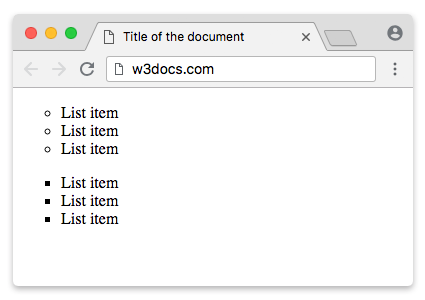
You can also use the CSS list-style-type or list-style-image property to specify the type of a list item element.
Example of the HTML <ul> tag used with the CSS list-style-type property for creating an unordered list:
Example of a list-style-type property
<!DOCTYPE html>
<html>
  <head>
    <title>Title of the document</title>
  </head>
  <body>
    <h2>Examples of unordered lists:</h2>
    <ul style="list-style-type: square;">
      <li>Cold Drinks</li>
      <li>Hot Drinks</li>
      <li>Ice-Creams</li>
    </ul>
    <ul style="list-style-type: disc;">
      <li>Coca-Cola</li>
      <li>Fanta</li>
      <li>Ice Tea</li>
    </ul>
    <ul style="list-style-type: circle;">
      <li>Coca-Cola</li>
      <li>Fanta</li>
      <li>Ice Tea</li>
    </ul>
  </body>
</html>HTML Ordered Lists
HTML ordered list is used for listing items that are marked with numbers. It starts with the <ol> tag. This tag comes in pairs, the content is written between opening <ol> and closing </ol> tags.
Each item in the ordered list starts with opening <li> tag and ends with </li> closing tag.
Example of the HTML <ol> tag for creating an ordered list:
Example of an HTML ordered list|W3Docs
<!DOCTYPE html>
<html>
  <head>
    <title>Title of the document</title>
  </head>
  <body>
    <h1>An ordered list:</h1>
    <ol>
      <li>This is List item number 1</li>
      <li>This is List item number 2</li>
      <li>This is List item number 3</li>
    </ol>
  </body>
</html>The items in an ordered list are marked with numbers by default. To number them with letters or Roman numerals, the old way was to add type="a" or type="I" to the <ol> tag. That type attribute still works in browsers but is deprecated in HTML5, so prefer the CSS list-style-type property in new code.
Migrating the deprecated type attribute to CSS
Each old type value maps directly to a CSS list-style-type value:
| Deprecated attribute | Equivalent CSS | Example output |
|---|---|---|
type="1" | list-style-type: decimal; | 1, 2, 3 |
type="A" | list-style-type: upper-alpha; | A, B, C |
type="a" | list-style-type: lower-alpha; | a, b, c |
type="I" | list-style-type: upper-roman; | I, II, III |
type="i" | list-style-type: lower-roman; | i, ii, iii |
The first example below uses the deprecated type attribute so you can see all the marker styles at a glance; in production code, set the equivalent list-style-type value from the table instead.
Example of the HTML <ol> tag for creating an ordered list with alphabet and Roman numbers:
Example of different marks of list items
<!DOCTYPE html>
<html>
  <head>
    <title>Title of the document</title>
  </head>
  <body>
    <h3>A numbered list:</h3>
    <ol>
      <li>Peach</li>
      <li>Apricot</li>
      <li>Banana</li>
      <li>Strawberry</li>
    </ol>
    <h3>An alphabetized list:</h3>
    <ol type="A">
      <li>Peach</li>
      <li>Apricot</li>
      <li>Banana</li>
      <li>Strawberry</li>
    </ol>
    <h3>An alphabetized list (lowercase letters):</h3>
    <ol type="a">
      <li>Peach</li>
      <li>Apricot</li>
      <li>Banana</li>
      <li>Strawberry</li>
    </ol>
    <h3>A numbered list (Roman numerals):</h3>
    <ol type="I">
      <li>Peach</li>
      <li>Apricot</li>
      <li>Banana</li>
      <li>Strawberry</li>
    </ol>
    <h3>A numbered list (lowercase Roman numerals):</h3>
    <ol type="i">
      <li>Peach</li>
      <li>Apricot</li>
      <li>Banana</li>
      <li>Strawberry</li>
    </ol>
  </body>
</html>HTML Description Lists
HTML description lists are used to pair terms with their descriptions, similar to a dictionary or glossary.
To create a description list, we use the <dl> tag. This tag comes in pairs.
In <dl>, we use <dt> tags for a term/name in a description list and <dd> for a description of a term/name in a description list.
Example of the HTML <dl> tag for creating a description list:
Example of a description list|W3Docs
<!DOCTYPE html>
<html>
  <head>
    <title>Title of the document</title>
  </head>
  <body>
    <h1>Description Lists:</h1>
    <dl>
      <dt>Tea</dt>
      <dd>hot drink</dd>
      <dt>Juice</dt>
      <dd>cold drink</dd>
    </dl>
  </body>
</html>Result
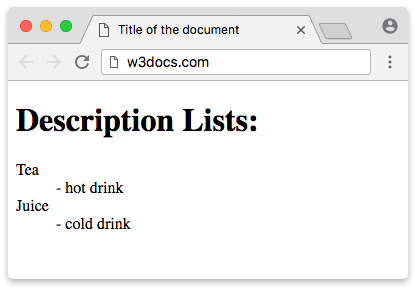
When to use <dl> instead of a <ul> of pairs
Reach for a description list when your data is genuinely a set of name/value (term/definition) pairs: glossary entries, key-value metadata (author, published date, category), FAQ question/answer pairs, or dialogue. The <dl> element makes that relationship explicit in the markup, which assistive technologies can convey.
If your items are just a flat sequence with no paired structure, a plain <ul> is the right choice. Don't fake key/value pairing by alternating <li> items inside a <ul> — that loses the semantic association between the term and its description.
A single <dt> may be followed by multiple <dd> elements (one term, several descriptions), and several <dt> elements may share a single <dd> (several terms with the same definition). Both are valid:
<dl>
  <dt>Coffee</dt>
  <dt>Espresso</dt>
  <dd>A hot caffeinated drink.</dd>

  <dt>Water</dt>
  <dd>A drink with no calories.</dd>
  <dd>Also used for cooking and cleaning.</dd>
</dl>Common misuse: the <dl> was once abused purely for its default indentation. Never use it for visual indentation alone — use CSS margin/padding for that. Use <dl> only when the content is actually term/description data. See the dedicated <dl>, <dt>, and <dd> pages for more detail.
HTML Nested Lists
A nested list contains a list inside a list.
Example of an HTML nested list:
<!DOCTYPE html>
<html>
  <head>
    <title>Title of the document</title>
  </head>
  <body>
    <h2>A nested HTML list</h2>
    <p>A nested list contains a list inside a list.</p>
    <ul>
      <li>Copybooks</li>
      <li>
        Books
        <ul>
          <li>Detective books</li>
          <li>Roman books</li>
          <li>Fairy tale books</li>
        </ul>
      </li>
    </ul>
  </body>
</html>The nested list must be placed inside an <li> element, not directly between the parent's <li> items — a <ul>/<ol> is not a valid direct child of another <ul>/<ol>.
You can mix list types: an ordered list can be nested inside an unordered list, and vice versa. Browsers automatically indent each nested level (via the default left padding on <ul>/<ol>) so the hierarchy reads clearly.
Example of a mixed nested list (ordered list inside an unordered list):
<!DOCTYPE html>
<html>
  <head>
    <title>Title of the document</title>
  </head>
  <body>
    <h2>Shopping list</h2>
    <ul>
      <li>Fruit</li>
      <li>
        Drinks, in order of preference:
        <ol>
          <li>Coffee</li>
          <li>Tea</li>
          <li>Water</li>
        </ol>
      </li>
      <li>Bread</li>
    </ul>
  </body>
</html>List Counting Control
By default, an ordered list numbers its items starting from 1. Three attributes let you override this:
start(on<ol>) — the number the list counts from.reversed(on<ol>) — count downwards instead of up.value(on a specific<li>) — set that item's number manually; following items continue from it.
Using start to continue a list across sections
The start attribute is most useful when a single logical list is broken up by headings, images, or paragraphs. For example, if section one ends at step 39, you continue the steps in section two with <ol start="40"> so the numbering stays correct across the break.
Example of an HTML list for counting from a specified number:
<!DOCTYPE html>
<html>
  <head>
    <title>Title of the document</title>
  </head>
  <body>
    <h2>List counting control</h2>
    <p>Continuing a procedure whose first section ended at step 39.</p>
    <ol start="40">
      <li>Pen</li>
      <li>Pencil</li>
      <li>Copybook</li>
    </ol>
    <ol type="I" start="40">
      <li>Pen</li>
      <li>Pencil</li>
      <li>Copybook</li>
    </ol>
  </body>
</html>Example of reversed and value:
The reversed attribute numbers the list from high to low — handy for countdowns or "top N" rankings shown worst-to-best. The value attribute on a single <li> jumps the count to a specific number, and the items after it continue from there.
<!DOCTYPE html>
<html>
  <head>
    <title>Title of the document</title>
  </head>
  <body>
    <h2>A reversed list (countdown)</h2>
    <ol reversed>
      <li>Bronze medal</li>
      <li>Silver medal</li>
      <li>Gold medal</li>
    </ol>

    <h2>Setting an item's number with value</h2>
    <ol>
      <li>First</li>
      <li value="5">Jumps to 5</li>
      <li>Continues at 6</li>
    </ol>
  </body>
</html>The reversed list above renders as 3. Bronze medal, 2. Silver medal, 1. Gold medal. In the second list, the second item is forced to 5, so the third item shows 6.
HTML List Accessibility
Lists carry meaning for assistive technology, not just visual styling. When a screen reader reaches a <ul>, <ol>, or <dl>, it announces the list role and usually the number of items (for example, "list, 3 items"), then announces each item's position. That context helps users who can't see the bullets or numbers understand the structure, so choosing the right list type is an accessibility decision too.
A few practical guidelines:
- Removing markers can remove the list semantics. In Safari with VoiceOver, applying
list-style: none(common for navigation menus and custom-styled lists) can cause the browser to drop the implicit list role, so the list is no longer announced as a list. To keep the semantics, add an explicitrole="list":
<ul role="list" style="list-style: none;">
  <li>Home</li>
  <li>About</li>
  <li>Contact</li>
</ul>- Wrap navigation lists in
<nav>. A site menu is conventionally a list of links inside a<nav>landmark. The<nav>exposes a navigation landmark that screen-reader users can jump to, while the inner<ul>keeps the items grouped and counted.
<nav aria-label="Main">
  <ul>
    <li><a href="#home">Home</a></li>
    <li><a href="#about">About</a></li>
    <li><a href="#contact">Contact</a></li>
  </ul>
</nav>- Use
<ol>when order is meaningful (steps, rankings, instructions) and<ul>when it is not — screen readers announce ordered-list positions, so the distinction is conveyed to users, not just shown visually.
Horizontal List with CSS
HTML lists can be styled in many different ways with CSS.
You can style HTML lists using different CSS properties. For example, you can create a navigation menu by setting list-style-type: none to drop the bullets and display: flex to lay the items out in a row.
The colors below are written as literal hex values to keep the example self-contained; in a real project you'd usually reference your design system's color variables (CSS custom properties) rather than hard-coding hex codes.
Example of a horizontal list with CSS:
<!DOCTYPE html>
<html>
  <head>
    <title>Title of the document</title>
    <style>
      ul {
        list-style-type: none;
        margin: 0;
        padding: 0;
        display: flex;
        background-color: #F44336;
      }
      li a {
        display: block;
        color: white;
        text-align: center;
        padding: 16px;
        text-decoration: none;
      }
      li a:hover {
        background-color: #981816;
      }
    </style>
  </head>
  <body>
    <h2>Navigation Menu Example</h2>
    <p>
      You can style HTML lists using different CSS properties. For example, you can create a navigation menu styling the list horizontally.
    </p>
    <ul>
      <li>
        <a href="#home">Home</a>
      </li>
      <li>
        <a href="https://www.w3docs.com/tool/">Tools</a>
      </li>
      <li>
        <a href="https://www.w3docs.com/snippets">Snippets</a>
      </li>
      <li>
        <a href="https://www.w3docs.com/quiz/">Quizzes</a>
      </li>
      <li>
        <a href="https://www.w3docs.com/string-functions/">String Functions</a>
      </li>
    </ul>
  </body>
</html>