HTML <svg> Tag
The <svg> tag is a container for scalable vector graphics. Learn viewBox, basic shapes, accessibility, and SVG vs Canvas.
The <svg> tag is used as a container for SVG graphics.
SVG (Scalable Vector Graphics) is a language for two-dimensional graphics based on XML. Unlike raster formats such as PNG or JPEG, an SVG image is described by shapes and coordinates rather than a fixed grid of pixels, so it stays sharp at any size and scales without losing quality. SVG also supports interactivity, animation, and full access to each element through the DOM.
This page covers how to embed SVG directly in HTML, the all-important viewBox coordinate system, the basic drawing shapes, how to make SVG accessible, the attributes of the <svg> element, and how SVG compares to <canvas>.
Syntax <svg>
The <svg> tag comes in pairs. The shapes you want to draw are written between the opening (<svg>) and the closing (</svg>) tags.
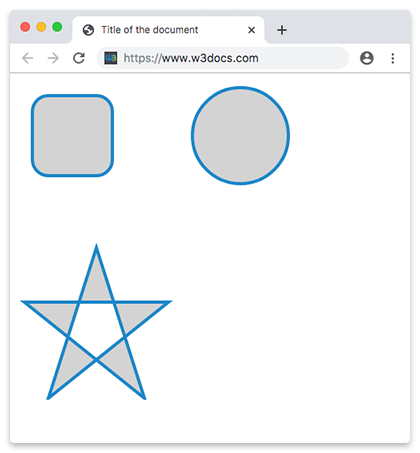
Example of the HTML <svg> tag:
HTML <svg> Tag
<!DOCTYPE html>
<html>
  <head>
    <title>Title of the document</title>
  </head>
  <body>
    <div style="display:flex; flex-flow:row wrap;">
      <svg width="180" height="180">
        <rect x="20" y="20" rx="20" ry="20" width="100" height="100" style="fill:lightgray; stroke:#1c87c9; stroke-width:4;"/>
      </svg>
      <svg width="200" height="200">
        <circle cx="100" cy="70" r="60" stroke="#1c87c9" stroke-width="4" fill="lightgray"/>
      </svg>
      <svg width="200" height="200">
        <polygon points="100,10 40,198 190,78 10,78 160,198" style="fill:lightgray; stroke:#1c87c9; stroke-width:4; fill-rule:evenodd;"/>
      </svg>
    </div>
  </body>
</html>The xmlns attribute is required only for the outer <svg> element of standalone SVG documents (a .svg file). It isn’t required for inner <svg> elements or when you embed SVG inline in an HTML document.
Example of the HTML <svg> tag drawing an ellipse:
<!DOCTYPE html>
<html>
  <head>
    <title>Title of the document</title>
  </head>
  <body>
    <svg width="400" height="200">
      <ellipse cx="100" cy="50" rx="100" ry="50" fill="#1c87c9" />
    </svg>
  </body>
</html>The viewBox and the SVG coordinate system
The viewBox is the single most important concept in SVG. It defines the coordinate system that all of your shapes are drawn in, and it is what makes an SVG truly scalable.
The width and height attributes set the size of the SVG box on the page (in CSS pixels). The viewBox attribute, by contrast, defines the internal coordinate system using four numbers:
viewBox="min-x min-y width height"- min-x, min-y — the coordinates of the top-left corner of the viewing area.
- width, height — how many user units wide and tall the viewing area is.
The browser then maps that internal viewing area onto the on-screen width/height, scaling as needed. So a circle drawn at cx="50" cy="50" with viewBox="0 0 100 100" always sits in the middle, no matter how big the SVG is rendered.
The example below draws the same circle in two SVGs. The first relies only on width/height, so coordinates are pixel coordinates and the circle is tied to that size. The second adds a viewBox, so the drawing scales to fill a much larger box while the code stays identical:
<!-- No viewBox: coordinates are pixels, fixed 100×100 drawing -->
<svg width="100" height="100">
  <circle cx="50" cy="50" r="40" fill="#1c87c9" />
</svg>

<!-- viewBox: same coordinates, but the 0 0 100 100 grid is
     stretched to fill a 300×300 box on the page -->
<svg width="300" height="300" viewBox="0 0 100 100">
  <circle cx="50" cy="50" r="40" fill="#1c87c9" />
</svg>Because the second SVG separates the coordinate system (viewBox) from the rendered size (width/height), you can resize it — even with CSS — and every shape scales proportionally. This is why viewBox is essential for responsive icons and illustrations.
SVG shapes
You build SVG drawings from a small set of basic shape elements placed inside <svg>. Each uses its own coordinate and sizing attributes:
<rect>— a rectangle, positioned withx/yand sized withwidth/height;rx/ryround the corners. See SVG Rectangle.<circle>— a circle defined by its centercx/cyand radiusr. See SVG Circle.<ellipse>— like a circle but with two radii,rxandry. See SVG Ellipse.<line>— a straight line from (x1,y1) to (x2,y2). See SVG Line.<polygon>— a closed shape defined by a list ofpoints. See SVG Polygon.<path>— the most powerful shape; itsdattribute encodes lines, curves, and arcs to draw almost anything. See SVG Path.
Most shapes share the presentation attributes fill (interior color), stroke (outline color), and stroke-width (outline thickness). For the full list of elements and attributes, see the SVG Reference.
Accessibility
Inline SVG is part of the page’s DOM, so screen readers can read it — but only if you give it accessible text. A decorative-looking shape with no label is announced as nothing useful.
For meaningful SVG (icons, charts, logos), do the following:
- Add a
<title>element as the first child — it acts as the accessible name (and shows as a tooltip). - Optionally add a
<desc>element for a longer description. - Put
role="img"on the<svg>so assistive tech treats it as a single image. - Reference the text with
aria-labelledby, or usearia-labeldirectly.
<svg width="120" height="120" viewBox="0 0 120 120"
     role="img" aria-labelledby="logoTitle logoDesc">
  <title id="logoTitle">W3Docs logo</title>
  <desc id="logoDesc">A blue circle with a light gray center.</desc>
  <circle cx="60" cy="60" r="50" fill="#1c87c9" />
  <circle cx="60" cy="60" r="25" fill="lightgray" />
</svg>If an SVG is purely decorative and adds no information, hide it from assistive tech with aria-hidden="true" instead.
Differences between SVG and Canvas
At first sight, both SVG and Canvas are doing the same thing, drawing vector artwork using coordinate points. However, there are differences between them. Let’s have a look at them.
SVG is a language for describing 2D graphics in XML, whereas Canvas is used to draw 2D graphics on the fly (with JavaScript).
SVG is like a "draw" program. The drawing is a drawing instruction for each shape, and any part of any shape can be changed. Drawings are shape-oriented.
Canvas is like a "paint" program. When the pixels hit the screen, this is your drawing. You can change shapes only by overwriting them with other pixels. Paintings are pixel-oriented.
SVG is based on XML, which means that every element is available within the SVG DOM. In SVG, the drawn shape is remembered as an object. In Canvas, the browser forgets the drawn form immediately after it has been drawn. If you need to make changes in the drawing, you should draw it from scratch.
Attributes
| Attribute | Value | Description |
|---|---|---|
| height | length, percentage | Defines the height of the SVG element on the page. |
| width | length, percentage | Defines the width of the SVG element on the page. |
| viewBox | min-x min-y width height | Defines the position and size of the internal coordinate system (the SVG viewport). |
| preserveAspectRatio | alignment + meetOrSlice (see below) | Controls how the viewBox is scaled and aligned when its aspect ratio differs from the SVG box. |
| x | length, percentage | Sets the x coordinate of a nested SVG container. Has no effect on the outermost <svg>. |
| y | length, percentage | Sets the y coordinate of a nested SVG container. Has no effect on the outermost <svg>. |
preserveAspectRatio values
When the viewBox aspect ratio does not match the SVG box, preserveAspectRatio decides how to fit it. It takes an alignment value optionally followed by a meetOrSlice value:
Alignment (which edge/center to anchor to):
none— stretch to fill, ignoring aspect ratio.xMinYMin,xMidYMin,xMaxYMinxMinYMid,xMidYMid(default),xMaxYMidxMinYMax,xMidYMax,xMaxYMax
Meet or slice (how to scale):
meet(default) — scale until the whole viewBox fits inside the box.slice— scale until the viewBox covers the whole box, cropping the overflow.
Removed attributes
The version, baseProfile, contentScriptType, and contentStyleType attributes were used in SVG 1.1 but are deprecated/removed in SVG 2 and no longer needed. SVG 2 is the current revision of the SVG specification, more tightly integrated with HTML and CSS; modern browsers render SVG without these attributes.