HTML <article> Tag
The HTML <article> tag marks independent, self-contained content like a blog post. Learn its syntax, accessibility role, and how it differs from <section>.
The <article> tag is one of the HTML5 sectioning elements. It defines a piece of independent, self-contained content — something that would still make sense on its own if you took it out of the page and published it somewhere else. A good test: if the content could be syndicated to an RSS feed, shown as a standalone card, or republished on another site without losing meaning, it belongs in an <article>.
Typical uses of the <article> element include:
- a blog post or news story
- a forum post
- a product card in a listing
- a user comment or review
- an interactive widget or gadget
Why use the <article> element?
The <article> element carries meaning that a generic <div> does not:
- Accessibility. When an
<article>has an accessible name (for example, a heading referenced viaaria-labelledby), assistive technologies expose it as anarticlelandmark. Screen-reader users can jump between articles instead of reading the whole page top to bottom. - SEO and semantics. Search engines and reading tools (like "reader mode" in browsers) use
<article>as a signal for the main, self-contained body of content, helping them extract the primary text of a post. - Maintainability. The markup describes the content's purpose, so your CSS and JavaScript can target real semantic units rather than styling hooks.
<article> vs <section> vs <div>
These three elements are easy to confuse. Use this rule of thumb:
<article>— self-contained content that could be independently distributed or syndicated (a blog post, a comment, a product card). Ask: "Could this stand alone elsewhere?" If yes, use<article>.<section>— a thematic grouping of related content within a document, usually with a heading (for example, "Comments" or "Related products"). It is part of the document's outline but is not meant to stand alone.<div>— a generic container with no semantic meaning. Use it only when no other element fits, typically just for styling or layout.
An <article> and a <section> can be nested in either direction: a <section> may group several <article> elements, and an <article> may contain <section> elements that divide its content. When <article> elements are nested, the inner one represents content related to the outer one — for example, a comment inside a blog post.
Structuring an <article>
You can use a few related elements to give an <article> a complete structure:
- Heading elements (
<h1>to<h6>) to title and structure its content. Each<article>can start with its own heading. - A
<header>for introductory content such as the title and metadata, and a<footer>for closing content. - An
<address>element to give author information. It applies to each<article>independently, including nested ones. - A
<time>element with adatetimeattribute to mark the publication date.
Multiple <article> tags can be used in a single HTML document.
Syntax
The <article> tag comes in pairs. The content is written between the opening (<article>) and closing (</article>) tags.
Example of the HTML <article> tag:
<!DOCTYPE html>
<html>
  <head>
    <title>Title of the document</title>
  </head>
  <body>
    <article>
      <h1>Title of the article</h1>
      <p>Text of the article</p>
    </article>
  </body>
</html>Result
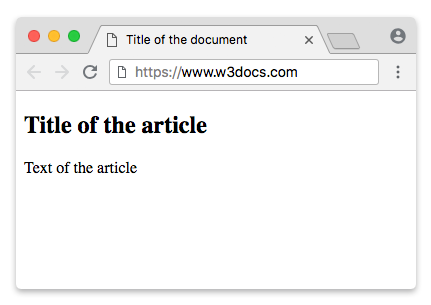
Example of the HTML <article> tag in the HTML <section> tag:
<!DOCTYPE html>
<html>
  <head>
    <title>Title of the document</title>
  </head>
  <body>
    <section>
      <h1>Articles about flowers</h1>
      <article>
        <h2>Roses</h2>
        <p>Rose – the queen of flowers - is the object of worship and ardent love. Since time immemorial, the rose has been the object of worship and admiration.</p>
      </article>
      <article>
        <h2>Lilies</h2>
        <p> Lily - an amazing beauty flower, one of the most ancient among a variety of bulbous plants. </p>
      </article>
    </section>
  </body>
</html>Example of a blog-post card with <header>, <footer>, <time>, and <address>:
This example shows a realistic, self-contained blog post: a <header> holds the title and publication date, an <address> gives the author, and a <footer> closes the post.
<!DOCTYPE html>
<html>
  <head>
    <title>Title of the document</title>
  </head>
  <body>
    <article>
      <header>
        <h2>How to Grow Roses</h2>
        <p>
          Published on
          <time datetime="2026-06-17">June 17, 2026</time>
        </p>
      </header>
      <p>Rose – the queen of flowers – is the object of worship and ardent love. With a little care, anyone can grow healthy, fragrant roses at home.</p>
      <footer>
        <p>Written by
          <address>
            <a href="mailto:[email protected]">Jane Doe</a>
          </address>
        </p>
      </footer>
    </article>
  </body>
</html>Attributes
The <article> tag has no special attributes of its own. It supports the Global Attributes and the Event Attributes.
Styling the <article> element
By default, <article> is a block-level element with no visual styling, so it looks the same as a plain <div>. You add the appearance yourself with CSS. The rule below gives each article a border, padding, and spacing so cards are visually separated:
<!DOCTYPE html>
<html>
  <head>
    <title>Title of the document</title>
    <style>
      article {
        border: 1px solid #ccc;
        border-radius: 8px;
        padding: 10px;
        margin-bottom: 10px;
      }
    </style>
  </head>
  <body>
    <article>
      <h2>Roses</h2>
      <p>Rose – the queen of flowers – is the object of worship and ardent love.</p>
    </article>
    <article>
      <h2>Lilies</h2>
      <p>Lily – an amazing beauty flower, one of the most ancient bulbous plants.</p>
    </article>
  </body>
</html>Accessibility and ARIA
The <article> element has an implicit ARIA article role, so you usually do not need to add role="article" yourself. To make it a navigable landmark that screen readers can list and jump to, give it an accessible name — most often by pointing aria-labelledby at the heading inside it:
<article aria-labelledby="post-title">
  <h2 id="post-title">How to Grow Roses</h2>
  <p>Roses reward patient gardeners with fragrant, long-lasting blooms.</p>
</article>Related sectioning elements worth pairing with <article> are <section> for thematic groups, <aside> for tangentially related content (like a sidebar), and <header> / <footer> for introductory and closing content. See the HTML5 sectioning elements overview for the full picture.