HTML <pre> Tag
Use the <pre> tag to define preformatted text, which is to be presented exactly as written in the HTML file.
The HTML <pre> tag defines preformatted text — text that is rendered exactly as it is written in the source, with all spaces and line breaks preserved. Browsers display the content of a <pre> element in a fixed-width (monospace) font. It is most often used to show source code (usually together with the <code> tag) or any text where the author controls the exact layout of the lines, such as a poem or ASCII art.
Why <pre> Preserves Whitespace
By default, browsers collapse whitespace: a run of spaces, tabs, and newlines is rendered as a single space, and line breaks in your HTML have no visual effect. This is why writing several spaces or pressing Enter inside a normal paragraph does not change how the text looks.
The <pre> element opts out of that behavior. Inside it, every space, tab, and newline is significant and shown literally — there is no need for or <br> to control spacing. Under the hood this is the same effect as applying the CSS white-space: pre declaration, which is the default style browsers give to <pre>.
Use <pre> whenever the exact arrangement of characters matters: code listings, command-line output, tabular plain text, or art made from characters.
Syntax
The <pre> tag comes in pairs. The content is written between the opening (<pre>) and closing (</pre>) tags. Note that text typically starts on the line after the opening tag, and any indentation you add inside the source will appear in the output.
Inline elements are typically placed inside the <pre> tag. While block-level elements are allowed in HTML5, they may introduce unexpected whitespace or indentation, so inline elements are generally preferred.
Example of the HTML <pre> Tag
<!DOCTYPE html>
<html>
  <head>
    <title>The title of the document</title>
  </head>
  <body>
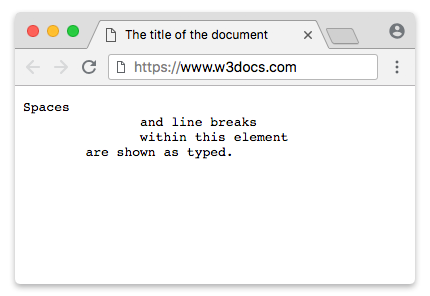
    <pre>Spaces
               and line breaks
               within this element
        are shown as typed.
    </pre>
  </body>
</html>Result
The <pre><code> Pattern for Code Blocks
The canonical, accessible way to display a block of source code is to nest a <code> element inside a <pre> element:
<pre>provides the block layout and preserves the whitespace and line breaks.<code>adds the semantics: it marks the content as computer code rather than ordinary text.
Together they tell search engines and assistive technology exactly what the content is. Screen readers can announce it as a code region, and syntax-highlighting libraries (Prism, highlight.js, etc.) target the pre > code selector to colorize the markup. Using <pre> alone would keep the formatting but lose that meaning, so the pairing is the recommended pattern.
Example of the HTML <pre> Tag With the <code> Element
<!DOCTYPE html>
<html>
  <head>
    <title>Title of the document</title>
  </head>
  <body>
    <pre><code>body {
  color: orange;
}</code></pre>
  </body>
</html>Whitespace inside <pre> is literal, so put the closing </pre> tight against the code (as above). Leading newlines and indentation between <pre> and <code> are rendered, which is why deeply indented source can show up with unwanted blank lines and leading spaces.
Escaping <, >, and & Inside <pre>
<pre> preserves whitespace, but it does not turn off HTML parsing. The browser still reads its content as markup. So if you want to display literal HTML or anything containing the characters <, >, or &, you must escape them with HTML entities — otherwise the browser will try to interpret them as tags:
| Character | Entity |
|---|---|
< | < |
> | > |
& | & |
For example, to show the text <p>Hello & welcome</p> you must write:
<pre><code><p>Hello & welcome</p></code></pre>The page then displays the angle brackets instead of rendering a paragraph. See the HTML Unicode reference for the full list of named entities.
Styling <pre> and the white-space Property
Browsers style <pre> with white-space: pre by default. You can change how preformatted text wraps using the CSS white-space property:
| Value | Newlines | Spaces / tabs | Wrapping |
|---|---|---|---|
pre | preserved | preserved | never wraps (default for <pre>) |
pre-wrap | preserved | preserved | wraps when the line is too long |
pre-line | preserved | collapsed | wraps when the line is too long |
Because pre never wraps, a long line of code will overflow its container. The usual fix is to add a horizontal scrollbar with overflow-x: auto, which keeps the original formatting and lets the reader scroll sideways:
pre {
  background-color: #f4f4f4;
  padding: 10px;
  overflow-x: auto;     /* horizontal scroll for long lines */
}If you prefer the text to break onto the next line instead of scrolling, use white-space: pre-wrap instead.
Attributes
The <pre> element has no required attributes. The old width, cols, and wrap attributes are deprecated and removed from HTML5 — use CSS instead:
| Deprecated attribute | What it did | Use instead |
|---|---|---|
width | suggested character width | CSS max-width |
cols | suggested number of columns | CSS width / max-width |
wrap | controlled line wrapping | CSS white-space: pre-wrap |
The <pre> tag supports the Global Attributes and the Event Attributes.
Related Tags
<code>— marks a fragment of computer code.<samp>— sample output from a program.<kbd>— keyboard input.- HTML computer code elements — overview of all code-related tags.