HTML Introduction
HTML is a markup language for creating websites. It consists of series of elements used to structure texts, images, and other content displayed in a browser.
HTML stands for HyperText Markup Language. It is the standard markup language used to create web pages and applications that can be displayed in a browser. Developed in the early 1990s, it combines Hypertext (which defines links between web pages) and Markup (which describes the structure of the content with tags).
HTML is not a programming language — it has no logic or computation. Instead, it describes structure: which parts of a page are headings, paragraphs, lists, links, or images. On a typical web page, three technologies work together:
- HTML provides the structure and content (this chapter).
- CSS controls the presentation — colors, layout, fonts.
- JavaScript adds behavior and interactivity.
HTML tags are used to define HTML elements. An HTML element usually consists of a start tag and an end tag, with the content inserted in between. Browsers read the tags to create HTML documents and render their content on screen. Some of the basic HTML tags include <html>, <head>, <title>, <body>, <h1> to <h6>, <p>, <br>, <hr>, <ul>, <ol>, <li>, <a>, <img>, and many more.
Your First HTML Document
Here is a complete, minimal HTML page. Type it into any plain-text HTML editor, save it as a file ending in .html, and open it in any browser — you will see a heading and a paragraph.
<!DOCTYPE html>
<html lang="en">
  <head>
    <meta charset="utf-8">
    <title>My First Page</title>
  </head>
  <body>
    <h1>Hello, world!</h1>
    <p>This is my first web page.</p>
  </body>
</html>When you open this file, the browser parses the markup (reads the tags and builds a tree of elements) and then renders it (paints the result on screen). The <h1> becomes a large heading and the <p> becomes a normal paragraph — you never see the angle brackets themselves, only their effect. Add CSS and JavaScript later to style and animate the same content.
HTML Versions
HTML was first developed by British physicist Tim Berners-Lee in 1990. Since that time, there have been many versions of HTML.
| Version | Year |
|---|---|
| HTML | 1991 |
| HTML+ | 1993 |
| HTML 2.0 | 1995 |
| HTML 3.2 | 1997 |
| HTML 4.01 | 1999 |
| XHTML 1.0 | 2000 |
| HTML5 | 2014 |
A few notes that make the table easier to read. HTML 4.01 (1999) remained the dominant version for roughly a decade, so most of the web was built on it for years. XHTML 1.0 (2000) reformulated HTML using stricter XML rules — for example, every tag had to be closed and lowercased — but its strictness never fully caught on for everyday authoring. HTML5 was published as a stable W3C Recommendation in 2014 (an earlier 2012 milestone was only a draft snapshot) and is the version you use today.
Since 2014, HTML is no longer released as discrete numbered versions. Instead it is maintained as the WHATWG HTML Living Standard — a single specification that is updated continuously as new features are adopted. In practice this is what "HTML" means today: there is no "HTML6" on the way, just an evolving standard. When people say "HTML5" now, they usually mean this modern, living version of the language.
Basic Concepts: Elements, Tags, and Attributes
The three building blocks of HTML are elements, tags, and attributes. An element is the main structural unit of a web page. Tags mark where an element starts and ends, and attributes provide extra information about an element. The next two sections look at tags and attributes in detail.
HTML Tags
HTML tags are used to structure website content (text, hyperlinks, images, media, etc). Tags are not displayed in the browsers, they only “instruct” browsers how to show the content of the web page.
There are over 100 tags in HTML, and you can find them in our HTML tutorial.
HTML tags are written in angle brackets (e.g <html>).
Most HTML tags come in pairs, like <p> </p> tags. The first tag in a pair is called the start (opening) tag, and the second tag is the end (closing) tag. The information is written between opening and closing tags.
However, there are unpaired, or empty tags, which only have an opening tag (for example, <img>).
Let’s consider an example.
If you need to define a paragraph (which is an element) you should use the <p> tag. The content of the paragraph is written between the opening (<p>) and closing (</p>) tags.
Example
The markup below places a single paragraph inside a minimal page:
<!DOCTYPE html>
<html lang="en">
  <head>
    <meta charset="utf-8">
    <title>Paragraph example</title>
  </head>
  <body>
    <p>This is a paragraph.</p>
  </body>
</html>The browser hides the <p> and </p> tags themselves and renders only the text between them — "This is a paragraph." — as a block of body text.
HTML Attributes
HTML attributes are added to an element to provide additional information about it. Attributes are written inside the opening tag and follow a name="value" syntax: the name says what you are setting, and the value (in quotes) says what to set it to.
For example, the <img> tag uses the src attribute to point to an image file, width and height to size it, and alt to provide alternative text for screen readers and for cases when the image fails to load:
<img src="logo.png" width="200" height="100" alt="Company logo">Here four attributes are set on one element. A single element can carry as many attributes as it needs, separated by spaces. You can learn more in the HTML Attributes chapter.
Structure of an HTML Document
The <!DOCTYPE html> declaration specifies the HTML version used in the document. Every HTML document should start with this declaration so that the browsers can render the page compliant with HTML standards.
There exist several types of <!DOCTYPE> defined for each HTML version.
All the content on the webpage is written between <html> </html> tags. The <html> element is used to give information to the browsers that it is an HTML document.
The <head> element contains metadata (data about the HTML document), character set, document title, styles, etc. This data is not shown to viewers.
Inside <head>, the most-copied tag is the viewport meta tag. Adding <meta name="viewport" content="width=device-width, initial-scale=1"> tells mobile browsers to match the page width to the device width instead of zooming out a desktop-sized layout — without it, your page looks tiny on phones.
The <title> displays the title of the website in the browser tab when the page is loaded. The title is written between <title> </title> tags.
The <body> element contains the content of the webpage (text, images, videos, etc). The content is written between <body> and </body> tags.
Heading elements contain different types of headings. There are six heading levels - <h1>-<h6>, where <h1> is the most important and <h6> least important tags.
The <p> element contains paragraphs of the text. The content is written between <p> and </p> tags.
Example
HTML Introduction
<!DOCTYPE html>
<html>
  <head>
    <meta charset="utf-8">
    <title>Title of the document</title>
  </head>
  <body>
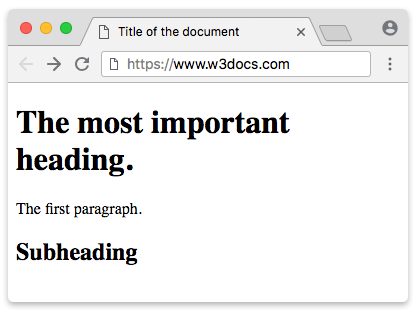
    <h1>The most important heading.</h1>
    <p>The first paragraph.</p>
    <h2>Subheading</h2>
  </body>
</html>Result
To start writing HTML code for your website you will need an editor. Let’s speak about HTML editors in our next chapter.