HTML <Blink> Tag
The <blink> tag is a deprecated HTML element that made text flash. Learn why it was removed and how to blink text with CSS or JavaScript.
The <blink> tag was a non-standard HTML element used to make the text it enclosed flash on and off. It was introduced by Netscape Navigator in the 1990s, but it was never added to any official HTML specification. Modern browsers no longer support it, so it does nothing on today's web.
This page explains where the tag came from, why every browser removed it, and how to create a blinking effect the right way using CSS or JavaScript while still respecting your users' accessibility preferences.
Why the <blink> Tag Was Removed
The <blink> element was dropped for two main reasons:
- It was never standardized. Because it was a proprietary Netscape extension and never part of the W3C HTML specification, browser vendors had no obligation to keep it. Mozilla removed
<blink>support from Firefox in 2013, and other browsers followed. - It harms accessibility. Content that flashes or moves on its own is a known usability and accessibility problem. It distracts readers, makes text hard to read, and can cause real difficulty for people with cognitive disabilities, attention disorders, or vestibular conditions. Uncontrollable motion can also trigger discomfort or, in extreme cases, seizures.
Because of this, blinking content is restricted by the Web Content Accessibility Guidelines (WCAG). Success Criterion 2.2.2 "Pause, Stop, Hide" requires that any moving, blinking, or auto-updating content lasting more than five seconds can be paused, stopped, or hidden by the user. The old <blink> tag gave users no way to do this, which is one reason it is considered an anti-pattern.
If you still want a blinking effect, use CSS or JavaScript (shown below) and always provide a way to honor users who prefer reduced motion.
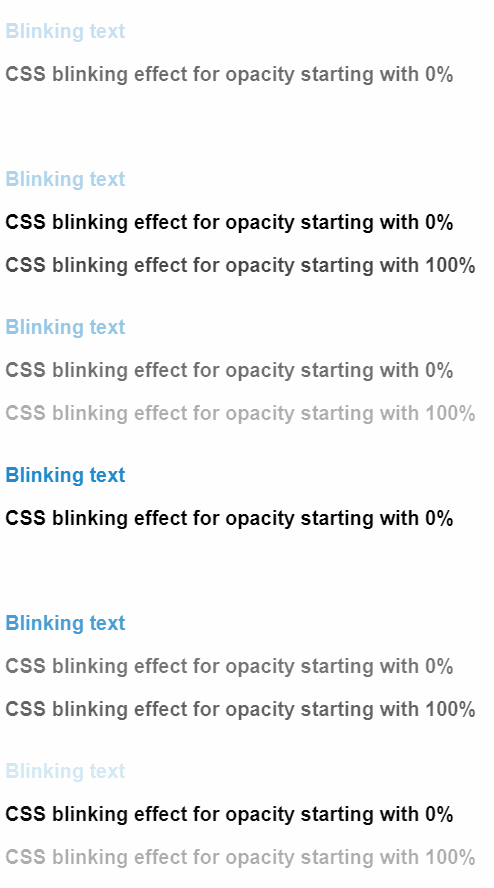
The <blink> is a deprecated HTML tag. Though some browsers may still have <blink> support, it is in the process of being dropped. Don't use this element, otherwise, your pages can be broken. You can use CSS and JavaScript instead to create a blink effect.
Example of HTML <blink> code:
Example of HTML <blink> tag
<!DOCTYPE html>
<html>
<head>
<title>Title of the document</title>
<style>
blink {
color: #1c87c9;
font-size: 20px;
font-weight: bold;
font-family: sans-serif;
}
</style>
</head>
<body>
<h1>The <blink> Element </h1>
<blink>The <blink> element is deprecated. To attain blinking effect you should use CSS or JavaScript. See examples in the next section.</blink>
</body>
</html>Blinking Effect with CSS
The recommended, standards-based way to create a blink effect is CSS animation with the @keyframes rule. This gives you full control over the timing and, importantly, lets you switch the animation off for users who have asked their system to reduce motion.
Always pair the animation with a @media (prefers-reduced-motion: reduce) block. This media feature detects the operating-system setting some people enable to avoid motion that can cause discomfort, and it is how you satisfy the accessibility concern described above.
Example of blinking effect with CSS3 animation:
Example of Blinking Effect with CSS animation
<!DOCTYPE html>
<html>
<head>
<style>
  .blink {
    animation: blinker 1s linear infinite;
  }

  @keyframes blinker {
    50% {
      opacity: 0;
    }
  }

  /* Turn the animation off for users who prefer reduced motion */
  @media (prefers-reduced-motion: reduce) {
    .blink {
      animation: none;
    }
  }
</style>
</head>
<body>

<h1 class="blink">Blinking Text Example</h1>

</body>
</html>The Historical text-decoration: blink Value (Do Not Use)
You may still come across old code that uses the blink keyword of the CSS text-decoration property. This is shown here only so you can recognize it in legacy pages. Do not use it in new work.
The blink keyword of the text-decoration property is not part of the CSS specification and is not supported by modern browsers. It is purely historical and has no effect today.
Example of blinking effect with the CSS text-decoration property (legacy):
Example of Blinking Effect created with text-decoration
<!DOCTYPE html>
<html>
  <head>
    <title>Title of the document</title>
    <style>
      .blink {
        text-decoration: blink;
        color: #1c87c9;
        font-size: 30px;
        font-weight: bold;
        font-family: sans-serif;
      }
    </style>
  </head>
  <body>
    <p class="blink">This text may blink depending on the browser you use.</p>
  </body>
</html>Blinking Effect with JavaScript
You can also use scripts to make the element blink.
Example of blinking effect with JavaScript:
Blinking with JavaScript example
<!DOCTYPE html>
<html>
  <head>
    <title>Title of the document</title>
    <style>
      #blink {
        font-size: 30px;
        font-weight: bold;
        font-family: sans-serif;
        color: #1c87c9;
        transition: 0.4s;
      }
    </style>
  </head>
  <body>
    <p id="blink">Blinking Effect with JavaScript</p>
    <script type="text/javascript">
      document.addEventListener('DOMContentLoaded', function() {
        const blink = document.getElementById('blink');
        let visible = true;
        setInterval(function() {
          visible = !visible;
          blink.style.opacity = visible === true ? 1 : 0;
        }, 1000);
      });
    </script>
  </body>
</html>Related Topics
- Deprecated HTML tags — the full list of elements you should avoid, including
<blink>. - HTML marquee tag — another deprecated, motion-based element with the same accessibility issues.
- Semantic elements in HTML5 — write meaningful, accessible markup instead of presentational tricks.
- CSS @keyframes and CSS animation — the modern way to animate.