HTML <canvas> Tag
The HTML <canvas> tag defines an area for drawing graphics, shapes, text and animations with JavaScript. Learn its sizing, accessibility and canvas vs SVG.
The <canvas> tag is one of the HTML5 elements. It defines an area on the web page, where we can create different objects, images, animations, photo compositions via scripts (usually JavaScript). You should use a script to draw graphics because the <canvas> tag is just a container for graphics.
When working with canvas, it is important to distinguish between such concepts as the canvas element and the context of an element, that are often confused. This element is what's built into HTML (the DOM node). A canvas context is an object with its properties and method for rendering. Context can be 2D and 3D. The canvas element can have only one context.
You should provide alternate content inside the <canvas> tag so that older browsers that don't support canvas, browsers with JavaScript disabled, and screen readers have something meaningful to render (see Accessibility below).
You can use CSS to change the displayed size of the canvas, but it is better to set the resolution with the width and height attributes on <canvas> — either in the HTML or from JavaScript — to avoid a blurry, stretched bitmap.
By default, a <canvas> element has a size of 300x150 pixels.
Canvas vs. SVG: which should you use?
Both <canvas> and <svg> draw graphics in the browser, but they work in fundamentally different ways:
- Canvas is pixel-based (immediate mode). Once you draw something, it becomes a flat bitmap — the browser keeps no memory of the individual shapes. There is no DOM for the drawn content, so you cannot attach event listeners to a shape; to "move" a circle you clear and redraw the whole scene every frame.
- SVG is shape-based (retained mode). Each element stays in the DOM, can be styled with CSS, scripted, and is resolution-independent (it stays crisp at any zoom).
Use canvas when you redraw frequently or have many objects: games, particle effects, real-time data visualization, image processing. Use SVG when you have a moderate number of shapes that need to be interactive, accessible, or scaled losslessly: icons, charts, diagrams. As a rough rule, canvas excels at many pixels changing fast, SVG at fewer shapes that stay interactive.
Sizing: the width/height attributes vs. CSS
This is the most common canvas pitfall. A canvas has two sizes:
- The
widthandheightattributes set the size of the drawing buffer (its bitmap resolution in pixels). - CSS
width/heightset the displayed size on the page.
If they differ, the browser stretches the bitmap to fit the CSS box, which blurs or distorts your drawing. Always set the attributes to the resolution you draw at; only use CSS to lay the element out if it matches.
<!-- Good: drawing buffer matches what you draw -->
<canvas width="400" height="200"></canvas>

<!-- Risky: CSS stretches a default 300x150 bitmap to 600x300, blurring it -->
<canvas style="width: 600px; height: 300px;"></canvas>For sharp output on high-DPI ("Retina") screens, scale the buffer by window.devicePixelRatio (e.g. set the attributes to cssWidth * devicePixelRatio) and then call ctx.scale(dpr, dpr) before drawing.
Syntax
The <canvas> tag comes in pairs. The content is written between the opening (<canvas>) and closing (</canvas>) tags.
Example of the HTML <canvas> tag:
The script below grabs the element with document.getElementById() and calls getContext('2d') to obtain the 2D drawing context — the object that holds every drawing method and property. Setting fillStyle chooses the fill color, and fillRect(x, y, width, height) paints a filled rectangle whose top-left corner is at (x, y). Canvas coordinates start at (0, 0) in the top-left corner, with x increasing to the right and y increasing downward.
<!DOCTYPE html>
<html>
  <head>
    <title>Title of the document</title>
  </head>
  <body>
    <canvas id="canvasExample">Your browser doesn’t support the HTML5 canvas element.</canvas>
    <script>
      const c = document.getElementById('canvasExample');
      const ctx = c.getContext('2d');
      ctx.fillStyle = '#1c87c9';
      ctx.fillRect(10, 50, 80, 80);
    </script>
  </body>
</html>Result
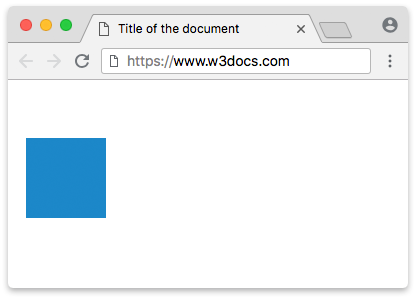
Example of the HTML <canvas> tag used for text:
To draw text you set the font property (the same syntax as the CSS font shorthand) and fillStyle for color, then call fillText(text, x, y). The (x, y) here is the position of the text's baseline, not its top-left corner. Note that width and height are set as attributes on the element so the drawing buffer matches the area we draw into.
<!DOCTYPE HTML>
<html>
  <head>
    <title>Title of the document</title>
  </head>
  <body>
    <canvas id="canvasExample" width="400" height="200"></canvas>
    <script>
      const canvas = document.getElementById('canvasExample');
      const context = canvas.getContext('2d');
      context.font = '30pt Calibri';
      context.fillStyle = '#1c87c9';
      context.fillText('Canvas Example !', 50, 100);
    </script>
  </body>
</html>Example of the HTML <canvas> tag used for drawing a line:
Lines and other paths are drawn in three steps. moveTo(x, y) lifts the "pen" and places it at a starting point without drawing. lineTo(x, y) adds a straight segment from the current point to the new point — but nothing is painted yet. Only stroke() actually renders the path, using the current strokeStyle (the outline color). When you draw more than one separate path, start each with beginPath() first; otherwise new segments are appended to the previous path. Use fill() (with fillStyle) instead of stroke() when you want a path filled rather than outlined.
<!DOCTYPE html>
<html>
  <body>
    <canvas width="300" height="150" style="border:1px solid #cccccc;" id="canvasExample">
      Your browser does not support the HTML5 canvas tag.
    </canvas>
    <script>
      const c = document.getElementById("canvasExample");
      const ctx = c.getContext("2d");
      ctx.beginPath();
      ctx.moveTo(0, 0);
      ctx.lineTo(300, 150);
      ctx.strokeStyle = '#1c87c9';
      ctx.stroke();
    </script>
  </body>
</html>Common use cases
Beyond simple shapes, the 2D context lets you build rich graphics:
- Animation — clear the canvas and redraw inside a
requestAnimationFrame()loop to produce smooth, frame-by-frame motion. - Images —
ctx.drawImage(img, x, y)paints an<img>, another canvas, or a video frame, which is the basis of photo editing and filters. - Gradients —
createLinearGradient()andcreateRadialGradient()produce gradient fills and strokes. - Games and data visualization — canvas is the go-to choice when you must repaint many objects every frame, which is why charting and game libraries are built on it.
These all rely on JavaScript, so a solid grasp of the HTML DOM helps you get the most out of canvas.
Accessibility
Canvas output is just pixels — screen readers and other assistive technology cannot "see" what you drew. Make canvas content accessible:
- Provide meaningful fallback content between the tags. Anything inside
<canvas>...</canvas>is shown to browsers without canvas support and exposed to assistive technology, so describe the drawing rather than writing a generic "not supported" message. - For a static drawing, add
role="img"and anaria-label(oraria-labelledby) describing it, e.g.<canvas role="img" aria-label="Bar chart of 2024 sales">. - For interactive canvases, mirror the controls and state in real DOM elements (buttons, live regions) since the drawn shapes themselves are not focusable or readable.
Attributes
| Attribute | Value | Description |
|---|---|---|
height | pixels | Defines the element height in pixels. |
width | pixels | Defines the element width in pixels. |
The <canvas> tag supports Global Attributes and the Event Attributes.