Introduction
On this page, you can find a short description about the git remote, git fetch, git push, and git pull commands. Also, read their common and basic usages.
Git is a distributed version control system: every clone is a full repository with its own complete history, not just a working copy checked out from a central server. Because of this, collaboration in Git is really about syncing, sharing whole branches between repositories rather than passing around a single changeset.
This page introduces the four commands that move commits between your local repository and the remote ones: git remote, git fetch, git push, and git pull. Each command is covered in detail on its own page, but understanding how they fit together is what makes day-to-day collaboration feel predictable.
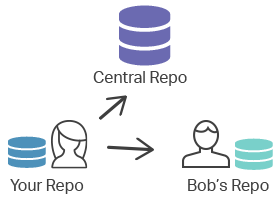
The mental model: local vs. remote
Before the individual commands, it helps to hold a simple picture in your head. Three things are involved when you sync:
- Your local repository — the branches you commit to, e.g.
main. - A remote — a named bookmark (such as
origin) pointing at another repository's URL. - Remote-tracking branches — read-only local copies of the remote's branches, named like
origin/main. They record where the remote was the last time you talked to it.
The direction of data flow tells you which command to reach for:
git fetchandgit pullbring commits down from the remote.git pushsends commits up to the remote.git remotemanages the connections themselves.
git remote
The git remote command is designed for creating, viewing, and removing connections to other repositories. By default, it lists all remote connections that have previously been stored.
When you clone a repository, Git automatically creates a remote called origin pointing back at the source URL, so you rarely add one by hand for your own projects. You add extra remotes when you collaborate across forks, for example pointing upstream at the original project you forked from.
# List configured remotes
git remote
# origin

# Show their fetch/push URLs
git remote -v
# origin  https://github.com/user/repo.git (fetch)
# origin  https://github.com/user/repo.git (push)

# Add a second remote
git remote add upstream https://github.com/original/repo.gitgit fetch
The git fetch command downloads commits, files, and references from a remote repository into your local repository, updating your remote-tracking branches (like origin/main). It lets you see what other members of the team have been working on without touching your own working branch.
Both git fetch and git pull download content from the remote, but git fetch is the safe, non-destructive option: it only advances the remote-tracking branches and never changes your working files. Nothing is merged until you explicitly ask for it.
# Download new commits from origin (does not change your working branch)
git fetch origin

# Review what arrived before integrating it
git log main..origin/main

# Integrate it yourself when ready
git merge origin/mainThis "fetch, then review, then merge" pattern is why many teams prefer git fetch over git pull: you get to inspect incoming changes before they land on the branch you are editing.
git push
The git push command uploads the content of your local repository to a remote repository. Where git fetch imports commits into your local remote-tracking branches, git push exports your local commits to the matching branches on the remote, so the rest of the team can see them.
# Push the current branch's commits to origin
git push origin main

# First push of a new branch: set up tracking with -u
git push -u origin feature-loginPushing only succeeds when it can move the remote branch forward without losing commits (a fast-forward). If someone else has pushed in the meantime, Git rejects the push and asks you to integrate their work first, usually by running git pull or git fetch and merging. Avoid --force on shared branches: it can overwrite teammates' commits.
git pull
The git pull command is essentially git fetch followed by an integration step, all in one command. It downloads new content from the remote and immediately integrates it into your current branch.
By default git pull combines git fetch with git merge, creating a merge commit when histories have diverged. You can configure it to use git rebase instead (git pull --rebase), which replays your local commits on top of the fetched ones for a linear history.
# Fetch from origin and merge into the current branch
git pull origin main

# Fetch and rebase your local commits on top instead
git pull --rebase origin mainWhen to use which
A quick decision guide for everyday work:
- Just starting work for the day? Run
git pull(orgit fetch+ review + merge) to get the latest changes. - Want to see what changed without disturbing your work? Use
git fetch, thengit logorgit diffagainstorigin/<branch>. - Finished a chunk of work? Run
git pushto share it. - Push got rejected? The remote has commits you don't. Pull (or fetch and merge/rebase), resolve any conflicts, then push again.
From here, follow the dedicated pages for each command, and see the Git workflows chapter for how teams combine these commands into a repeatable process.