git branch
On this page, you can find useful information about the git branch command, its usage, and how to create and delete branches. Also, see examples.
What git branch does
The git branch command creates, lists, renames, and deletes branches. That's the whole of its job — it does not switch your working tree to a branch, and it does not merge work together. Those tasks belong to git checkout / git switch and git merge. Think of git branch as the tool that manages the labels, while the other commands move you between them and bring them back together.
This page covers what a branch actually is, how to create and list them, how to rename and delete them (locally and on a remote), and the common gotchas that trip people up.

What a branch really is
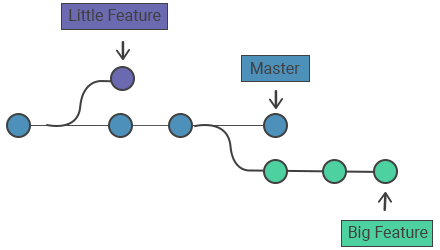
A branch in Git is not a copy of your files — it is a lightweight, movable pointer to a single commit. Each commit also points back to its parent(s), so following a branch pointer back through its parents reconstructs the full history of that line of work.
Because a branch is just a 41-byte file containing a commit hash, creating one is instant and costs almost nothing:
cat .git/refs/heads/main
# 9f1c2a7e8d... (the commit your branch currently points at)A special pointer called HEAD tracks which branch you are currently on. When you commit, the current branch pointer advances to the new commit and HEAD follows it. This is why branching is so cheap in Git compared with older version-control systems that physically duplicate files.
Why use branches
Branches give you an isolated line of development. You can build a feature or fix a bug on its own branch without touching the stable main branch, then merge it back when it's ready. Common reasons:
- Develop two features in parallel without their changes colliding.
- Keep
mainalways releasable while experimental code lives elsewhere. - Clean up history before merging, so the shared branch stays tidy.
- Open a pull request — most platforms build PRs around branches.
Common options
| Command | What it does |
|---|---|
git branch | Lists local branches (same as git branch --list); the current branch is marked with *. |
git branch -v | Lists branches with the latest commit hash and message of each. |
git branch <branch> | Creates a new branch called <branch> but does not switch to it. |
git branch <branch> <start-point> | Creates <branch> pointing at a specific commit, tag, or branch. |
git branch -d <branch> | Deletes a branch only if its changes are already merged. |
git branch -D <branch> | Force-deletes a branch even with unmerged changes (-D = --delete --force). |
git branch -m <old> <new> | Renames a branch (use -M to overwrite an existing name). |
git branch -a | Lists all branches — local and remote-tracking. |
git branch -r | Lists only remote-tracking branches. |
git branch --merged | Lists branches already merged into the current one (safe to delete). |
git branch --no-merged | Lists branches not yet merged into the current one. |
Creating branches
Branches are just pointers to commits. When you create one, Git adds a new pointer at your current commit — it does not change history.
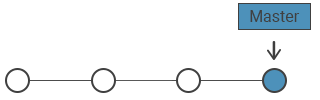
Create a branch at your current commit:
git branch test_branchA new pointer to the current commit is created; nothing else moves:
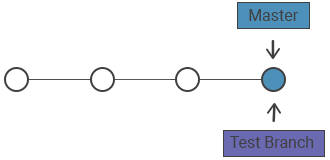
Creating a branch does not switch you onto it — HEAD still points at the old branch. To start working on the new branch, switch to it and then use git add and git commit to record work:
git switch test_branch # modern; or: git checkout test_branchMost of the time you want to create and switch in one step:
git switch -c test_branch     # create + switch (modern)
git checkout -b test_branch # create + switch (older syntax, identical effect)You can also branch from a specific point instead of HEAD — a tag, another branch, or a commit hash:
git branch hotfix v1.0        # branch starting at the v1.0 tag
git branch experiment 9f1c2a7 # branch starting at an old commitListing and inspecting branches
Running git branch with no arguments shows your local branches and marks the current one:
git branch
#   feature-login
# * main
# test_branchAdd -v to see where each branch points:
git branch -v
#   feature-login 1a2b3c4 Add login form
# * main          9f1c2a7 Update README
# test_branch 9f1c2a7 Update READMETo find which branches are safe to clean up, list the ones already merged into your current branch. Anything here can be removed with -d:
git branch --merged
#   feature-login
# * mainRenaming branches
Use -m (move) to rename. To rename the branch you're currently on, give just the new name:
git branch -m better-nameTo rename a different branch, give both old and new names:
git branch -m old-name new-nameIf a branch with the target name already exists, -m refuses to overwrite it; use -M to force the rename. Note that renaming a branch that exists on a remote does not rename it there — you must push the new name and delete the old one.
Deleting branches
After a branch is merged into main, delete the local pointer to keep your branch list tidy:
git branch -d test_branch
# Deleted branch test_branch (was 9f1c2a7).The -d flag is a safety check: it refuses to delete a branch whose commits are not yet merged into the current branch, so you don't lose work:
git branch -d test_branch
# error: The branch 'test_branch' is not fully merged.
# If you are sure you want to delete it, run 'git branch -D test_branch'.If you're certain you want the branch (and its unmerged commits) gone, use the capital -D to force it:
git branch -D test_branch-D discards commits that exist only on that branch. Those commits become unreachable and are eventually garbage-collected. If you delete by mistake, you can usually recover the hash from git reflog before that happens.
Deleting a remote branch
The commands above only remove your local copy. The branch can still exist on the remote (for example on origin). To delete it there:
git push origin --delete test_branchThe older colon syntax does the same thing — it pushes "nothing" into the remote branch, which deletes it:
git push origin :test_branchTo create a branch on a remote, push a local branch up; the first push establishes it on the remote and (with -u) sets up tracking. See git push and git remote for details:
git push -u origin test_branch
# pushes test_branch to origin and tracks itA full example
Here is the typical create → work → merge → clean-up cycle from start to finish:
git switch -c feature-x        # create and switch to the branch
# ... edit files ...
git add .
git commit -m "Add feature X"

git switch main                # back to main
git merge feature-x            # bring the work in
git branch -d feature-x        # delete the now-merged local branch
git push origin --delete feature-x   # and remove it from the remote