git fetch
On this page, you can find information about the git fetch command, find out the difference between git fetch and git pull, and see lots of examples.
The git fetch command downloads commits, files, and references from a remote repository into your local repository, without changing any of your own work. It is the safe way to see what your teammates have been doing: nothing in your working directory or your local branches is touched until you decide to merge.
This page covers what git fetch does, how it updates remote-tracking branches, the most useful options, how to fetch a specific branch or a whole remote, and how git fetch differs from git pull.
Definition
The git fetch command is used to download commits, objects, and references from a remote repository into the local repository. It is used to see what other members of the team have been working on. Unlike git pull, it never merges the downloaded work into your current branch automatically.
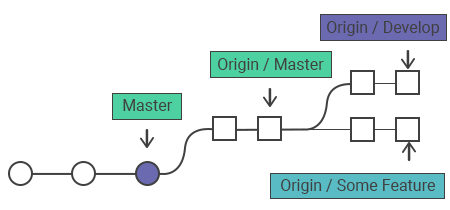
How it works with remote branches
Git stores the local and remote commits and separates through the use of branch references. The references for the local branches are stored in the /.git/refs/heads/. To see the list of the local branch references, run the git branch command.
git branch
git branch
* master
  crossword
solverExploring the contents of the /.git/refs/heads/ directory will have the following output:
ls ./.git/refs/heads/
ls ./.git/refs/heads/
master
crossword
solverRemote branch references are stored in the ./.git/refs/remotes/ directory. To see the remote branches, use the -r flag with the git branch. Here is the output after fetching a remote repository:
git branch -r
git branch -r
  origin/master
  origin/crossword
  origin/solver
  remote-repo/master
remote-repo/other-featureThe output shows remote branches prefixed with origin/. These are remote-tracking branches — read-only local copies that record where each branch was on the remote the last time you fetched. You can examine them with the git checkout and git log commands. After reviewing the changes, you can merge a remote-tracking branch into your local branch with git merge. Use git pull to combine fetching and merging in a single step.
Common Options
| Option | What it does |
|---|---|
--all | Fetches all configured remotes, not just one. |
-k, --keep | Keeps the downloaded pack file instead of unpacking it. |
-p, --prune | Removes remote-tracking references that no longer exist on the remote. |
--depth=<depth> | Limits the number of commits fetched from the tip of each branch (a shallow fetch). |
--dry-run | Shows what would be fetched without actually downloading anything. |
To remove tracking references for branches that no longer exist on the remote, use --prune:
git fetch --pruneTo fetch from every configured remote at once, use --all:
git fetch --allHow to git fetch the remote branch
Here, we will show the steps of fetching a remote branch and update the local working state to the remote content. In the following example, we have a central repository origin from which the local repository has been cloned with the git clone command. There is another remote repository named test_repo containing feature_branch that has to be configured and fetched.
The first step is configuring the remote repository with git remote:
git remote
git remote add test_repo git@hostname:test/test_repo.gitUsing the URL of the coworker’s repository, we have created a reference to it. For downloading the content git fetch the test feature_branch:
git fetch
git fetch test_repo feature_branch
From hostname:test/test_repo
* [new branch] feature_branch -> test_repo/feature_branchThis downloads the test_repo/feature_branch content into your local repository as a remote-tracking branch — it does not merge it into your current branch. Now, use the git checkout command to inspect the downloaded remote branch:
git checkout test_repo/feature_branch
git checkout test_repo/feature_branch
Note: checking out 'test_repo/feature_branch'.

You are in 'detached HEAD' state. You can look around, make experimental
changes and commit them, and you can drop all the commits you make in this
state without influencing branches by executing another checkout.

If you want to generate a new branch for maintaining commits you create, you may
do so (now or later) if you use -b with the checkout command again. Example:

git checkout -b <new-branch-name>The output shows that we are in the detached HEAD state, which means that the HEAD reference points directly to a commit instead of a branch.
With the git checkout command a new local branch from the test/feature_branch reference may be created:
git checkout -b local_feature_branch test_repo/feature_branch
git checkout -b local_feature_branch test_repo/feature_branchThe new local branch is created updating HEAD to point at the latest remote content.
Synchronizing origin with git fetch
The following example displays how to synchronize the local repository with the central repository's master branch:
git fetch origin
git fetch originThe output will show the branches that have been downloaded:
git fetch origin output
b341bc3..32a45b1  master     -> origin/master
b341bc3..7a52a22  develop    -> origin/develop
* [new branch] some-feature -> origin/some-featureInvoke git log using origin/master as a filter to show the commits added to the upstream master:
git log --oneline master..origin/master
git log --oneline master..origin/masterCheck the changes and merge them into the local master branch:
git checkout master && git log origin/master
git checkout master
git log origin/masterRun git merge origin/master to synchronize with the upstream developments:
git merge
git merge origin/masterA common collaboration scenario
Here's a scenario to help you better understand this concept.
Assume there is a small development team consisting of two developers, Alice and Bob. They are working on a project hosted on a remote Git repository called origin. Alice clones the repository to her local machine and starts working on the main branch, while Bob is working on a separate branch called feature-branch.
1- Alice creates a new file called README.md and makes some changes to it. She then commits and pushes her changes to the main branch on the origin repository:
$ git add README.md
$ git commit -m "Add README file"
$ git push origin main2- Meanwhile, Bob has made some changes to the feature-branch and pushed them to the origin repository:
$ git add some_file.txt
$ git commit -m "Add new feature"
$ git push origin feature-branch3- Alice realizes that she needs to incorporate Bob's changes into her own work, so she fetches the changes from the origin repository:
$ git fetch origin4- After fetching, Alice can see that there are new changes in the feature-branch:
$ git branch -r
  origin/HEAD -> origin/main
  origin/main
origin/feature-branch5- Alice can now merge Bob's changes into her main branch:
$ git merge origin/feature-branch6- Alice resolves any merge conflicts, and then pushes her changes to the origin repository:
$ git push origin main7- Bob can now fetch the changes made by Alice:
$ git fetch origin8- Bob can now see that there are new changes in the main branch:
$ git branch -r
  origin/HEAD -> origin/main
  origin/main
origin/feature-branch9- Bob can merge the changes made by Alice into his feature-branch:
$ git merge origin/main10- Bob resolves any merge conflicts, and then pushes his changes to the origin repository:
$ git push origin feature-branchAnd so the cycle continues, with both Alice and Bob using git fetch to track changes made by each other and push their own changes to the origin repository. By using git fetch, they are able to keep their local repository up-to-date with the changes made by their teammates, which helps to avoid conflicts and ensure a smooth collaboration process.
Git fetch vs git pull
Both git fetch and git pull are used for downloading the content from the remote repository. The git fetch command does not automatically merge changes into your local branches; it simply updates your remote-tracking branches. The fetched content does not affect your local working directory, allowing you to safely review commits before merging them. The git pull command downloads new content and automatically merges it into your current branch. This can cause merge conflicts, so it is recommended to run git pull only when your working copy is clean.
In short, git pull is roughly equivalent to git fetch followed by git merge:
git pull origin main
# is similar to:
git fetch origin
git merge origin/mainWhen to use git fetch
Reach for git fetch when you want to:
- See what changed before integrating it. Fetch first, then inspect with
git log origin/main..orgit diff main origin/main, and only merge when you are ready. - Update remote-tracking branches without touching your work. Useful in the middle of a task when your working directory has uncommitted changes a
git pullcould disrupt. - Clean up stale branches.
git fetch --pruneremoves remote-tracking references for branches that were deleted on the remote. - Review a teammate's branch. Fetch it, check it out to read the code, and decide whether to merge.