git reset
On this page, you can find useful information about git reset command, learn about three trees of Git and their relation with git reset and see examples.
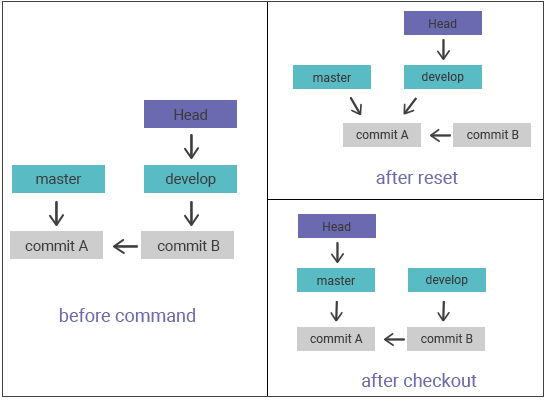
git reset is the main command for undoing changes in your local repository. Depending on the mode you choose, it can unstage a file, throw away staged changes, or move a branch backward to an earlier commit. Because it can rewrite where your branch points and discard work, it is powerful but easy to misuse.
This page explains the three "trees" git reset works on, walks through its three modes (--soft, --mixed, --hard) with examples, and shows when to reach for git revert instead.
When to use git reset
Reach for git reset when you want to rewrite local history or staging that has not been shared yet:
- Unstage a file you added by mistake:
git reset <file>. - Clear the whole staging area to rebuild your next commit from scratch:
git reset. - Discard local commits and changes entirely:
git reset --hard <commit>. - Squash or rewrite the last few commits before pushing.
If the commits you want to undo have already been pushed to a shared branch, use git revert instead — it records a new commit that reverses the changes without rewriting history other people depend on.
Git reset and the three trees
git reset has three forms of invocation that map to Git’s three internal state-management systems, often called the three trees of Git:
- HEAD — the commit history (the snapshot your branch currently points to).
- Staging index — the changes staged for the next commit.
- Working directory — the files on disk in your editor.
We will look at each of these systems in turn.
The working directory
The first tree is the working directory. It represents the files on your computer’s file system that your editor can change. The working directory is synchronized with a specific commit of the checked-out project: when a project is checked out, Git extracts decompressed versions of the repository’s files onto disk.
If we edit a tracked file, git status reports it as a modified, unstaged change in the working directory:
echo 'hello git reset' > edited_file
git status
#On branch master
#Changes not staged for commit:
#(use "git add ..." to update what will be committed)
#(use "git checkout -- ..." to discard changes in working directory)
#modified: edited_fileStaging index
The second tree is the staging index, which tracks the changes staged for the next commit. Git normally hides the staging area’s internals from you. You will also see it referred to by several other names: cache, directory cache, staged files, or staging area.
To inspect the staging index directly we can use git ls-files -s, a debug tool that prints the staged entries together with their object hashes:
git ls-files -s
#543644 a32de29bb3c1d643328b29ae775ad8c2e48c3256 0 edited_fileCommit history
The third tree is the commit history. The git commit command takes whatever is in the staging index and records it as a permanent snapshot in the history:
git commit -am "edit content of test_file"
#[master ab23324] edit the content of edited_file
#1 file changed, 1 insertion(+)
git status
#On branch master
#nothing to commit, working tree cleanIn the example above, you can see the new commit with a message "edit content of test_file". The changes are attached to the commit history. At this stage, running git status shows no forthcoming changes to any of the trees. Invoking git log, you will see the commit history. Once the changes are made through the three trees, git reset can be used.
How it works
At first sight, the git reset command has some similarities with git checkout, as they both operate on HEAD. The git checkout command operates exclusively on the HEAD reference pointer, while the git reset command passes the HEAD reference pointer and the current branch reference pointer. You will make a better understanding of its behavior with the illustration below:

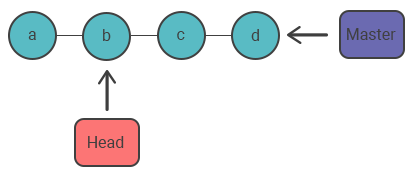
This illustration presents the sequence of commits on the master branch. As you can see, the HEAD ref and the master branch ref presently point to commit d. We will see how the image changes in case of git checkout b and git reset b.
git checkout b
When executing the git checkout command, the master ref is still pointing to the commit d. What comes to the HEAD ref, it has been moved and changed the pointer to the commit b. As a result, the repository is now in a 'detached HEAD' state.
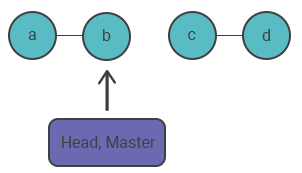
git reset b
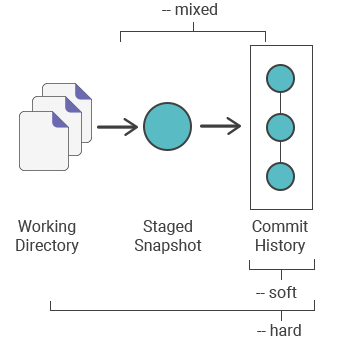
The git reset command moves both the HEAD and the current branch ref to the specified commit. It can also change the state of the staging index and working directory. Three command-line options — --soft, --mixed, and --hard — control how far that reset reaches:
Main Options
By default, git reset runs with the arguments --mixed and HEAD. So invoking git reset is the same as git reset --mixed HEAD. The HEAD here is the target commit — you can replace it with any commit reference, such as a SHA-1 hash (git reset 0a1b2c3) or a relative pointer (git reset HEAD~2).
The table below summarizes which trees each mode touches:
| Mode | Commit history (HEAD) | Staging index | Working directory |
|---|---|---|---|
--soft | moved | unchanged | unchanged |
--mixed (default) | moved | reset to target | unchanged |
--hard | moved | reset to target | reset to target (changes lost) |
A useful way to remember it: --soft keeps your changes staged, --mixed keeps them as unstaged edits, and --hard throws them away completely.
--hard
--hard is the most powerful and the most dangerous option. It moves the commit-history ref to the target commit, then forces the staging index and the working directory to match that commit. Any pending changes in the staging index and working directory are discarded — and this loss cannot be undone with git reset.
Warning:
--harddeletes uncommitted work permanently. Rungit statusfirst to confirm what you are about to lose.
To demonstrate, first create some pending changes:
echo 'test content' > test_file
git add test_file
echo 'modified content' >> edited_fileA new file named test_file has been created and staged, and the content of edited_file has been modified in the working directory. Let us check the state of the repository with the git status command:
git status
#On branch master
#Changes to be committed:
#(use "git reset HEAD ..." to unstage)
#new file: test_file
#Changes not staged for commit:
#(use "git add ..." to update what will be committed)
#(use "git checkout -- ..." to discard changes in working directory)
#modified: edited_fileThere are now pending changes in two trees: the staging index holds the new test_file, and the working directory holds the modifications to edited_file. Let us look at the state of the staging index:
git ls-files -s
#123126 7a32454a5477b1bf4765946147c49509a431f963 0 test_file
#123126 6c423c1b04b5edd5acfc85de0b592449e5303773 0 edited_fileThe test_file has been added to the index. The edited_file has been updated, but the staging index SHA (d7d77c1b04b5edd5acfc85de0b592449e5303770) stays the same. These changes are in the working directory. They are not promoted to the staging index because we have not run the git add command. Now we execute git reset --hard and inspect the new state of the repository:
git reset --hard
#HEAD is now at ab23324 update content of edited_file
git status
#On branch master
#nothing to commit, working tree clean
git ls-files -s
#123126 6c423c1b04b5edd5acfc85de0b592449e5303773 0 edited_fileThe --hard option executed a "hard reset". Git indicates that HEAD is pointing to the recent commit ab23324. Then, the state of the repo is checked with git status. Git indicates there are no pending changes. What comes to the state of the staging index, it has been reset to a point before adding the test_file. edited_file changes and the addition of test_file have been wiped out. This loss cannot be undone.
--mixed
--mixed is the default mode. It moves the ref pointers and resets the staging index to the target commit, but leaves the working directory untouched. The changes that were unstaged from the index reappear as modifications in the working directory, so nothing is lost — you simply get a chance to re-stage them.
echo 'new file content' > test_file
git add test_file
echo 'append content' >> edited_file
git add edited_file
git status
#On branch master
#Changes to be committed:
#(use "git reset HEAD ..." to unstage)
#new file: test_file
#modified: edited_file
git ls-files -s
#123126 6a32154a5477b1bf4765946147c49509a4323d32 0 test_file
#123126 3c3262db063f9e9426901092c00a3394b4bd3445 0 edited_fileIn the example above, test_file was added and the contents of edited_file were modified, and both changes were applied to the staging index with git add. With this state of the repository, it is time to invoke git reset:
git reset --mixed
git status
#On branch master
#Changes not staged for commit:
#(use "git add ..." to update what will be committed)
#(use "git checkout -- ..." to discard changes in working directory)
#modified: edited_file
#Untracked files:
#(use "git add ..." to include in what will be committed)
#test_file
#no changes added to commit (use "git add" and/or "git commit -a")
git ls-files -s
#123126 6c423c1b04b5edd5acfc85de0b592449e5303773 0 edited_fileThe --mixed is the default mode. It has the same effect as git reset. The git status shows that there are changes to edited_file and that test_file is an untracked file. This is the exact --mixed behavior. The staging index has been reset and the pending changes are moved to the working directory.
--soft
The --soft argument moves the ref pointers and stops there. It does not touch the staging index or the working directory, so everything that was committed stays staged and ready to be re-committed. This is the mode you want when squashing several commits into one.
git reset --soft
git status
#On branch master
#Changes to be committed:
#(use "git reset HEAD ..." to unstage)
#modified: edited_file
git ls-files -s
#123126 32a252710639e5da6b515416fd779d0741e4561a 0 edited_fileA soft reset moves only the commit history. By default it targets HEAD. Let’s create a new commit and then try a --soft reset with a target commit other than HEAD:
git commit -m "add changes to edited_file"Now our repository has three commits. To find the first one, we check its ID in the output of git log:
git log
#commit 62e793f6941c7e0d4ad9a1345a175fe8f45cb9df
#Author: w3docs
#Date: Fri Nov 1 14:02:07 2019 -0800
#add changes to edited_file
#commit ab23324a6da9f0dec51ed16d3d8823f28e1a72a
#Author: w3docs
#Date: Fri Nov 1 11:31:58 2019 -0800
#change content of edited_file
#commit 780411da3b47117270c0e3a8d5dcfd11d28d04a4
#Author: w3docs
#Date: Thu Sep 31 18:40:29 2019 -0800
#initial commitThe bottom entry is the initial commit; we will use its ID as the target for the soft reset. First, check the current state of the repository:
git status && git ls-files -s
#On branch master
#nothing to commit, working tree clean
#123126 32a252710639e5da6b515416fd779d0741e4561a 0 edited_fileNow we can soft reset back to the first commit:
git reset --soft 780411da3b47117270c0e3a8d5dcfd11d28d04a4
git status && git ls-files -s
#On branch master
#Changes to be committed:
#(use "git reset HEAD ..." to unstage)
#modified: edited_file
#123126 32a252710639e5da6b515416fd779d0741e4561a 0 edited_fileIn the example above, we had a soft reset and the git status and git ls-files combo command invoked, which outputs the state of the repository. The git status command shows that there are some changes to edited_file, highlighting them as changes staged for the next commit. The git ls-files output shows that the staging index has remained unchanged and retains the SHA 32a252710639e5da6b515416fd779d0741e4561a. Let’s examine the commit history after the soft reset with git log:
git log
#commit 780411da3b47117270c0e3a8d5dcfd11d28d04a4
#Author: w3docs
#Date: Thu Sep 31 18:40:29 2019 -0800
#initial commitThe output now shows a single commit in the history. As with all git reset invocations, --soft first resets the commit tree. Unlike the earlier --hard and --mixed examples that targeted HEAD, this soft reset moved the commit tree back in time to an older commit — while the work itself stayed safely in the staging index.
The difference between reset and revert commands
git revert is generally a safer way to undo changes than git reset, because git reset can lose work. A git reset does not immediately delete a commit, but it can leave the commit orphaned — no branch or tag points to it anymore, so there is no direct way to reach it. Git eventually removes orphaned objects when it runs its garbage collector (git gc), which by default prunes unreachable objects older than about 90 days (reflog entries expire after 90 days, or 30 days for unreachable ones). Until then, you can usually recover an orphaned commit with the git reflog command.
The other key difference: git revert is designed to undo public, already-shared commits by adding a new reversing commit, while git reset is designed to undo local changes to the working directory and staging index.
Never reset published history
Do not run git reset <commit> when there are snapshots after <commit> that have already been pushed to a shared repository. Once you publish a commit, other developers rely on it. Rewriting or deleting commits that teammates have already pulled will cause divergent histories and painful merge conflicts. Use git reset only on commits that exist solely in your local repository. To undo public changes, use the git revert command instead.
Examples
Remove a specific file from the staging area without changing the working directory — it unstages the file while keeping your edits:
git reset <file>Reset the entire staging area to match the last commit, leaving the working directory unchanged. This unstages every file without overwriting changes, so you can rebuild the staged snapshot from scratch:
git resetReset both the staging area and the working directory to match the last commit. This discards all uncommitted changes in the working directory as well:
git reset --hardMove the branch tip back to a given commit and reset the staging area to match, but leave the working directory untouched:
git reset <commit>Move the current branch tip back to a given commit and reset both the staging area and the working directory to match it:
git reset --hard <commit>Removing local commits
As shown above, you can use git reset to delete commits in your local repository. In the example below, git reset --hard HEAD~2 moves the current branch back by two commits, removing the two most recent snapshots from the project history:
# Create a new file called `yourname.txt` and add some code to it
# Commit it to the project history
git add yourname.txt
git commit -m "Start to develop a project"
# Edit `yourname.txt` again and change some other tracked files, too
# Commit another snapshot
git commit -a -m "Continue developing"
# Scrap the project and remove the related commits
git reset --hard HEAD~2Unstaging files
A very common use of git reset is to fine-tune what goes into the next commit. In the example below we have two files, task.txt and index.txt, that were both staged. git reset lets us unstage the changes that do not belong in the next commit, so each file can be committed separately:
# Edit task.txt and index.txt
# Stage everything in the current directory
git add .
# Realize that the changes in task.txt and index.txt
# should be committed in different snapshots
# Unstage index.txt
git reset index.txt
# Commit only task.txt
git commit -m "Edit task.txt"
# Commit index.txt in a separate snapshot
git add index.txt
git commit -m "Edit index.txt"