git commit
On this page, you can find information about git commit. Read about what is git commit and how it works, as well as learn the common options.
The git commit command records the changes you have staged into the repository's history as a new snapshot. Each commit is a permanent, named point you can return to, compare against, or share with others. This page explains what a commit is, how the stage-then-commit workflow fits together, the most useful options, how to write good commit messages, and how Git's snapshot model differs from older systems like SVN.
Definition
The git commit command saves all currently staged changes of the project. Commits are created to capture the current state of a project. Committed snapshots are considered safe versions of a project because they live in your local history and Git will not silently change them. Before running git commit, you use the git add command to stage the changes that the commit will store.
A commit is made up of three things:
- A snapshot of every tracked file at the moment you commit (not a diff — see Snapshots, not differences below).
- Metadata: the author, a timestamp, and the message you write.
- A parent pointer to the commit that came before it, which is how Git builds a history you can browse with git log.
Each commit is identified by a unique 40-character SHA-1 hash (for example 9fceb02...), which you can shorten to the first seven characters when referring to it.
How it works
Git snapshots are committed to your local repository. Git lets you accumulate commits locally rather than pushing changes immediately to a central server. You publish them later with git push. This separation offers several advantages:
- Splitting a feature into commits so each step is small and reviewable.
- Grouping related changes into a single, self-contained commit.
- Cleaning up local history (squashing, rewording, reordering) before sharing it.
- Working offline — you can commit on a plane and push when you reconnect.
The typical lifecycle of a change is working directory → staging area → commit: you edit files, run git add to stage the parts you want, then git commit to record them. Anything you do not stage stays in your working directory and is left out of the commit.
Common options
| git commit -a | Commits a snapshot of all changes in the working directory. Only modifications to tracked files are included. |
|---|---|
| git commit -m "commit message" | Creates a commit with a passed commit message. By default, git commit opens the locally configured text editor causing a commit message to be entered. |
| git commit -am "commit message" | Combines the -a and -m options to stage all modified tracked files and create a commit with an inline message. |
| git commit --amend | Modifies the last commit. Staged changes are added to the previous commit, and the editor opens so you can change the message. |
git commit -a (and -am) only stages files Git is already tracking. Brand-new files are never picked up automatically — you must git add them first. Run git status when in doubt.
Saving changes with a commit
In the following example, we have the w3docs.txt file with changed content on the current branch. To commit the staged snapshot of the file, first, you should stage the file with git add command.
git add command
git add w3docs.txtRunning git add will move w3docs.txt file to the Git staging area. Use the git status command to see the output.
git status
git status
On branch master
Changes to be committed:
(use "git reset HEAD <file>..." to unstage)
new file: w3docs.txtThe output indicates that w3docs.txt will be saved with the next commit. The commit is created by executing:
Git commit
git commitRunning git commit opens a text editor (we can set it via git config) asking for a commit log message and a list of what is being committed:
git commit in editor
# Enter the commit message of your changes. Lines that start
# with '#' will be ignored, an empty message breaks off the commit.
# On branch master
# Changes needed to be committed:
# (use "git reset HEAD ..." to unstage)
#
#modified: w3docs.txtGit's conventional commit format summarizes the change on the first line in under 50 characters, followed by a blank line and a detailed explanation. For example:
git commit message
Change the message displayed by w3docs.txt

- Update the sayHello() function to get the username
- Change the sayGoodbye() function to a more welcoming messageThe first line is the subject; the rest is the body. Save and close the editor to finish the commit.
Writing a good commit message
A clear message makes history searchable and review easier. The widely used convention is:
- Keep the subject line under 50 characters and write it in the imperative mood ("Add login form", not "Added" or "Adds").
- Do not end the subject with a period.
- Leave a blank line between the subject and the body — many tools rely on it.
- Wrap the body at about 72 characters and explain why the change was made, not just what changed.
Committing with an inline message
For small, single-purpose changes you usually skip the editor and pass the message directly:
git commit -m "Update greeting in w3docs.txt"Use git commit -am "..." to stage every modified tracked file and commit in one step.
How to update (amend) a commit
git commit --amend replaces the most recent commit instead of adding a new one. It is useful when you forgot to stage a file or want to fix a typo in the last message. The editor opens pre-filled with the previous message:
git add and git commit
git add w3docs.txt
git commit --amendTo amend only the message without opening the editor:
git commit --amend -m "Corrected commit message"Amending rewrites the last commit and gives it a new hash. Only amend commits that you have not already pushed and shared — rewriting public history forces everyone else to reconcile their copies. To undo a commit you have not yet shared, use git reset.
Git commit vs svn commit
SVN is a centralized application model while Git is a distributed application model. SVN commit pushes changes from the local client to a centralized repository. In Git the snapshots are committed to the local repository. Git commits can be pushed to arbitrary remote repositories.
Snapshots, not differences
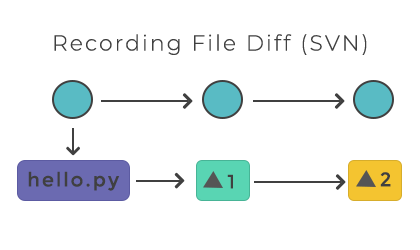
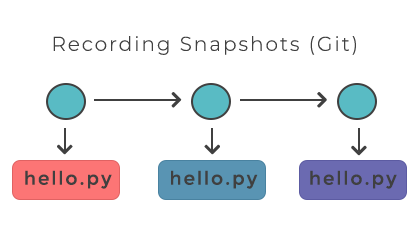
Git is based on snapshots, whereas SVN tracks differences in files. An svn commit records a diff that is applied to the original file in the repository. Git records the complete state of the project in every commit. When saving the project state, Git takes a snapshot of the current files and stores a reference to that snapshot. If a file has not changed, Git does not store it again, which optimizes storage.
Related commands
- git add — stage changes before you commit them.
- git status — see what is staged and what is not.
- git log — browse the history of commits you have made.
- git reset — unstage files or undo a commit.
- git push — publish your local commits to a remote repository.