git add
See the detailed information about the git add command, the working principles with examples, common options, such as interactive mode and editing patches.
Description
The git add command adds changes from the working directory to the staging area (also called the index). With it, you tell Git which file changes you want to include in the next commit. git add does not save anything to history on its own — it only marks changes as ready. To actually record them, you run git commit afterwards. To inspect what is staged versus unstaged at any point, use git status.
This page covers what git add does, the three Git "areas" it sits between, its most useful options, and the interactive and patch-editing modes for staging changes piece by piece.
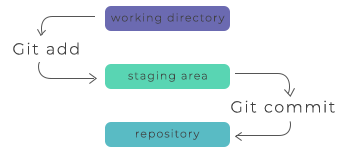
The three areas
Every change in a Git project moves through three areas:
- Working directory — the files you actually edit on disk.
- Staging area (index) — a snapshot of what will go into the next commit.
- Repository — the committed history, written by git commit.
git add moves changes from the working directory into the staging area. git commit then writes whatever is staged into the repository. This two-step flow is what lets you split a messy working directory into clean, focused commits.
Why stage changes at all?
In many version-control systems, committing snapshots everything you changed. Git deliberately adds the staging area in between so you can decide exactly what each commit contains. This is useful when you have edited several unrelated things at once: you can stage and commit one logical change, then stage and commit the next, keeping your history readable.
Because staging captures a snapshot at the moment you run it, git add should be run again any time you make further edits you want included. If you stage a file and then keep editing it, the later edits stay unstaged until you git add once more.
Common options
Stage a single file for the next commit:
git add <file>Stage every change inside a directory (recursively, including new files):
git add <directory>Stage all changes in the entire repository — new, modified, and deleted files:
git add -AStage changes to already tracked files only, including deletions, but ignore brand-new untracked files:
git add -uStage changes interactively, choosing portions of files hunk by hunk:
git add -pgit add . vs git add -A vs git add -u
These three are easy to confuse, so it is worth being precise:
| Command | New files | Modified files | Deleted files | Scope |
|---|---|---|---|---|
git add . | yes | yes | yes | current directory and below |
git add -A | yes | yes | yes | whole repository |
git add -u | no | yes | yes | tracked files only |
In modern Git, git add . and git add -A both stage deletions; the difference is only the path scope. Use -u when you have created throwaway files you do not want committed and prefer not to list them in .gitignore.
Examples of git add
You can run these commands in any Git repository. Start by checking the current state with git status, then stage and commit.
Stage a new file
git add hello.pyStage several specific files at once
git add hello.py utils.py README.mdStage everything, then commit with a message
git add -A
git commit -m "Add greeting script"See what is staged before committing
git statusOn branch main
Changes to be committed:
(use "git restore --staged <file>..." to unstage)
new file: hello.pyTo pull a file back out of the staging area without losing your edits, use git restore --staged (or, in older Git, git reset):
git restore --staged hello.pyInteractive mode
Running git add -p (or choosing the patch option from git add -i) starts an interactive staging session. Git shows you one hunk — a block of changed lines — at a time and prompts for a command. The most common answers are:
y- stage this hunkn- do not stage this hunkq- quit; do not stage this hunk or any remaining onesa- stage this hunk and all later hunks in the filed- do not stage this hunk or any later hunks in the fileg- select a hunk to go to/- search for a hunk matching the given regexj- leave this hunk undecided, go to the next undecided hunkJ- leave this hunk undecided, go to the next hunkk- leave this hunk undecided, go to the previous undecided hunkK- leave this hunk undecided, go to the previous hunks- split the current hunk into smaller hunkse- manually edit the current hunk?- print help
Splitting (s) is especially handy: if Git presents two unrelated edits as one hunk, s breaks it apart so you can stage only the part you want. This is the everyday way to build a clean commit out of a file with mixed changes.
Editing patches
Calling git add -e or selecting e from the interactive chunk selector opens a patch in your editor. After exiting the editor, the output is applied to the index. You can make arbitrary changes to the patch, but some edits may result in complex outputs or even make the patch inapplicable. If you want to decline the operation entirely, simply delete all lines of the patch. Here are some common elements you may see in a patch, and which editing operations make sense for them.
Lines starting with + represent added content. You can delete them to prevent staging any added lines.
Lines beginning with - represent removed content. To prevent staging their deletion, you can convert the - to a space ( ).
Modified content is shown with - lines (deleting the old content) followed by + lines (adding the replacement content). To prevent staging the modification, convert the - lines to spaces and remove the + lines. Note that modifying only half of the pair may cause confusing changes to the index.
Common gotchas
- Staging is a snapshot, not a live link. If you
git adda file and then edit it again, only the earlier version is staged. Rungit addonce more to include the new edits — git status will show the same file under both "Changes to be committed" and "Changes not staged for commit." git adddoes not delete files for you. It stages deletions of already-tracked files (with-Aor-u), but to both delete a file from disk and stage that deletion in one step, use git rm.- Ignored files stay ignored. Patterns in
.gitignoreare not staged bygit add .. To force-add an ignored file, passgit add -f <file>. - Nothing is permanent yet. Staging is fully reversible. Use
git restore --staged <file>to unstage before you commit.