git log
On this page you will find information about git log command and its usage, as well as find the common options and see examples with brief explanation.
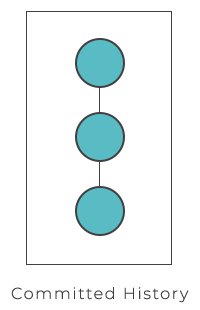
The git log command is your window into a project's history. It lists the commits that have been recorded in the repository, newest first, and gives you a rich set of options to filter, search, and reformat that history. This page explains what git log shows, how to read its default output, the options you reach for most often, and how to combine them to answer real questions like "who changed this file?" or "what landed between two releases?"
What git log shows
git log displays the committed snapshots of a repository — the permanent history that Git has stored. This is an important distinction: git log never shows uncommitted work. To inspect the working directory and the staging area instead, use git status; to see the line-by-line changes that aren't yet committed, use git diff.
Run with no arguments, the command walks backward from the current commit (HEAD) through each parent:
git logA typical entry looks like this:
commit 1a2b3c4d5e6f7a8b9c0d1e2f3a4b5c6d7e8f9a0b (HEAD -> master)
Author: Bob Smith <[email protected]>
Date:   Mon Jun 16 10:24:31 2026 +0400

Add login form validationEach commit lists its 40-character SHA-1 hash, the author, the date, and the commit message. By default the output is paged: press Space to scroll, q to quit. Commits are shown in reverse chronological order.
Commonly used options
Log output can be customized in many ways, from filtering which commits appear to printing them in an entirely user-defined format. Here are the options you will use most:
| Command | Description |
|---|---|
git log | Shows the full commit history in the default format. Use Space to scroll and q to quit if the output spans several screens. |
git log -n <limit> | Limits the number of commits. For example, git log -n 2 displays only the 2 most recent commits. |
git log --oneline | Condenses each commit to a single line (short hash + summary) — ideal for a quick overview. |
git log --stat | Adds the list of changed files plus the count of added and deleted lines for each commit. |
git log -p | Shows the full patch (diff) introduced by each commit. |
git log --author="<pattern>" | Filters to commits by a specific author. <pattern> can be a plain string or a regular expression. |
git log --grep="<pattern>" | Filters to commits whose message matches <pattern> (string or regex). |
git log <since>..<until> | Shows only commits reachable from <until> but not from <since>. Each side can be a commit ID, branch name, tag, HEAD, or any other revision reference. |
git log <file> | Shows only the commits that touched the given file — its change history. |
git log --graph --decorate --oneline | Draws a text graph of branch/merge structure, labels branches and tags, and prints one line per commit. |
git log --since="<date>" | Shows commits newer than a date (for example "2 weeks ago" or "2026-01-01"). |
git log --until="<date>" | Shows commits older than a date. |
git log --all | Shows commits from every branch and ref, not just the current branch. |
A compact overview
For scanning history quickly, --oneline is the workhorse. Combined with --graph and --decorate, it turns the log into a readable map of your branches:
git log --graph --decorate --oneline* 1a2b3c4 (HEAD -> master) Add login form validation
* 9f8e7d6 Fix typo in README
| * 4c5d6e7 (feature) Start checkout flow
|/
* 0a1b2c3 Initial commitThe asterisks and connecting lines show how branches diverged and merged; (HEAD -> master) and (feature) are the decorations added by --decorate.
Filtering history
The real power of git log is narrowing thousands of commits down to the ones you care about.
By author and content
To find every change a particular author made to a single file, combine --author, -p, and a file path:
git log --author="Bob Smith" -p w3docs.txtThis shows the full diff of every change Bob made to w3docs.txt. To search commit messages instead of authors, use --grep:
git log --grep="bugfix"By date
git log --since="2 weeks ago" --until="yesterday"--since and --until accept absolute dates (2026-01-01) or human-friendly relative expressions ("3 days ago", "last Monday").
Between two references
The <since>..<until> (double-dot) syntax answers "what is in B that isn't in A?" — perfect for comparing branches before a merge:
git log --oneline master..some-featureThis lists every commit on some-feature that hasn't yet landed on master. Swap the sides to see the reverse. Because tags work as revision references too, the same syntax is great for release notes:
git log --oneline v1.0..v2.0Inspecting a single file's history
When you need to understand how one file evolved, pass its path:
git log --oneline -- src/app.jsThe -- separator tells Git everything after it is a path, which avoids ambiguity when a file and a branch share a name. To see the actual changes alongside the history, add -p. If you instead need to know who last touched each line, reach for git blame. To inspect the full contents of one specific commit, use git show.
Common gotchas
git logonly shows committed history. Stashed, staged, or unsaved work won't appear — see git status and git stash for those.- By default only the current branch is shown. Add
--allto include every branch, or name a branch/ref explicitly. - Lost commits can often be recovered. Even commits that no branch points to may still be reachable through git reflog.
A..Bis not symmetric.master..featureandfeature..masterreturn different commits; order matters.