git rebase
Find the meaning of the git rebase command, see usage examples, find out the difference between Git rebase standard and Git rebase-interactive.
What git rebase does
Rebasing means moving a series of commits to a new base commit. In other words, git rebase changes the starting point of the current branch from one commit to another, so it looks as if you had created the branch from a different point in history.
The key thing to understand: rebase does not move your original commits. It creates brand-new commits with the same changes and commit messages, but different parent commits and therefore different commit hashes (SHAs). The old commits become unreachable, even though the branch looks the same.
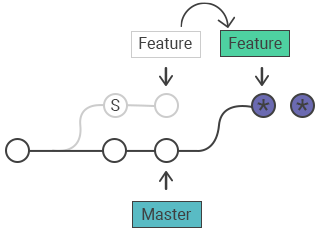
This page covers the standard rebase, interactive rebase, the --onto form, conflict resolution, and how to recover when a rebase goes wrong.
Rebase vs. merge
Both git rebase and git merge integrate changes from one branch into another, but they shape history differently:
- Merge creates a new merge commit that ties the two branch histories together. History is non-linear but fully preserved — nothing is rewritten.
- Rebase replays your commits on top of the target branch. History stays linear (no merge commits), but the original commits are rewritten.
Use rebase when you want a clean, straight-line history for a feature branch before sharing it. Use merge when you want to preserve the exact history of how branches came together, or when the branch is already public.
Standard rebase
In standard mode, git rebase takes the commits unique to your current branch and replays them on top of <base>. The <base> can be a branch name, a tag, or a commit ID.
git rebase <base>The typical workflow: master has moved forward since you branched off, and you want the latest master changes underneath your feature work without a merge commit.
# you are on your feature branch
git switch feature
# replay feature's commits on top of the current tip of master
git rebase masterBefore the rebase, history looks like this (feature branched from an older master):
      A---B---C feature
     /
D---E---F---G masterAfter git rebase master, the feature commits are recreated on top of G:
              A'--B'--C' feature
             /
D---E---F---G masterA', B', and C' carry the same changes as A, B, C, but they are new commits with new hashes.
Never rebase public history
Never rebase commits that have already been pushed and that other people may have based work on. Because rebase replaces commits with new ones, anyone who pulled the old commits will find their history out of sync — it will look as though part of the project disappeared, and they will get duplicated or conflicting commits on the next pull.
The golden rule of rebasing: only rebase commits that exist solely on your local branch and have not been shared. Rebasing already-published commits is the most common way teams break each other's repositories.
The safe boundary is simple: rebase private work freely; never rebase the shared master/main branch or any branch others are actively building on. This is the same caution that applies to git reset and git commit --amend.
Interactive rebase
Interactive mode (-i, short for "interactive") lets you edit, reorder, squash, or drop individual commits as they are replayed. This is the tool developers reach for to clean up a feature branch before merging — combining tiny "fix typo" commits, rewording unclear messages, and dropping dead-end experiments.
git rebase -i <base>For example, to tidy up the last 3 commits on your branch:
git rebase -i HEAD~3This opens your editor with a "todo" list — one line per commit, oldest at the top:
pick 11a1456 Add login form
pick a23db19 Fix typo in label
pick 31d332c Add password validation

# Rebase d4e5f6a..31d332c onto d4e5f6a (3 commands)
#
# Commands:
# p, pick   = use commit
# r, reword = use commit, but edit the commit message
# e, edit   = use commit, but stop for amending
# s, squash = use commit, but meld into previous commit
# f, fixup  = like "squash", but discard this commit's log message
# x, exec   = run command (the rest of the line) using shell
# d, drop = remove commitTo squash the typo fix into the login-form commit and reword the validation commit, you would change the list to:
pick 11a1456 Add login form
fixup a23db19 Fix typo in label
reword 31d332c Add password validationSave and close the editor; Git replays the commits applying each instruction in order.
Interactive rebase commands
Each line in the todo list starts with one of these commands:
pick— keep the commit as is. This is the default for every line.reword— keep the commit's changes, but stop to edit its message.edit— stop at this commit so you can amend its contents (split it, add files, etc.), thengit rebase --continue.squash— meld this commit into the previous one and combine both messages into one.fixup— likesquash, but discard this commit's message (keep only the previous one).drop— remove the commit entirely from history.exec— run a shell command after the preceding commit (useful for running tests on each step).
Reordering the lines reorders the commits; deleting a line is equivalent to drop.
The --onto form
The --onto flag gives you precise control over which commits move and where they land:
git rebase --onto <newbase> <oldbase> <branch>It takes the commits that are in <branch> but not in <oldbase>, and replays them onto <newbase>. This is the way to move a branch off a base it no longer needs.
Suppose featureY was branched off featureX, but it is actually independent of featureX's changes and belongs on master:
                          o---o---o featureY
                         /
            o---o---o---o featureX
           /
o---o---o---o masterRun:
git rebase --onto master featureX featureYHere featureX is the <oldbase>, master is the <newbase>, and featureY is the branch being rebased. Git replays only featureY's own commits onto master, detaching them from featureX:
                  o'--o'--o' featureY
                 /
o---o---o---o---o master
           \
o---o---o---o featureXResolving conflicts during a rebase
Because rebase reapplies your commits one at a time, a conflict can stop the process at any commit. When that happens Git pauses and tells you which files conflict.
The workflow to get through it:
# 1. fix the conflicted files in your editor, then stage them
git add <resolved-file>

# 2. continue replaying the remaining commits
git rebase --continueOther controls while a rebase is paused:
git rebase --skip— drop the current commit and move on (use with care; you lose that commit's changes).git rebase --abort— stop everything and restore the branch to exactly where it was before you started.
A long-lived branch that has diverged far from master produces the most conflicts, sometimes the same conflict on several commits. Two habits reduce the pain: rebase against master frequently rather than once at the end, and keep your commits small and focused.
Configuration options
Some rebase defaults can be set with git config. These change how git rebase behaves and what it prints:
rebase.stat— a boolean (defaultfalse) that toggles a visual diffstat of the changes since the last rebase.rebase.autoSquash— a boolean that toggles--autosquashbehavior (automatically reorderingfixup!/squash!commits during interactive rebase).rebase.missingCommitsCheck— controls what happens when commits are removed from the todo list. Accepts one of:
| Value | Behavior |
|---|---|
ignore | The default. Any missing-commit warnings are ignored. |
warn | A warning is printed in interactive mode about removed commits. |
error | The rebase stops and prints removed-commit warning messages. |
rebase.instructionFormat— a string in git log format used to format each commit line shown in the interactive todo list.
Recovering from a botched rebase
A rebase can feel destructive: with squash or drop, commits vanish from your branch log and it looks as if they are gone for good. They are not. Git keeps a record of where your branch pointed before every operation in the git reflog.
To undo a rebase, find the entry from just before it and reset your branch back to it:
# see where the branch was before the rebase
git reflog

# example output:
# a23db19 HEAD@{0}: rebase (finish): returning to refs/heads/feature
# 31d332c HEAD@{5}: rebase (start): checkout master
# c0ffee1 HEAD@{6}: commit: the state you want back

# move the branch back to the pre-rebase commit
git reset --hard HEAD@{6}This is your safety net — as long as you can read the reflog, no rebase is truly irreversible.
Recovering from an upstream rebase
If a teammate rebases and force-pushes a branch you are also working on, a plain git pull will try to reconcile your commits with the rewritten remote tip and can leave you with duplicated or tangled history.
The fix uses the reflog of the remote-tracking branch to find where it pointed before the rebase, then replays your work onto the new tip with --onto:
# find the old tip of origin/feature in the remote-tracking reflog
git reflog show origin/feature

# replay your local commits from the old base onto the new one
git rebase --onto origin/feature <old-origin-tip> featureThis moves only your commits onto the force-pushed tip, without dragging in the old, now-rewritten commits.
Related topics
- git merge — the non-rewriting alternative for integrating branches.
- git reflog — your undo log for recovering from a bad rebase.
- git reset — move a branch pointer, including back to a pre-rebase state.
- git cherry-pick — replay individual commits without rebasing a whole branch.