git init
Read about the importance, the usage, template directory and configuration of git init command, learn how to distinguish git init and git clone.
What git init does
git init creates a brand-new, empty Git repository — or reinitializes an existing one. It is almost always the very first Git command you run on a project, and it is what turns a plain folder into something Git can track.
Running it creates a single hidden subdirectory called .git inside your project. That directory holds everything Git needs to manage your history: the object database, references (branches and tags), the HEAD pointer, configuration, and a copy of the default template files. Your actual project files stay exactly where they are — Git never moves or modifies them on init.
This page covers how to run git init in different ways, the difference between a regular and a bare repository, the template directory, and the full list of options. If you instead want a copy of a repository that already exists somewhere else, you want git clone rather than git init. For a higher-level overview, see What is Git.
Initializing a repository
The simplest way to start version-controlling a project is to cd into its directory and run the command with no arguments:
cd my-project
git initGit prints a confirmation and creates the .git subdirectory:
Initialized empty Git repository in /home/user/my-project/.git/You can also pass a directory name. Git creates that directory (if it does not already exist) and puts the new repository there:
git init my-projectThe repository is empty at this point — there are no commits yet. The next steps are usually to stage files with git add and record them with git commit. You can check the state of your new repository at any time with git status.
Reinitializing an existing repository
Running git init inside a directory that already has a .git subdirectory is safe. Git does not delete or overwrite your history or configuration — it simply re-applies any missing template files and reports:
Reinitialized existing Git repository in /home/user/my-project/.git/This is occasionally useful for picking up new files from an updated template directory.
Bare repositories
A bare repository is one created with the --bare flag. It contains the Git history but has no working directory — there are no checked-out files to edit, so you cannot commit directly to it.
git init --bare project.gitBare repositories exist to be a shared, central place that other clones push to and pull from. Pushing to a non-bare repository can clobber the files someone is actively working on in its working directory, so central/remote repositories are almost always bare. By convention they are named with a .git suffix (for example project.git).
The difference is visible in the layout. A regular repository hides Git's files inside a .git folder:
my-project/
├── .git/        ← Git's data lives here
└── (your files)A bare repository puts that same content directly in the top level — there is no working tree wrapping it:
project.git/
├── HEAD
├── config
├── description
├── hooks/
├── info/
├── objects/
└── refs/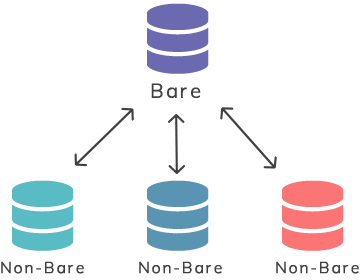
Setting the initial branch name
Historically Git named the first branch master. You can choose a different name at init time with --initial-branch (or its short form -b):
git init --initial-branch=mainTo make this the default for every new repository so you never have to pass the flag, set it once in your global config:
git config --global init.defaultBranch mainSee git config for more on global settings.
The template directory
When Git creates the .git subdirectory, it seeds it from a template directory — a set of files (such as sample hooks and an info/exclude file) that get copied into every new repository. Git picks the template to use from the first of these that is set, in order:
- the path given with the
--templateoption, - the
$GIT_TEMPLATE_DIRenvironment variable, - the
init.templateDirconfiguration variable, - the built-in default, usually
/usr/share/git-core/templates.
The default templates mainly serve as examples (for instance, the sample hooks are disabled by default). By providing your own template directory you can have files and folders — like a standard set of hooks — copied automatically into every repository you initialize.
Options reference
git init accepts an optional <directory> argument. If you omit it, the command runs in the current directory; if you supply a path that does not exist, Git creates it. The most useful flags are below.
| Flag | Description |
|---|---|
-q, --quiet | Prints only errors and warnings; all other output is suppressed. |
--bare | Creates a bare repository (no working directory). |
--template=<template-directory> | Specifies the template directory to copy files from when creating the repository. |
--separate-git-dir=<git-dir> | Stores the actual Git data at <git-dir> and leaves a small .git text file pointing to it. On an existing repository, the .git directory is moved to the new path. |
--shared[=(false|true|umask|group|all|world|everybody|0xxx)] | Configures the repository to be shared among several users, controlling group file permissions. |
-b <name>, --initial-branch=<name> | Sets the name of the initial branch in the new repository. |
git init vs. git clone
These two commands both create a local repository, but they start from opposite points:
git initturns an existing local folder into a brand-new, empty repository with no history.git clonedownloads an existing remote repository — its full history, branches, and files — and sets up a connection back to that remote.
Use git init when you are starting a project from scratch on your machine; use git clone when you are joining a project that already lives on a server such as GitHub.