git pull
On this page, you can find useful information about the git pull command, its usage, the most common options, and important tips concerning it.
What git pull does
git pull downloads new commits from a remote repository and immediately integrates them into your current local branch. It is the command you run to bring your work up to date with what your teammates have pushed.
Under the hood, git pull is a convenience shortcut for two commands run back to back:
git fetch <remote>          # download the new commits
git merge <remote>/<branch> # integrate them into the current branchSo git pull equals git fetch followed by git merge. Understanding that split is the key to understanding the whole command: fetch updates your remote-tracking branches without touching your work, and merge (or rebase, see below) replays the new history onto your branch.
When to use it
git pull is part of Git's "syncing" workflow, alongside git push, git fetch, and git remote. Use it whenever you want your local branch to reflect the latest remote state, for example:
- Before you start a new piece of work, so you build on top of the newest code.
- Before you run git push, so your push fast-forwards instead of being rejected as "non-fast-forward".
- To pick up a teammate's commits on a shared branch.
git fetch and git pull both download remote content, but they differ in one important way: git fetch only updates your remote-tracking branches and leaves your working copy untouched, while git pull also merges those changes into your current branch. If you want to inspect incoming commits before integrating them, fetch first and merge yourself.
How merging works during a pull
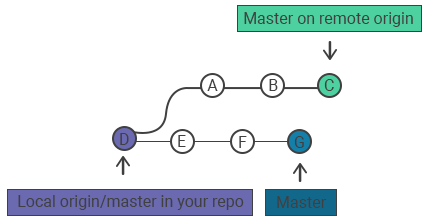
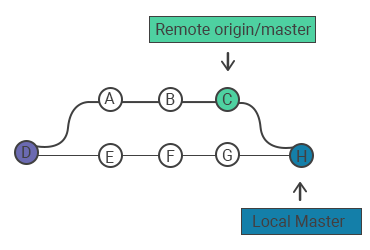
Suppose your local branch and the remote share history up to commit E, then diverge. The remote gained commits A, B, and C that you do not have. Running git pull fetches those commits.
Git then creates a new merge commit, H, that joins your local work with the fetched commits A, B, and C, combining both lines of history.
If your local branch has not diverged (you have no new local commits), Git simply moves your branch pointer forward to the new commits. This is called a fast-forward and produces no merge commit.
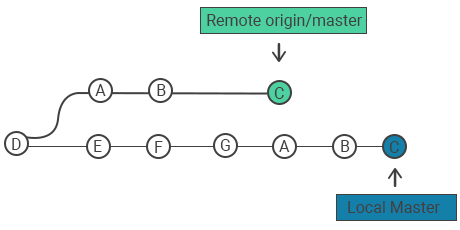
With the --rebase option, Git replays your local commits on top of the fetched commits instead of creating a merge commit, keeping history linear.
Common options
| Command | Description |
|---|---|
git pull <remote> | Fetches the remote content and directly merges it into the local copy (equivalent to git fetch <remote> followed by git merge <remote>/<current-branch>). |
git pull --no-commit <remote> | Fetches and merges, but stops before creating the merge commit so you can inspect the result first. |
git pull --rebase <remote> | Rebases your local commits on top of the fetched commits instead of merging, keeping history linear. |
git pull --ff-only | Updates only if the merge can be a fast-forward; otherwise it aborts without touching your branch. |
git pull --verbose | Gives verbose output, showing the downloaded content and merge details during the pull. |
Examples
Pull from the upstream branch
Invoking git pull with no arguments fetches and merges changes from the upstream branch configured for the current branch:
git pullFor this to work, the current branch must have an upstream set (Git stores it after the first git push -u or git branch --set-upstream-to).
Pull from a specific remote and branch
You can name the remote and branch explicitly:
git pull <remote> <branch>This fetches and merges changes from the specified branch of the named remote. For example, to pull the develop branch from the origin remote:
git pull origin developPull with rebase
git pull --rebaseInstead of merging, this replays your local commits on top of the fetched commits. The result is a linear history with no merge commit, which many teams prefer for feature branches. To make this the default for a branch, configure git config pull.rebase true. See git rebase for the trade-offs.
Pull without committing the merge
git pull --no-commitThis fetches and merges but stops just before creating the merge commit, leaving the result staged so you can review (and amend) it before committing with git commit.
Resolving conflicts after a pull
If the remote commits changed the same lines you changed locally, the merge cannot complete automatically and Git reports a conflict:
Auto-merging app.js
CONFLICT (content): Merge conflict in app.js
Automatic merge failed; fix conflicts and then commit the result.To resolve it, open each conflicted file, edit it to keep the correct content (removing the <<<<<<<, =======, and >>>>>>> markers), then stage and commit:
git add app.js
git commitIf you would rather not deal with the conflict right now, git merge --abort returns your branch to its state before the pull.
Pulling onto a branch with uncommitted local changes can fail because Git refuses to overwrite your work. Commit or git stash your changes before pulling, then unstash afterward.