git remote
Learn how to create and edit git remote configurations, add remote repositories, inspect, fetch, pull, push, rename and remove them, see examples.
What git remote does
A remote is a named reference to another copy of your repository — typically one hosted on a server such as GitHub, GitLab, or Bitbucket. The git remote command creates, lists, renames, and removes these connections. It does not transfer any commits itself; instead it stores short, memorable names that point to repository URLs so the commands that do move data — git fetch, git pull, and git push — can refer to them.
Think of a remote as a bookmark. Instead of typing git push https://github.com/acme/app.git main every time, you save the URL once under the name origin and run git push origin main. The mapping of names to URLs lives in your repository's .git/config file, so each clone keeps its own list of remotes.
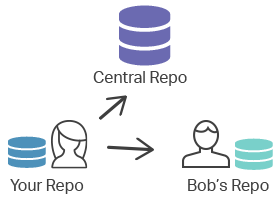
The diagram below shows two remote connections from a local repository: one to a central repository and one to another developer's repository. Because the names are shared by convention, you can tell a teammate to "pull from upstream" and they will know exactly which command to run.
The origin remote
Running git clone automatically creates a remote named origin that points back at the repository you cloned from. By convention origin is "your" canonical copy on the server — the one you push to and pull from day to day. Nothing is special about the name; it is just the default Git picks, and you can rename or remove it like any other remote.
A common second remote is upstream. When you fork a project, origin points at your fork and upstream points at the original repository, so you can pull in new changes from the project while pushing your own work to your fork.
Repository URLs
A remote URL tells Git where the repository lives and which transport protocol to use. The two you will see most often are HTTPS and SSH.
HTTPS is the simplest to set up and works through firewalls and proxies. Public repositories can be cloned over HTTPS without credentials; for private repositories or pushing, Git prompts for a username and a personal access token, usually cached by a credential helper.
https://host/path/to/repo.gitSSH authenticates with a key pair instead of a password, which makes it convenient for repeated pushes once your key is registered with the host. It comes in two equivalent forms — the full ssh:// URL and the shorter SCP-like syntax:
ssh://user@host/path/to/repo.gituser@host:path/to/repo.gitYou do not have to memorize a URL's format; you copy it from the hosting provider's "Clone" button. The git remote command then stores whichever form you used.
git remote subcommands
git remote exposes several subcommands. Each one edits the remote section of .git/config; you could make the same changes by hand in a text editor, but the subcommands are safer and update related settings for you.
git remote add
Registers a new remote named <name> that points to <url>.
git remote add <name> <url>Two useful options:
-frunsgit fetch <name>immediately after creating the remote, so its branches are downloaded right away.--tagsfetches the remote and also imports all of its tags.
git remote rename
Renames a remote from <old> to <new>, updating the remote-tracking branches and any related configuration.
git remote rename <old> <new>git remote remove
Deletes the connection named <name> along with its remote-tracking branches and configuration. git remote rm is an older alias for the same command.
git remote remove <name>git remote set-url
Changes the URL an existing remote points to — for example, when you switch a repository from HTTPS to SSH.
git remote set-url <name> <new-url>git remote get-url
Prints the URL(s) of a remote. Add --push to see the push URL specifically, or --all to list every configured URL.
git remote get-url <name>git remote show
Prints detailed information about a remote: its fetch and push URLs, its branches, and how your local branches track it.
git remote show <name>git remote prune
Removes local remote-tracking branches for <name> whose counterparts have been deleted on the server. Use --dry-run to list what would be pruned without actually deleting anything.
git remote prune <name>git remote prune only deletes stale remote-tracking refs (such as origin/old-feature); it never touches your local branches or any data on the remote.Listing your remotes
Running git remote with no arguments prints the name of each configured remote, one per line:
git remote
origin
upstream
other_repoAdd the -v (verbose) flag to also see each remote's fetch and push URLs:
git remote -v
origin      [email protected]:origin_user/reponame.git (fetch)
origin      [email protected]:origin_user/reponame.git (push)
upstream    https://example.com/upstream_user/reponame.git (fetch)
upstream    https://example.com/upstream_user/reponame.git (push)
other_repo  https://example.com/other_repo/reponame.git (fetch)
other_repo https://example.com/other_repo/reponame.git (push)A remote can have a different fetch URL and push URL — useful, for example, when you pull from a fast mirror but push to the canonical server.
Adding a remote
To start collaborating with another repository, register it with git remote add. The name you choose becomes a shortcut you can use in fetch, pull, and push:
git remote add upstream https://example.com/upstream_user/reponame.gitConnecting to other developers' repositories enables collaboration outside the central repository. For example, if a colleague maintains a publicly accessible repository at dev.example.com/tom.git, add it like this and then fetch their work:
git remote add tom https://dev.example.com/tom.git
git fetch tomInspecting a remote
The show subcommand contacts the remote and reports its branches and tracking configuration — handy when you want to confirm which branch will be updated by a push or pull:
git remote show upstream
* remote upstream
  Fetch URL: https://example.com/upstream_user/reponame.git
  Push  URL: https://example.com/upstream_user/reponame.git
  HEAD branch: main
  Remote branches:
    main      tracked
    docs      tracked
    new-input tracked
  Local ref configured for 'git push':
main pushes to main (fast-forwardable)Fetching, pulling, and pushing
Configuring a remote is only the setup step. Once it exists, you pass its name to the commands that actually move commits:
- git fetch
<remote>downloads new commits from the remote into your remote-tracking branches without changing your working files. - git pull
<remote><branch>fetches and then merges (or rebases) the changes into your current branch. - git push
<remote><branch>uploads your local commits to the remote.
git push <remote-name> <branch-name>For example, to publish the main branch to origin:
git push origin mainIf you want to dig deeper into where these names and URLs are stored, see the git config chapter, which documents the .git/config file that git remote edits.