git merge
On this page, you can find information about the git merge command, how it works and find out the difference between a fast-forward and 3-way merging.
The git merge command joins two or more lines of development back together. When you finish a feature on its own branch, git merge takes the work from that branch and folds it into the branch you are currently on, producing a single combined history.
This page covers what happens during a merge, the difference between a fast-forward and a 3-way merge, how to force a merge commit, and how to recognize and resolve a merge conflict.
It works closely with git branch (to create and delete branches), git checkout (to switch the receiving branch), and git pull (to update before merging). If you prefer a linear history without merge commits, see git rebase as an alternative.
How it works
The primary use of git merge is to combine two branches. It is also used to integrate multiple commits from one branch into another. In the following illustration, git merge takes two branch tips and finds a common ancestor commit between them. The common base commit is used to create a new merge commit that combines the changes from both branches. Here we have two branches: master and stage. We should merge the stage branch into the master branch.
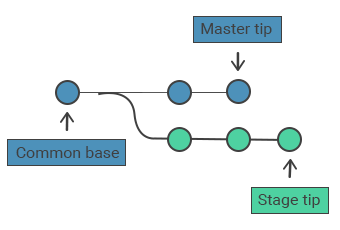
Merge commits are unique because they have two parent commits. Git automatically combines separate histories when creating a new merge commit. However, if both branches modify the same lines, Git cannot automatically combine them, resulting in a merge conflict.
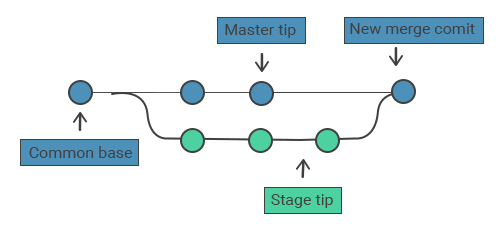
Merging process
Before starting the merge process, follow these steps:
- Ensure you are on the correct merge-receiving branch. Run
git checkout <receiving branch>to switch to it. - Update the target branch with the latest remote changes. Run
git pullto fetch and integrate the latest remote commits. - The final step is executing
git merge <branch name>, which specifies the branch to be merged into the receiving branch.
Fast forward merge
A fast-forward merge occurs when the path from the current branch to the target branch is linear. The fast-forward merge combines the histories, as all the commits that are reachable from the target branch are available through the current branch. Here’s an example of a fast-forward merge:
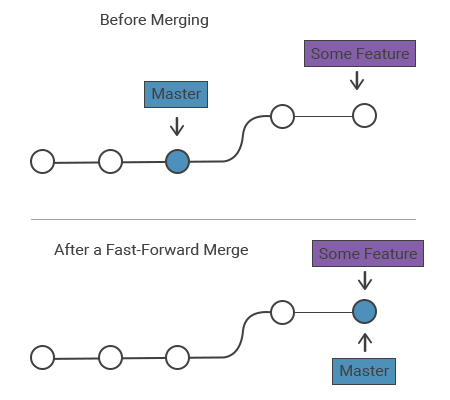
When the two histories are diverged, Git uses the 3-way merge as an alternative. 3-way merge uses a dedicated commit to combine two histories.
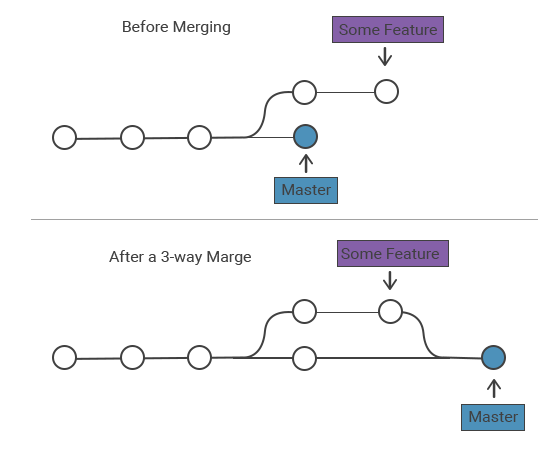
Fast-forward merges are typically used for small features or bug fixes, whereas 3-way merges are used to integrate long-running features. The following examples use a fast-forward merge:
git merge
# Start the stage
git checkout -b stage master
# Edit some files
git add <file>
git commit -m "Start with the stage"
# Edit some files
git add <file>
git commit -m "Finish with the stage"
# Merge in the stage branch
git checkout master
git merge stage
git branch -d stageWe run the git branch -d to delete the stage branch, as stage is now accessible from the master branch.
The git merge command with the --no-ff option is run if you require a merge commit during a fast-forward merge to merge the specified branch into the current branch, always generating a merge commit (even in the case of a fast-forward merge):
git merge --no-ff
git merge --no-ff <branch>3-way merge
This scenario requires a 3-way merge when the master branch progresses while the stage branch is still in development. This is used when members of the team work on a large feature simultaneously:
the git merge command
# Start the stage
git checkout -b stage master
# Edit some files
git add <file>
git commit -m "Start with the stage"
# Edit some files
git add <file>
git commit -m "Finish with the stage"
# Develop the master branch
git checkout master
# Edit some files
git add <file>
git commit -m "Make some super-stable changes to master"
# Merge in the stage branch
git merge stage
git branch -d stageIn the above example, stage would be a larger feature taking much time to develop, which is why we use a 3-way merge. If your feature is small, you had better use a fast-forward merge to prevent unnecessary commits from cluttering the project history.
Useful merge options
These flags change how git merge behaves:
| Option | What it does |
|---|---|
--no-ff | Always create a merge commit, even when a fast-forward is possible. Keeps the feature branch visible in history. |
--ff-only | Merge only if a fast-forward is possible; otherwise abort. Useful in scripts to refuse a merge commit. |
--squash | Combine all commits from the branch into a single set of staged changes (you then commit manually). No merge commit and no second parent. |
--abort | Stop a conflicted merge and restore the branch to its pre-merge state. |
-m "<msg>" | Set the merge commit message directly instead of opening an editor. |
A squash merge is handy when a feature branch has many small "work in progress" commits you do not want in the main history:
git merge --squash
git checkout master
git merge --squash stage
git commit -m "Add stage feature"Resolving conflict
When merging two branches, if the same part of the same file is changed, merge conflicts occur because Git cannot determine which version to use. When this happens, Git stops before creating the merge commit to allow you to resolve the conflict. The Git merging process uses an edit/stage/commit workflow for resolving merge conflicts. When a conflict occurs, executing git status will display the files that need to be resolved. The following picture will show up when the same parts of the example.txt file have been changed:
git status
On branch master
Unmerged paths:
(use "git add/rm ..." as appropriate to mark resolution)
both modified: example.txtIf you decide not to proceed with the merge, you can cancel it at any time by running git merge --abort.
How conflicts are presented
In the case of conflicts, Git edits the content of the affected files with visual marks on both sides of the conflicted content. Conflicts can only happen during a 3-way merge — a fast-forward merge never conflicts, because the receiving branch had no new commits of its own to clash with.
The primary markers are <<<<<<<, =======, and >>>>>>>. They help you locate the conflicted sections in your files.
git conflicts
here is some content not affected by the conflict
<<<<<<< master
this is conflicted text from master
=======
this is conflicted text from stage branch
>>>>>>> stageTo resolve the conflict, open the file, delete the three marker lines (<<<<<<<, =======, >>>>>>>), and edit the remaining text to the version you want to keep. Then run git add <file> on the conflicted file to mark it as resolved, and run git commit to create the merge commit.
A complete worked example
The session below creates two branches that edit the same line, merges them, hits a conflict, resolves it, and finishes the merge. You can paste these commands into any empty directory to reproduce it exactly.
reproduce a conflict and resolve it
git init demo && cd demo
echo "line one" > file.txt
git add file.txt
git commit -m "Initial commit"

# Create a branch and change the line there
git checkout -b stage
echo "change from stage" > file.txt
git commit -am "Edit on stage"

# Change the same line on master
git checkout master
echo "change from master" > file.txt
git commit -am "Edit on master"

# Merge stage into master -> conflict
git merge stage
# Auto-merging file.txt
# CONFLICT (content): Merge conflict in file.txt
# Automatic merge failed; fix conflicts and then commit the result.After editing file.txt to keep the version you want, finish the merge:
git add file.txt
git commit -m "Merge stage, keep resolved line"
git branch -d stageVerifying a merge
After merging, confirm the result with git log. The --graph and --oneline flags draw the branch topology so a merge commit (with two parents) is easy to spot:
git log --oneline --graphIf you decide a completed merge was a mistake, git reset can move the branch back to the commit before the merge.