git diff
On this page you will find useful information about git diff command and its outputs, as well as learn to highlight changes and compare files.
What git diff does
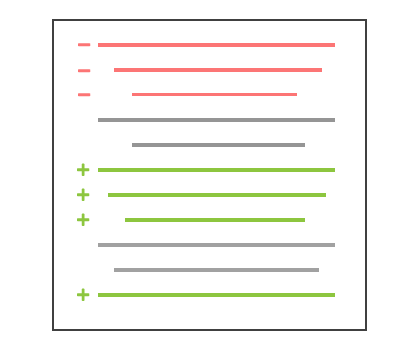
The git diff command shows you exactly what has changed, line by line, between two sources in your project. It takes two data sets and prints the differences between them as a patch.
Those two sources can be any pair of: your working tree (the files you are editing right now), the staging area (the index, what git add has captured), and any committed snapshot. Because every other Git command only tells you that something changed, git diff is the tool that tells you what changed before you stage or commit it.
It is commonly used together with git status and git log to inspect the state of a git repository: git status lists which files changed, and git diff shows the content of those changes.
Which two sources are compared
The form of the command decides what gets compared:
| Command | Compares |
|---|---|
git diff | Working tree vs. staging area (unstaged changes) |
git diff --staged | Staging area vs. last commit (what git commit would record) |
git diff HEAD | Working tree vs. last commit (all uncommitted changes) |
git diff <commit> <commit> | One commit vs. another |
git diff <branch> <branch> | The tips of two branches |
A bare git diff shows only what you have not yet staged with git add. This is the single most common gotcha: if you have already run git add, git diff looks empty even though you have edits — use git diff --staged to see them.
Reading diff output
A diff has several distinct parts. The sections below build one up and explain each line.
Raw output format
Take a look at the commands below to create a simple repository:
mkdir test_repo
cd test_repo
touch test.txt
echo "this is a git diff test example" > test.txt
git init .
#Initialized empty Git repository in /Users/kev/code/test/.git/
git add test.txt
git commit -am "add diff test file"
#[master (root-commit) 9e2dcac] add diff test file
#1 file changed, 1 insertion(+)
#create mode 100644 test.txtIf you want git diff to produce output, you must change the content of test.txt after committing it. Run the following command:
echo "this is a diff example" > test.txtOnly now can we view a diff and discuss the output. Executing git diff will produce the following:
diff --git a/test.txt b/test.txt
index 6b0c6cf..b37e70a 100644
--- a/test.txt
+++ b/test.txt
@@ -1 +1 @@
-this is a git diff test example
+this is a diff exampleDiff input sources
The first line names the two sources being compared. Here a/test.txt (the "before" version) and b/test.txt (the "after" version) are passed to the diff. The a/ and b/ prefixes always mark the two sides, even when it is the same file.
diff --git a/test.txt b/test.txtMetadata
This line shows internal Git metadata. The two numbers are the abbreviated object (blob) hashes of the file before and after the change, and 100644 is the file mode (a regular, non-executable file).
index 6b0c6cf..b37e70a 100644Symbols for changes
These lines assign a symbol to each diff input source. Lines from a/test.txt (the original) are marked with ---, and lines from b/test.txt (the new version) are marked with +++.
--- a/test.txt
+++ b/test.txtDiff chunks
A diff doesn't show the whole file — only the modified regions. Each such region is called a chunk (or hunk). Chunks include a few unchanged lines of surrounding context so you can see where the change sits.
@@ -1 +1 @@
-this is a git diff test example
+this is a diff exampleThe first line is the chunk header, wrapped in @@ symbols. It summarizes the affected line ranges: -1 means "starting at line 1 of the old file" and +1 means "starting at line 1 of the new file". Below the header, a leading - marks a removed line and a leading + marks an added line. A modified line therefore shows up as a removal followed by an addition.
Common flags
Git provides several useful flags for different workflows:
--staged(or--cached): Compares the staged changes in the index against theHEADcommit — what a git commit would record.--stat: Shows a condensed summary of changed files (insertions/deletions per file) instead of the full diff.--name-only: Outputs only the names of changed files.--name-status: Like--name-only, but prefixes each file with its status letter (Mmodified,Aadded,Ddeleted).-w(or--ignore-all-space): Ignores whitespace-only changes, which is handy when reindentation hides the real edits.
For example, to get a quick overview of how much each file changed:
git diff --stat
# test.txt | 2 +-
# 1 file changed, 1 insertion(+), 1 deletion(-)Highlighting changes
For line-level edits the default output can be noisy, because Git shows a full removed line and a full added line even when only one word differs. The two tools below highlight the exact changed parts.
git diff --color-words
The first way is a special mode built into git diff: --color-words. It tokenizes the added and removed lines by whitespace and then diffs those tokens, so only the changed words are colored instead of whole lines.
git diff --color-words
diff --git a/test.txt b/test.txt
index 6b0c6cf..b37e70a 100644
--- a/test.txt
+++ b/test.txt
@@ -1 +1 @@
-this is a git diff test example
+this is a diff example(Note: --color-words highlights inline changes using terminal colors. In plain text, the output format matches standard diff.)
git diff-highlight
When you clone the Git source code, a sub-directory called contrib ships alongside it. It contains tools related to Git, one of which is diff-highlight. It highlights changed sub-word pieces, going finer-grained than --color-words. Note that this tool filters standard input (you pipe a diff into it) and requires terminal coloring to be visible.
git diff | git diff-highlight
diff --git a/test.txt b/test.txt
index 6b0c6cf..b37e70a 100644
--- a/test.txt
+++ b/test.txt
@@ -1 +1 @@
-this is a git diff test example
+this is a diff exampleDiffing binary files
git diff can be run not only on text files, but also on binary ones. By default the result is not very useful — Git only tells you that the file changed, not how:
git diff
# Binary files a/script.pdf and b/script.pdf differGit has a feature that lets you specify a shell command to convert the binary file's content into text before performing the diff. A little setup is required. First, define a textconv filter that describes how to convert a certain binary type into text. For example, the pdftohtml utility (available through Homebrew) can turn a PDF into HTML. There are two places to set this up: per-repository in .git/config, or globally in ~/.gitconfig.
[diff "pdfconv"]
textconv=pdftohtml -stdoutThen connect one or more file patterns to the pdfconv filter by creating a .gitattributes file in the root of the repository:
*.pdf diff=pdfconvAfter this configuration, git diff first runs each matching binary file through the converter and diffs the converter's text output. Using the same technique you can get readable diffs from many binary formats (zips, jars, and other archives).
Comparing a single file
git diff also accepts an explicit file path. When a path is passed, the operation is limited to that one file. In the example below, the ./path/to/file argument compares the modifications in the working directory against the HEAD commit:
git diff HEAD ./path/to/fileComparing all changes
To compare changes throughout the whole repository, run git diff without a file path. Any of the forms above can be invoked without the ./path/to/file argument to apply the same comparison across every file in the local repository.
Changes since the most recent commit
A bare git diff compares the working directory against the staging area (index), so it shows only unstaged edits. To see all uncommitted changes since the most recent commit — both staged and unstaged — compare against HEAD:
git diff HEADComparing two commits
git diff accepts Git refs, such as branch names, tags, and commit hashes. Every commit has a unique ID, which you can find with git log. Pass two commit IDs to compare them directly:
git diff <commit-hash-1> <commit-hash-2>The output shows what changed going from the first commit to the second.
Comparing branches
Comparing branches works like any other ref input to git diff. There are two operators to know.
The two-dot operator compares the tips of both branches:
git diff branch1..branch2You get the same result if the dots are omitted and a space is used between the branch names. There is also a three-dot operator:
git diff branch1...branch2The three-dot operator rebases the comparison onto the shared history: it replaces branch1 with the common ancestor (merge base) of the two branches, while the second input stays the tip of branch2. In other words, branch1...branch2 answers "what has happened on branch2 since it diverged from branch1", which is usually what you want when reviewing a feature branch before a git merge.
Comparing a file across two branches
To compare a specific file between branches, pass the file path as the third argument:
git diff master new_branch ./test.txtRelated commands
- git status — see which files changed before using
git diffto see what changed in them. - git add — once a diff looks right, stage it; afterwards use
git diff --stagedto review what is staged. - git commit — record the staged changes.
- git log — find the commit hashes you pass to
git diff <commit> <commit>. - git show — view the diff introduced by a single commit.