git push
On this page, you can find useful information about the git push command, its usage, the most common options, and important tips concerning it.
This page explains what git push does, the syntax and most useful options, how pushing works against bare and non-bare repositories, how to set an upstream branch, how to force-push safely, and how to delete a remote branch. Examples use accurate Git commands and output so you can follow along.
Definition
The git push command uploads commits from your local repository to a remote repository. Pushing is the opposite of fetching: where git fetch imports commits into your local tracking branches, git push exports your local commits to the remote branches so collaborators can see them.
The basic syntax is:
git push <remote> <branch><remote> is the name of the remote (most commonly origin), and <branch> is the local branch whose commits you want to publish.
Git push usage
The git push command is commonly used to publish local changes to a central repository. After committing changes locally, you run git push to share them with the rest of the team. It is one of the commands involved in the syncing workflow. These commands operate on the remote branches configured with the git remote command: commits are uploaded with git push and downloaded with git fetch and git pull. After downloading, git merge integrates the changes into your working branch.
A successful push prints a summary of what was transferred. For example, pushing two new commits to master looks like this:
$ git push origin master
Enumerating objects: 8, done.
Counting objects: 100% (8/8), done.
Writing objects: 100% (6/6), 612 bytes | 612.00 KiB/s, done.
Total 6 (delta 0), reused 0 (delta 0)
To github.com:example/repo.git
a1b2c3d..e4f5g6h master -> masterThe line a1b2c3d..e4f5g6h master -> master confirms which commits moved and that your local master now matches the remote master.
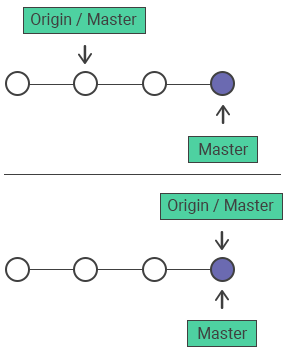
The following diagram shows the progression of the local master past the central repository's master, and publishing those changes by invoking git push origin master.
Common options
git push <remote> <branch> | Pushes the specified branch to <remote> with necessary commits, creating a remote branch in the destination repository. |
|---|---|
git push <remote> --force | Forces the push even if it results in a non-fast-forward update. Be sure that nobody has pulled the commits before using the --force option. |
git push <remote> --all | Pushes all of the local branches to the remote repository. |
git push <remote> --tags | Pushes the tags from the local branches to the remote repository. The --all option won’t push the tags. |
git push -u <remote> <branch> | Pushes the branch and records it as the upstream (tracking) branch, so future git push and git pull can be run with no arguments. |
git push <remote> --force-with-lease | Force-pushes only if the remote branch hasn't moved since you last fetched it — a safer alternative to --force. |
git push <remote> --dry-run | Shows what would be pushed without sending anything to the remote. |
How to push to bare repositories
A bare repository is one created with the --bare flag (git init --bare or git clone --bare). It has no working directory, so nobody can edit files or commit directly inside it. This makes it safe to push to, which is why central/shared repositories (the ones hosted on a server or service like GitHub) are bare. Pushing to a non-bare repository whose working branch is checked out can conflict with that branch's working tree, which is why Git refuses such pushes by default.
# create a shared central repository
git init --bare central.gitWhat happens when a push is rejected
Git refuses your push when the remote branch contains commits you don't have locally — a non-fast-forward update. This usually means a teammate pushed first. The error looks like this:
$ git push origin master
 ! [rejected]        master -> master (fetch first)
error: failed to push some refs to 'github.com:example/repo.git'
hint: Updates were rejected because the remote contains work that you do
hint: not have locally. This is usually caused by another repository pushing
hint: to the same ref. You may want to first integrate the remote changes
hint: (e.g., 'git pull ...') before pushing again.The fix is to bring in the remote work first, then push again:
git pull origin master   # fetch + merge (or use --rebase)
git push origin masterOnly reach for --force when you deliberately want to overwrite the remote history (see below) — not to bypass this safety check on shared branches.
Force pushing
The --force flag overwrites the remote branch with your local one, discarding any upstream commits that haven't been pulled. Use it only when you have intentionally rewritten history — for example after git commit --amend or an interactive git rebase — and you are sure nobody else has built on the commits you're replacing. When a commit is amended or rebased, its hash changes, so Git treats it and the remote commit as diverged content and rejects a normal push; --force is required to publish the rewritten commit.
For shared branches, prefer --force-with-lease (covered below): it refuses to overwrite work the remote received after your last fetch, so you can't silently destroy a teammate's commits.
git push --force
# make changes to a repo and git add
git commit --amend
# update the existing commit message
git push --force origin masterHow to delete a remote branch
Here is an example of deleting the remote branch. The branch_name prefixed with a colon to git push will delete the remote branch:
delete remote branch, git push
git branch -D branch_name
git push origin :branch_nameThe command git push origin :branch_name deletes the specified branch (branch_name) from the remote repository (origin) by pushing an empty reference to it.
How it works
git push: push changes from your local Git repository to a remote repositoryorigin: the name of the remote repository:branch_name: a refspec that represents an empty reference, effectively deleting the specified branch from the remote repository
So when you run git push origin :branch_name, Git will delete the branch_name branch from the origin remote repository.
Note that this command can be dangerous if used incorrectly, as it will delete the branch without any confirmation or possibility of recovery. Make sure you double-check the branch name and that you really want to delete it before running the command.
Use -u flag for the first push on a branch
When you have a local branch and you want to push it to the remote repository for the first time, you should specify which branch of the remote repository you mean. In Git, the -u flag is used with the git push command to set the upstream branch for the current branch. When you use the -u flag, Git will create a link between your local branch and the remote branch. This link is useful for simplifying the git pull and git push commands in the future, as it allows Git to remember which remote branch corresponds to your local branch.
The -u flag is short for --set-upstream. When you use this flag, you'll typically see it used like this:
Use -u flag for the first push on a branch
git push -u origin your-branch-nameAfter this, your local branch tracks origin/your-branch-name. From then on you can run git push and git pull with no extra arguments while on that branch, and git status will report how far ahead or behind the remote you are. See git branch for more on local and remote-tracking branches.
Examples of commonly used flags
Here are short examples of the most useful git push flags.
-f (force)
git push -f origin masterForce-pushes the local master branch to origin, overwriting any commits on the remote master that you don't have locally. -f is the short form of --force. Use it with caution — it can erase commits other people pushed if they're working on the same branch.
--tags
git push origin --tagsPushes all your local tags to origin. Tags label important points in history, such as releases or milestones. A normal git push does not transfer tags, so this flag (or pushing a specific tag with git push origin <tagname>) is how you publish them. See git tag for more on creating tags.
--all
git push origin --allPushes all local branches to origin in one command. Note that --all does not include tags — combine it with a separate --tags push if you need both.
--dry-run
git push --dry-run origin masterSimulates the push and reports what would be sent, without transferring anything. Useful for confirming exactly which commits and refs a push will update before you run it for real.
--force-with-lease
git push --force-with-lease origin masterForce-pushes master to origin only if the remote branch still points where it did the last time you fetched. If someone has pushed in the meantime, the command aborts instead of overwriting their work. This is the safer alternative to -f/--force.