Introduction
Learn how Git rewrites history with git commit --amend, git reflog, and git rebase — what each command does, when to use it, and how to stay safe.
In Git, history is the sequence of commits that records how your project changed over time. Each commit is identified by a unique hash and points to the commit (or commits) that came before it. Most of the time you only add to that chain. But sometimes you need to change what is already there — fix a typo in a commit message, fold several messy commits into one clean commit, or recover work you thought you had lost.
This is what Git's history-rewriting tools are for. The three you will reach for most often are:
git commit --amend— replace the most recent commit.git reflog— see every positionHEADhas pointed to, so you can recover "lost" commits.git rebase— replay a series of commits onto a new base, optionally editing them along the way.
This page gives you a working overview of each. The deeper chapters linked above walk through the full set of options.
The golden rule of rewriting history: never rewrite commits you have already pushed to a shared branch. Rewriting changes commit hashes, so anyone who pulled the old commits will get conflicts. Rewrite freely on your own local branches; leave shared history alone.
Changing the last commit with git commit --amend
It is easy to forget to stage a file, leave a typo in a commit message, or commit too early. Instead of adding a separate "fix" commit, git commit --amend lets you replace the last commit with a corrected one.
To fix only the message of the most recent commit:
git commit --amend -m "Add login validation"To add a forgotten file to the last commit, stage it first, then amend without changing the message:
git add forgotten-file.js
git commit --amend --no-editThe --no-edit flag keeps the existing message and reuses it. Behind the scenes, amend does not edit the old commit in place — it creates a brand-new commit (with a new hash) and moves the branch to point at it. The original commit is left behind, unreferenced.
Because amending produces a new hash, the same golden rule applies: only amend a commit that you have not pushed to a branch other people share.
For a full walkthrough, see git commit --amend.
Recovering lost commits with git reflog
The reflog (reference log) records every change to the tip of your branches and to HEAD — every commit, checkout, reset, merge, and rebase. This is your safety net: even after a rewrite or a hard reset, the old commits are still in the repository and the reflog remembers where they were.
View the log with:
git reflogA typical output looks like this:
a1b2c3d HEAD@{0}: commit: Add login validation
9f8e7d6 HEAD@{1}: reset: moving to HEAD~1
4c3b2a1 HEAD@{2}: commit: Work in progressEach entry shows a commit hash, a HEAD@{n} reference (how many moves ago), and what happened. If you accidentally reset away a commit, find it in the reflog and bring it back:
git reset --hard HEAD@{2}The git reflog command also has subcommands such as git reflog show, git reflog expire, and git reflog delete. Note that reflog entries are local to your repository and expire over time (90 days by default for reachable entries), so they are a recovery tool, not a permanent backup. See git reflog and the related git reset chapter for details.
Rebasing onto a new base with git rebase
git rebase takes a series of commits and replays them on top of a different base commit. Its main benefit is a linear, readable history: instead of a merge commit tying two branches together, your work appears as a clean line of commits.
There are two modes:
- Standard mode applies the commits of your current branch on top of another branch's tip. This is the alternative to merging when integrating updates from
main:
git rebase main- Interactive mode lets you reorder, edit, combine, or drop commits as they are replayed. Add the
-ioption and pass the commit you want to rebase onto:
git rebase -i <base-branch>A common interactive target is "the last N commits", for example the last three:
git rebase -i HEAD~3For a fuller treatment, see git rebase and git rebase interactive.
Editing commits during an interactive rebase
When you start an interactive rebase, Git opens an editor listing the selected commits, each prefixed with an action. You change the action keyword to control what happens:
pick— keep the commit as-is (the default).reword(r) — pause to rewrite that commit's message.squash(s) — merge this commit into the previous one and combine their messages in an editor.fixup(f) — likesquash, but discard this commit's message and keep only the previous one's (no editor prompt).edit(e) — pause so you can amend the commit's content.drop(d) — remove the commit entirely.
A typical rebase to-do list looks like this:
pick a1b2c3d Add login form
squash 9f8e7d6 Fix typo in label
fixup 4c3b2a1 Adjust spacingHere the second and third commits are folded into the first, leaving a single tidy commit.
Why rewritten commits get new IDs
Rebasing does not move the original commits — it creates new commits with the same changes but different parents, and therefore different hashes. The old commits become unreferenced (still recoverable through the reflog for a while). Even commits you marked pick get new IDs if any commit before them in the sequence was changed, because their parent changed.
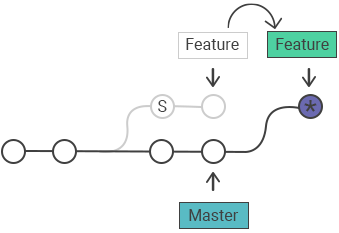
This is exactly why the golden rule matters: new hashes mean a diverged history for anyone who had the old ones.