git checkout
On this page, you can find useful information about the git checkout command, its usage, the correlation between git checkout and git branch. See examples.
What git checkout does
git checkout is one of Git's most versatile commands. It does two distinct jobs:
- Switch branches — move
HEADto point at another branch and update the files in your working directory to match that branch's last commit. - Restore files — overwrite files in your working directory (or the staging area) with a version from a commit, branch, or the index.
HEAD is Git's pointer to "where you are now" — normally the tip of the branch you have checked out. When you run git checkout, Git moves HEAD and rewrites your tracked files so that the working tree reflects the target.
Because the command is overloaded, modern Git (2.23+) split its two roles into two clearer commands: git switch for moving between branches and git restore for discarding changes to files. git checkout still works exactly as before and is shown throughout this page, with the modern equivalents noted where useful.
This page covers checking out existing and new branches, working with remote branches, restoring files, and the "detached HEAD" state.
Checking out an existing branch
If a repository already contains several branches, git checkout <branch> switches to one of them. Run git branch first to list the available branches; the current branch is marked with an asterisk:
Listing branches and switching to one
$ git branch
* master
  test_branch
  feature_branch

$ git checkout feature_branch
Switched to branch 'feature_branch'After the switch, your working directory matches the last commit on feature_branch, and any new commits you create are recorded there. The modern equivalent is git switch feature_branch.
Git refuses to switch if you have uncommitted changes that would be overwritten by the target branch. In that case, commit them, stash them, or discard them first.
Creating and checking out a new branch
To create a branch and switch to it in one step, use the -b flag:
git checkout -b
git checkout -b new_branchThe -b flag tells Git to run git branch new_branch (create the branch from the current HEAD) and then immediately git checkout new_branch. It is equivalent to:
git branch new_branch
git checkout new_branchBy default the new branch starts from your current HEAD. To base it on a different branch or commit instead, name a starting point:
git checkout -b from a specific starting point
git checkout -b new_branch existing_branchHere new_branch is created at the tip of existing_branch rather than at the current HEAD. The modern equivalent is git switch -c new_branch existing_branch.
Switching branches and HEAD
Running git checkout <branch> points HEAD at the tip of that branch:
git checkout mainIf you switch by mistake or lose track of where HEAD has been, the git reflog command lists every position HEAD has held, so you can return to a previous state.
Checking out a remote branch
When you work with a team, the remote repository holds branches that other people pushed. To see and check them out, first download the latest remote data with git fetch:
git fetch --allModern Git can then check out a remote branch by its short name. Git automatically creates a local branch that tracks the matching remote branch:
git checkout feature_branchThis works only when exactly one remote has a branch by that name. If the name is ambiguous, or you want to be explicit, create a local tracking branch from the remote-tracking ref:
Creating a local branch from a remote one
git checkout -b feature_branch origin/feature_branchThe -b flag is required here — the new local branch feature_branch is created at, and set to track, origin/feature_branch. To force an existing local branch to exactly match the remote tip, use git reset:
git reset --hard origin/feature_branchgit reset --hard discards local commits and uncommitted changes on that branch, so use it only when you intend to throw away local work.
Restoring files with git checkout
Besides switching branches, git checkout can replace files in your working tree with a version from the index or another commit.
Discard uncommitted changes in a single file and restore the version from the last commit:
Discard changes in one file
git checkout -- file.txtThe -- separates the command's options from the file path, which avoids ambiguity when a file and a branch share the same name. The modern equivalent is git restore file.txt.
Restore a file as it existed in a specific commit or branch, without switching branches:
Restore a file from another commit
git checkout <commit> -- file.txtThis updates file.txt in your working directory and staging area to its content in <commit>, while HEAD stays on your current branch. See git restore for the clearer modern syntax.
Detached HEAD state
Checking out a specific commit (rather than a branch) puts you in a detached HEAD state:
git checkout a1b2c3dNormally HEAD points to a branch, which in turn points to a commit. When you check out a commit directly, HEAD points straight at that commit with no branch attached — that is what "detached" means. It is useful for examining or testing an old state of the project.
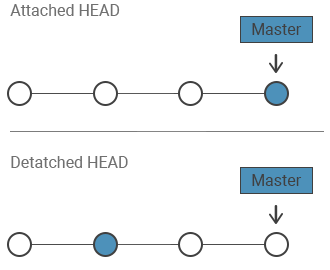
The risk is that any commits you make in this state are not on a branch. As soon as you check out another branch, those commits have no reference pointing to them and become hard to find (Git will eventually garbage-collect them). If you decide to keep work made in a detached HEAD, give it a branch before leaving:
git switch -c new_branchSo: examining an old commit in a detached HEAD is perfectly safe, but do any new development on a real branch so your commits stay reachable. The git reflog can still help you recover commits if you forget.