How to Add Space Between Rows in the Table
How to Create Space Between Rows in the Table-Learn to create space between two rows in the table in a super-easy way. Try examples yourself.
Today’s task is to create space between two rows in a table. The space between two rows in a <table> can be added by using the CSS border-spacing and border-collapse properties. The <span class="property">border-spacing</span> property is used to set the spaces between cells of a <span class="property">table</span>, and the <span class="property">border-collapse</span> property specifies whether the border of the <span class="property">table</span> is collapsed or not. The <span class="property">border-spacing</span> property can be used only when the <span class="property">border-collapse</span> property is set to "separate".
Let’s see an example and show how to do that step by step.
Create HTML
- Place the
<div>tag in the<body>section. - Place the
<h2>and<h3>tags and write some content in them. - Place the
<span class="property"> XFI6 </span>tag and create your table. - Use the
<tr>tag for each row. - For the first row, use the
<th>tag which defines a header cell in an HTML table. - For the other rows, use the
<td>tag which defines a standard data cell in an HTML table. For the first cell in each data row, add atdclass.
how to create a table using HTML <table>, <tr>, <th> and <td> elements
<body>
  <div>
    <h2>W3docs</h2>
    <h3>Row spacing in a table</h3>
    <table>
      <tr>
        <th>Employee ID</th>
        <th>Name</th>
        <th>Gender</th>
        <th>Age</th>
      </tr>
      <tr>
        <td class="td">10001</td>
        <td>Tom</td>
        <td>M</td>
        <td>30</td>
      </tr>
      <tr>
        <td class="td">10002</td>
        <td>Sally</td>
        <td>F</td>
        <td>28</td>
      </tr>
      <tr>
        <td class="td">10003</td>
        <td>Emma</td>
        <td>F</td>
        <td>24</td>
      </tr>
    </table>
  </div>
</body>Add CSS
- Use the
<span class="property">border-collapse</span>property with its "separate" value for the table. - Use the
<span class="property">border-spacing</span>property to set the distance between the borders of neighbouring table cells. - For the first row, set the background color and the color of the text by using the background-color and color properties.
- Set the width and padding of the table cells.
- Use the text-align property with the "center" value which aligns the text to the center.
- You can create a border around the cells of the table by using the border property with a shorthand value.
- You can set the color of the
<h2>element of the document by using the<span class="property">color</span>property. Also, you can choose any color from our color picker.
How to style the table using border-collapse, border-spacing, background-color, color, width, text-align, border, padding, border-style properties?
table {
  border-collapse: separate;
  border-spacing: 0 15px;
}

th {
  background-color: #4287f5;
  color: white;
}

th,
td {
  width: 150px;
  text-align: center;
  border: 1px solid black;
  padding: 5px;
}

h2 {
  color: #4287f5;
}Here is the result of our code.
Example of adding space between horizontal rows:
An example of how to create space between rows in the table
<!DOCTYPE html>
<html>
  <head>
    <title>Title of the document</title>
    <style>
      table {
        border-collapse: separate;
        border-spacing: 0 15px;
      }
      th {
        background-color: #4287f5;
        color: white;
      }
      th,
      td {
        width: 150px;
        text-align: center;
        border: 1px solid black;
        padding: 5px;
      }
      h2 {
        color: #4287f5;
      }
    </style>
  </head>
  <body>
    <div>
      <h2>W3docs</h2>
      <h3>Row spacing in a table</h3>
      <table>
        <tr>
          <th>Employee ID</th>
          <th>Name</th>
          <th>Gender</th>
          <th>Age</th>
        </tr>
        <tr>
          <td class="td">10001</td>
          <td>Tom</td>
          <td>M</td>
          <td>30</td>
        </tr>
        <tr>
          <td class="td">10002</td>
          <td>Sally</td>
          <td>F</td>
          <td>28</td>
        </tr>
        <tr>
          <td class="td">10003</td>
          <td>Emma</td>
          <td>F</td>
          <td>24</td>
        </tr>
      </table>
    </div>
  </body>
</html>Result
<div class="demo px-2.5 mt-1 mb-5"> Row spacing in a table | Employee ID | Name | Gender | Age |
|---|---|---|---|
| 10001 | Tom | M | 30 |
| 10002 | Sally | F | 28 |
| 10003 | Emma | F | 24 |
</div> ### Example of adding space between vertical columns:
An example of how to create space between rows in the table using CSS border-collapse and border-spacing properties
<!DOCTYPE html>
<html>
  <head>
    <title>Title of the document</title>
    <style>
      table {
        border-collapse: separate;
        border-spacing: 20px 0;
      }
      th {
        background-color: #4287f5;
        color: white;
      }
      th,
      td {
        width: 150px;
        text-align: center;
        border: 1px solid black;
        padding: 5px;
      }
      h2 {
        color: #4287f5;
      }
    </style>
  </head>
  <body>
    <div>
      <h2>W3docs</h2>
      <h3>Row spacing in a table</h3>
      <table>
        <tr>
          <th>Employee ID</th>
          <th>Name</th>
          <th>Gender</th>
          <th>Age</th>
        </tr>
        <tr>
          <td class="td">10001</td>
          <td>Tom</td>
          <td>M</td>
          <td>30</td>
        </tr>
        <tr>
          <td class="td">10002</td>
          <td>Sally</td>
          <td>F</td>
          <td>28</td>
        </tr>
        <tr>
          <td class="td">10003</td>
          <td>Emma</td>
          <td>F</td>
          <td>24</td>
        </tr>
      </table>
    </div>
  </body>
</html>In our first example, for the <span class="property">border-spacing</span> property, we use a "0 15px" value which means that space is between the rows. In the second example, we use a "20px 0" value which means that space is between the columns.
A problem?!
Let's give some background to our table to see what we're talking about, so:
How to Create Space Between Rows in the Table
table {
  border-collapse: separate;
  border-spacing: 20px 0;
  background: khaki; /* add this line */
}And here's the result:
<div class="demo px-2.5 mt-1 mb-5">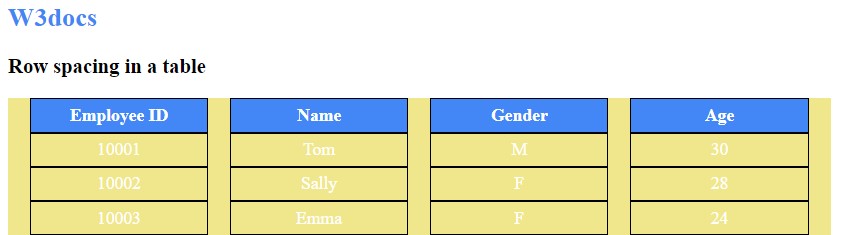
</div> What if we want inner borders to be removed between the columns in this example? Now we have it in outer space of Employee ID and Age columns.
Ok, let's fix this together!
To remove the outer spacing while keeping the inner spacing, we can apply a negative horizontal margin to the table element itself. This offsets the outer border-spacing without breaking table layout semantics.
How to Create Space Between Rows in the Table
table {
  background: khaki;
  border-collapse: separate;
  border-spacing: 20px 0;
  margin: 0 -20px; /* cancels the outer horizontal spacing */
}The result matches our goal. Now, it's time to remove the background color to finalize the table!
Hope you enjoyed it, have a good time!