How to Combine Multiple Git Commits into One
Don’t overload your git log with meaningless commits. Combine multiple commits into one with the help of our tutorial. See the explanation with codes.
An interactive rebase mode allows you to combine your commits into even a single commit. While working in Git, developers often make temporary commits that may not have appropriate commit messages. Before merging those commits to the master, it is necessary to combine them into a single commit with a clear and comprehensive commit message. This is essential for maintaining a clear commit history.
Steps to merging multiple commits
Let's see how you can change your dirty history and make it clean by taking some easy steps. The history will have a messy look like this:
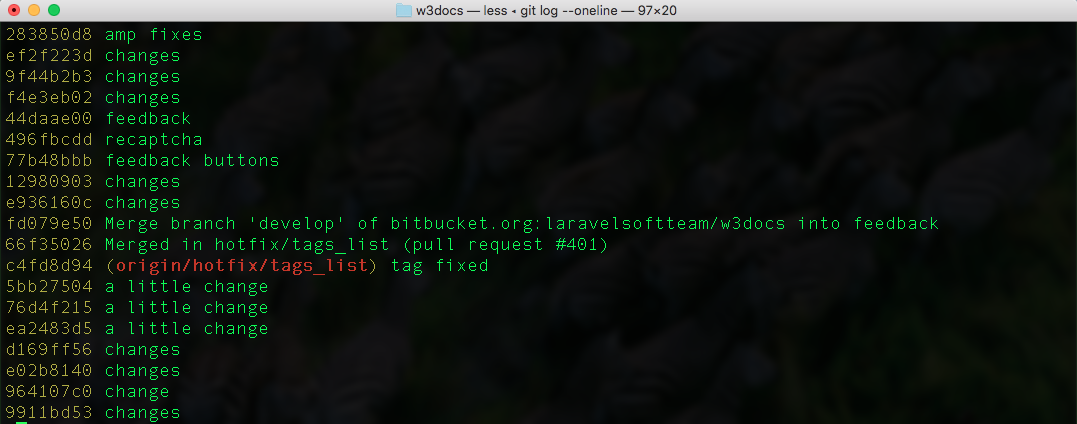
This kind of history full of meaningless commits makes it difficult for your team to see your finished product. A quick solution is combining multiple commits into one. To do so, you should follow the steps below.
Running git rebase in interactive mode
Suppose that you want to merge the last 3 commits into a single commit. To do that, you should run git rebase in interactive mode (<kbd class="highlighted">-i</kbd>) providing the last commit to set the ones that come after it. Here, <kbd class="highlighted">HEAD</kbd> is the alias of the very last commit.
How to run git rebase in interactive mode
git rebase -i HEAD~3Note that <kbd class="highlighted">HEAD~3</kbd> means three commits prior to the <kbd class="highlighted">HEAD</kbd>. You can select the appropriate commit by its hash.
To safely exit an interactive rebase session without making changes, run git rebase --abort.
If you have merge commits in your commits, it requires different actions. Use the --rebase-merges flag to preserve merge commit structure: git rebase -i --rebase-merges HEAD~3.
Typing "squash"
After the first step, the editor window will show up prompting you to input the command for each commit. All you need to do is replace <kbd class="highlighted">pick</kbd> with <kbd class="highlighted">squash</kbd>, starting from the second line. Then, save the file.
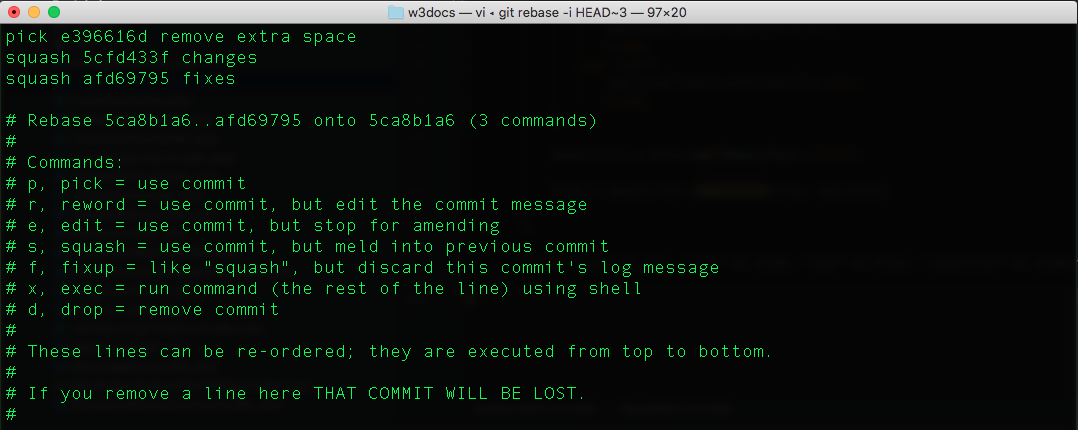
Choosing between commit messages
One more editor window will show up to change the resulting commit message. Here, you can find all your commit messages and change them according to your exact needs.
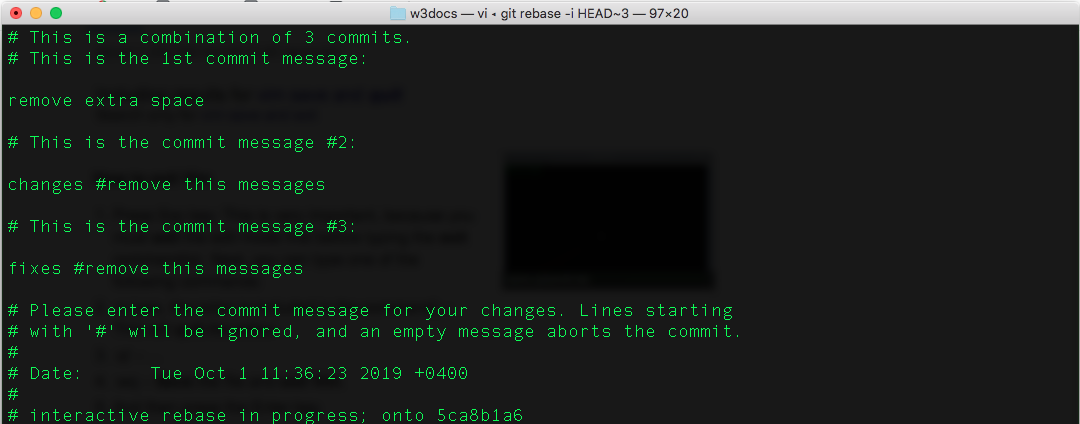
Pushing changes
You should run git push to add a new commit to the remote origin. If you have already pushed your commits, then you should force push them using the <kbd class="highlighted">git push</kbd> command with <kbd class="highlighted">--force</kbd> flag (suppose, the name of remote is origin, which is by default):
git push origin
git push --force origin HEAD--force overwrites the remote branch on the basis of your local branch. It destroys all the pushed changes made by other developers. It refers to the changes that you don't have in your local branch.
Here is an alternative and safer way to push combined commits:
How to Combine Multiple Git Commits into One
git push --force-with-lease origin HEAD--force-with-lease is considered a safer option that will not overwrite the work done on the remote branch in case more commits were attached to it (for instance, by another developer). Moreover, it helps you to avoid overwriting another developer's work by force pushing.
Squashing
When you work on some new feature you make several intermediate commits in the history. It is more convenient to have all of the commits combined into one.
There is no git squash command in Git. Squashing a pull request means combining all the commits in that request into one to make it easier to read and clean the history of the main branch. To achieve that you should use interactive mode of the git rebase command described above.
The squashing process is dangerous if your branch has already been published to the remote repository. Thus, it is best to squash on the local branch before pushing. If you have already pushed it, then, when creating a pull request you should force the changes on the remote branch after the squashing operation as the histories of local and remote branches are different.