Javascript and the DOM
Learn how to access, update, and manipulate the Document Object Model (DOM) with JavaScript: select elements, change content and styles, and handle events.
We have a separate full section about the JavaScript DOM. You can explore it for detailed examples and explanations.
Introduction to JavaScript and the DOM
JavaScript is the scripting language that brings web pages to life. The Document Object Model (DOM) is the bridge that lets it do so: when a browser loads an HTML document, it parses the markup into a live, in-memory object tree. JavaScript reads and writes that tree, and the browser instantly repaints the page to match. This is how a static document becomes interactive — buttons respond, content updates, and styles change without reloading.
This page covers the essentials: how the DOM is structured, how to select elements, how to change their content and styles, and how to respond to user events. Each topic links to a deeper chapter when you want more detail.
Understanding the DOM
The DOM is a structured, tree-like representation of your HTML document. Every tag, attribute, and piece of text becomes a node — an object JavaScript can read and modify. Because the tree is live, changing a node immediately changes what the user sees.
It helps to distinguish three terms that are easy to confuse:
- DOM — the object model the browser builds from your HTML. It is not the HTML source; it is the browser's parsed, normalized version of it.
document— the global object that is the entry point to the DOM tree. Every selection starts here (or from another element).- Node — a single point in the tree. Elements (
<div>,<p>), text, and comments are all nodes; element nodes are the ones you usually work with.
For a fuller treatment of node types and the tree shape, see Understanding the DOM nodes and Traversing the DOM.
Navigating the DOM Tree
JavaScript provides several methods to find elements in the tree so you can act on them.
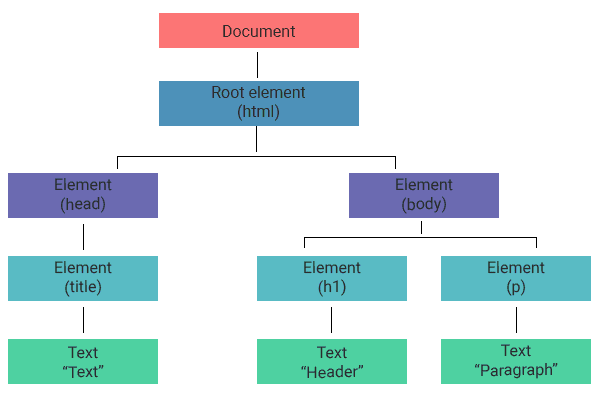
The tree below has a document root, an <html> element with <head> and <body> children, and text nodes inside the headings and paragraphs:
<!DOCTYPE html>
<html>
  <head>
    <title>Text</title>
  </head>
  <body>
    <h1>Header</h1>
    <p>Paragraph</p>
  </body>
</html>Core selection methods
document.getElementById()— returns the single element with thatid, ornullif none exists.document.getElementsByClassName()— returns a liveHTMLCollectionof elements with the class.document.getElementsByTagName()— returns a liveHTMLCollectionof elements with the tag.document.querySelector()— returns the first element matching any CSS selector, ornull.document.querySelectorAll()— returns a staticNodeListof all matching elements.
Which one should you use? In modern code, querySelector and querySelectorAll cover almost every case because they accept the full CSS-selector syntax (#id, .class, div > p, [type="text"]). Reach for getElementById only when you want the fastest possible lookup by a known id.
Two distinctions matter in practice:
- Live vs. static. A live
HTMLCollection(fromgetElementsBy*) updates automatically as the DOM changes; a staticNodeList(fromquerySelectorAll) is a snapshot taken at call time. - Iteration. A
NodeListsupportsforEachdirectly; anHTMLCollectiondoes not, so convert it first withArray.from(collection).
For more, see Selecting DOM elements.
Manipulating DOM Elements
Once you have a reference to an element, you can change its content, attributes, and appearance — and the page updates instantly.
Common operations
- Changing Content: Use
element.innerHTMLorelement.textContent. - Modifying Styles: Access the
element.styleproperty. - Creating Elements: Use
document.createElement(). - Adding Elements: Use
parentElement.appendChild(newElement). - Removing Elements: Use
parentElement.removeChild(existingElement).
innerHTML parses its string as HTML, so inserting untrusted input opens an XSS hole. Use textContent whenever you are inserting plain text — it is both safer and faster.
See DOM manipulation and Working with styles in the DOM for deeper coverage.
Event Handling in JavaScript
An event is something that happens in the page — a click, a keypress, a form submission, the page finishing loading. JavaScript can register a listener that runs a function whenever a given event fires on a given element.
Event listener syntax
element.addEventListener('event', functionToCall);The first argument is the event name (without an on prefix — it is 'click', not 'onclick'). The second is the handler, the function the browser calls when the event occurs.
Key events
- Click Events: Triggered by user clicks.
- Load Events: Fired when resources are loaded.
- Input Events: Occur when users interact with input fields.
Event handling example
<!DOCTYPE html>
<html>
<head>
    <title>Event Handling</title>
</head>
<body>
    <button id="clickMe">Click Me</button>
    <script>
        document.getElementById('clickMe').addEventListener('click', function() {
            alert('Button Clicked!');
        });
    </script>
</body>
</html>For a broader look at the event model — bubbling, the event object, and removing listeners — read Introduction to browser events and Event handling in the DOM.
Advanced DOM Manipulations
Beyond basic edits, JavaScript supports more complex operations like cloning nodes, handling forms, and toggling CSS classes.
Techniques
- Cloning nodes —
element.cloneNode(true)copies an element and its descendants (falsecopies only the element itself). - Form handling — read
input.value, react tosubmit, and validate before sending. - Manipulating CSS classes —
element.classList.add(),.remove(), and.toggle()are cleaner than overwritingclassName.
The classList API is the idiomatic way to switch styles on and off. This runnable snippet shows the logic that toggle follows:
// classList.toggle removes a class if present, adds it if absent.
// Here we model that behaviour with a plain Set to show the result.
const classes = new Set(['box']);

function toggle(name) {
  if (classes.has(name)) {
    classes.delete(name);
  } else {
    classes.add(name);
  }
  return classes.has(name);
}

console.log(toggle('active')); // true  (added)
console.log(toggle('active')); // false (removed)
console.log([...classes]); // [ 'box' ]JavaScript and DOM: Best Practices
To use the DOM efficiently, keep these in mind:
- Minimize DOM access. Reading and writing the DOM is far slower than working with JavaScript values. Cache references and batch your changes instead of touching the DOM in a tight loop.
- Use event delegation. Instead of one listener per child, attach a single listener to the parent and inspect
event.target. This handles dynamically added children for free and uses less memory. - Understand reflow and repaint. A reflow recalculates layout; a repaint redraws pixels. Both are expensive, so group style writes and prefer
DocumentFragmentfor bulk insertions. See DOM performance optimization.
Event delegation example
Rather than binding a handler to every <li>, bind one to the list and read which item was clicked:
document.getElementById('list').addEventListener('click', function (event) {
  // event.target is the actual element the user clicked.
  if (event.target.tagName === 'LI') {
    console.log('You clicked:', event.target.textContent);
  }
});JavaScript and DOM: Code Examples
Changing content
<!DOCTYPE html>
<html>
<head>
    <title>Sample Page</title>
</head>
<body>
    <div id="content">Original Content</div>
    <script>
        document.getElementById('content').innerHTML = 'Updated Content';
    </script>
</body>
</html>Adding new elements
<!DOCTYPE html>
<html>
<head>
    <title>Add Elements</title>
</head>
<body>
    <div id="container"></div>
    <script>
        var newElement = document.createElement('p');
        newElement.textContent = 'New Paragraph';
        document.getElementById('container').appendChild(newElement);
    </script>
</body>
</html>Remember, mastering JavaScript and the DOM is a continuous learning journey. Keep experimenting, building, and refining your skills to become a proficient JavaScript developer.