JavaScript Storage API
In modern web development, managing data efficiently is crucial. JavaScript's Storage API provides powerful mechanisms for storing data directly in the browser,
Introduction to the Storage API
In modern web development, managing data efficiently is crucial. JavaScript's Web Storage API provides a simple, synchronous way to store key/value pairs directly in the browser — no server round-trip required. It is the most common tool for remembering user preferences, caching small bits of data, and keeping UI state across page reloads.
This guide covers the two storage objects the API exposes — localStorage and sessionStorage — along with the full method set, how to store objects, how to react to changes across tabs, and the gotchas that trip people up. Both objects share the same interface (the Storage interface); the only difference is how long the data lives and how widely it is shared.
localStorage | sessionStorage | Cookies | |
|---|---|---|---|
| Lifespan | Until explicitly cleared | Until the tab is closed | Set by expires/max-age |
| Shared across tabs | Yes (same origin) | No (per-tab) | Yes (same origin) |
| Sent to the server | No | No | Yes, on every request |
| Capacity | ~5 MB | ~5 MB | ~4 KB |
Because Web Storage is never sent to the server, it is a poor fit for authentication tokens that the backend needs — that is what cookies are for.
The Storage Interface
Every value in Web Storage is a string. Both localStorage and sessionStorage expose the same five methods plus a length property:
| Member | Purpose |
|---|---|
setItem(key, value) | Add or update a key |
getItem(key) | Read a key (returns null if missing) |
removeItem(key) | Delete a single key |
clear() | Delete every key for this origin |
key(index) | Get the key name at a numeric index |
length | Number of stored keys |
The examples below use localStorage, but every method works identically on sessionStorage.
Understanding localStorage
localStorage stores data with no expiration date. The data persists even after the browser window is closed and reopened, making it ideal for long-lived data such as user preferences, a theme choice, or a draft form.
Storing Data in localStorage
To store data, use the setItem method with a key and a value:
// Storing data in localStorage
localStorage.setItem('username', 'JohnDoe');Both arguments are coerced to strings. Writing setItem('count', 5) actually stores the string "5", so remember to convert back when you read it.
Retrieving Data from localStorage
Use getItem to read a value back. If the key does not exist, you get null (not undefined):
// Retrieving data from localStorage
const username = localStorage.getItem('username');
console.log(username);                 // "JohnDoe"
console.log(localStorage.getItem('missing')); // nullRemoving Data from localStorage
Delete a single key with removeItem, or wipe everything for the origin with clear:
// Remove one key
localStorage.removeItem('username');

// Remove every key for this origin
localStorage.clear();clear() only affects the current origin (scheme + host + port); it never touches another site's data.
Storing Objects: JSON.stringify and JSON.parse
Because storage values must be strings, you cannot store an object directly — setItem('user', {name: 'Ann'}) would store the useless string "[object Object]". Serialize with JSON.stringify on the way in and JSON.parse on the way out:
const user = { name: 'Ann', theme: 'dark', visits: 3 };

// Save: serialize the object to a JSON string
localStorage.setItem('user', JSON.stringify(user));

// Load: parse the string back into an object
const restored = JSON.parse(localStorage.getItem('user'));
console.log(restored.theme); // "dark"
console.log(restored.visits + 1); // 4See Working with JSON for more on serialization, and JavaScript Objects for the object basics.
Iterating Over Stored Keys
Use length together with key(index) to loop over everything stored for the origin:
localStorage.setItem('a', '1');
localStorage.setItem('b', '2');

for (let i = 0; i < localStorage.length; i++) {
  const name = localStorage.key(i);
  console.log(`${name} = ${localStorage.getItem(name)}`);
}
// a = 1
// b = 2Leveraging sessionStorage
sessionStorage shares the identical API but has a shorter, per-tab lifespan. Data is cleared when the page session ends — that is, when the tab is closed. Opening the same site in a second tab creates a separate sessionStorage, so the two tabs never see each other's data. This makes it perfect for data that should not leak between tabs, such as a multi-step wizard's progress.
// Store, read, and remove — same methods as localStorage
sessionStorage.setItem('sessionName', 'Session1');
console.log(sessionStorage.getItem('sessionName')); // "Session1"
sessionStorage.removeItem('sessionName');Reacting to Changes Across Tabs
When localStorage changes in one tab, the browser fires a storage event in every other tab of the same origin (but not in the tab that made the change). This lets you keep multiple tabs in sync — for example, logging the user out everywhere at once:
window.addEventListener('storage', (event) => {
  // event.key, event.oldValue, event.newValue, event.url
  if (event.key === 'theme') {
    console.log('Theme changed in another tab to', event.newValue);
  }
});Note: the storage event fires only for localStorage (shared across tabs), not sessionStorage.
Handling Errors and Limits
Writes can throw a QuotaExceededError when you exceed the ~5 MB limit, and storage may be unavailable entirely in private-browsing modes or when cookies are disabled. Wrap writes in try...catch and feature-detect before relying on the API:
function safeSet(key, value) {
  try {
    localStorage.setItem(key, value);
    return true;
  } catch (err) {
    // QuotaExceededError, or storage blocked by the browser
    console.warn('Storage write failed:', err.name);
    return false;
  }
}

console.log(safeSet('theme', 'dark')); // true (when storage is available)Best Practices for Using Web Storage
- Security: Always consider the security implications of storing sensitive data in the browser. Avoid storing confidential information such as passwords or personal identification details.
- Storage Limits: Be mindful of the storage limitations (usually about 5MB) and handle cases where the storage might be full.
- Cross-Browser Compatibility: Ensure your code handles scenarios where a browser may not support the storage APIs.
- String-Only Storage: Web Storage only accepts strings. Use
JSON.stringify()to save objects andJSON.parse()to retrieve them. - Cross-Tab Sync: Use the
StorageEventto listen for changes made in other tabs and keep data synchronized.
A Full Example to Grasp it All
This demo showcases how to use the Web Storage API, including both localStorage and sessionStorage. You have buttons to store, retrieve, and remove data from storage:
<!DOCTYPE html>
<html lang="en">
  <head>
    <meta charset="UTF-8" />
    <title>Storage API Interactive Demo</title>
  </head>
  <body>
    <h2>localStorage and sessionStorage Demo</h2>
    <div style="display: flex; gap: 10px">
      <button onclick="storeInLocal()">Store in localStorage</button>
      <button onclick="retrieveFromLocal()">Retrieve from localStorage</button>
      <button onclick="removeFromLocal()">Remove from localStorage</button>
    </div>

    <div style="margin: 20px 0" id="localStorageResult"></div>

    <div style="display: flex; gap: 10px; margin-top: 10px">
      <button onclick="storeInSession()">Store in sessionStorage</button>
      <button onclick="retrieveFromSession()">
        Retrieve from sessionStorage
      </button>
      <button onclick="removeFromSession()">Remove from sessionStorage</button>
    </div>

    <div style="margin-top: 20px" id="sessionStorageResult"></div>

    <script>
      function storeInLocal() {
        localStorage.setItem("demo", "Hi from LocalStorage!");
        document.getElementById("localStorageResult").textContent =
          "Stored in localStorage: " + localStorage.getItem("demo");
      }

      function retrieveFromLocal() {
        const value = localStorage.getItem("demo") || "Nothing in localStorage";
        document.getElementById("localStorageResult").textContent =
          "Retrieved from localStorage: " + value;
      }

      function removeFromLocal() {
        localStorage.removeItem("demo");
        document.getElementById("localStorageResult").textContent =
          "Item removed from localStorage.";
      }

      function storeInSession() {
        sessionStorage.setItem("demo", "Hi from SessionStorage!");
        document.getElementById("sessionStorageResult").textContent =
          "Stored in sessionStorage: " + sessionStorage.getItem("demo");
      }

      function retrieveFromSession() {
        const value =
          sessionStorage.getItem("demo") || "Nothing in sessionStorage";
        document.getElementById("sessionStorageResult").textContent =
          "Retrieved from sessionStorage: " + value;
      }

      function removeFromSession() {
        sessionStorage.removeItem("demo");
        document.getElementById("sessionStorageResult").textContent =
          "Item removed from sessionStorage.";
      }
    </script>
  </body>
</html>- LocalStorage: Data stored here remains even after the browser is closed and reopened, making it perfect for saving user preferences or other long-term data.
- SessionStorage: This is similar to localStorage but the data is cleared when the session ends (like when the browser is closed).
By clicking on the various buttons, you can see how data is added to, retrieved from, and removed from each type of storage. The results are displayed directly below each button, giving you immediate feedback on what is happening with the data in storage. This interactive setup helps you visualize and understand how web applications can remember data between page reloads or browser sessions.
In addition to interacting with the storage operations through the buttons in this demo, you can also view and manage the stored data directly in your web browser. Open your browser's developer tools, navigate to the Application section, and then look under the Storage tab. Here, you can see localStorage and sessionStorage entries.
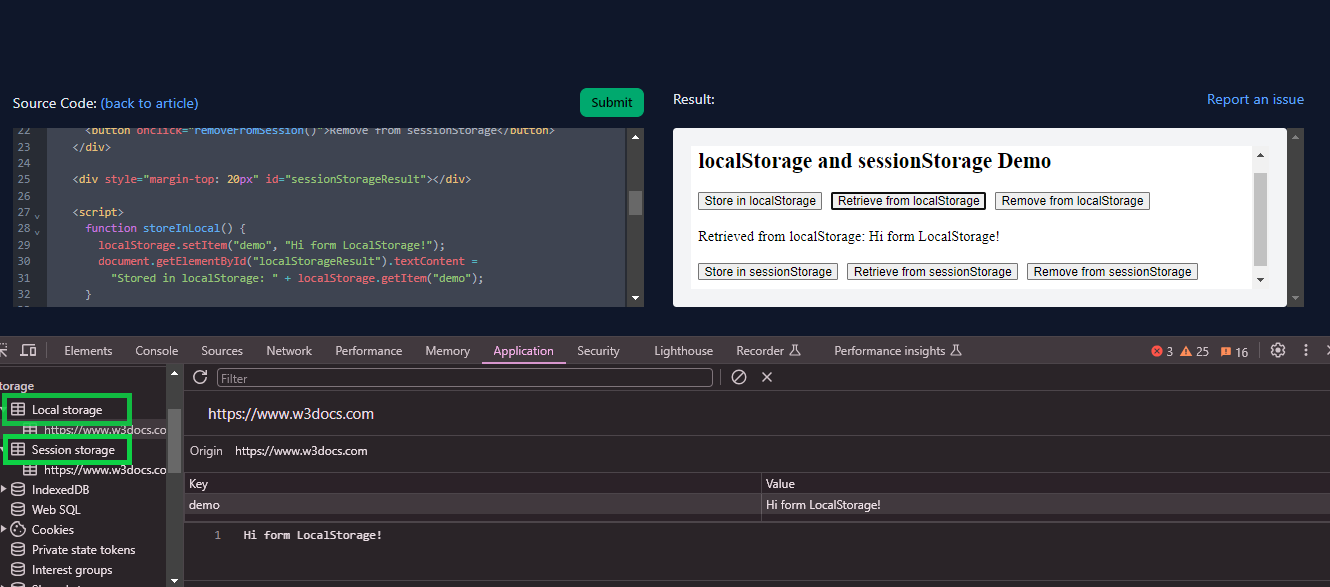
This visual tool allows you to see the effects of your actions (like storing and removing data) in real-time and provides a practical way to explore how web storage works in browsers.
Conclusion
The JavaScript Storage API provides a robust and easy-to-use method to manage data within the browser. By understanding and leveraging localStorage and sessionStorage, developers can significantly enhance the user experience of their web applications. Always consider security and storage limits to ensure your applications are robust and user-friendly. With these tools, you can create persistent states and data management features that are critical for modern web applications.